Overview
Why it matters: Total hours alone are not always enough: you may need to separate normal time from OT or home working for costing, compliance, or internal policy. Line-level work type and start/end timestamps make that distinction possible without maintaining a second log outside Odoo.
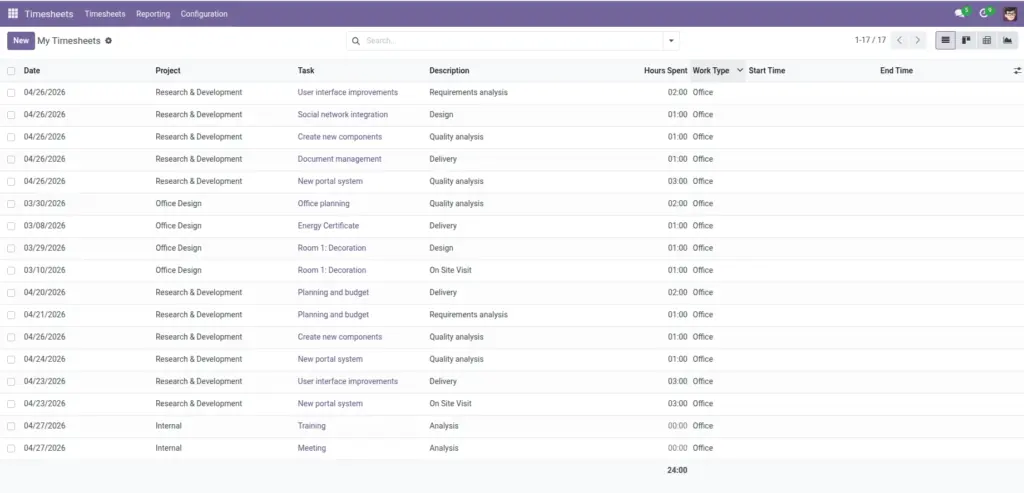
What this covers: Advance HR extends each timesheet line (account.analytic.line) with Work type (e.g. office, OT, WFH) and optional Start time and End time beside duration. Lists and reports can show these fields; payroll uses them when the hours count method is based on timesheets.
Task timers on project tasks may populate start/end automatically when enabled.
How it works
Users fill lines from the Timesheet app or from project tasks when the timer is used. Start/end capture actual intervals; duration still drives hours totals. Work type can be used to separate normal hours from OT or WFH for reporting.
Step-by-step
- Open a timesheet entry (grid or list).
- Set Work type per your company rules.
- Enter Start time and End time when required by policy or project.
- Confirm unit amount (hours) matches the worked period.
Fields Table
| Field Name | Description | Example |
|---|---|---|
Work Type |
Category of work for the line. |
Office / OT / WFH |
Start Time |
When work began (optional). |
09:00 |
End Time |
When work ended (optional). |
17:30 |
Duration / Unit Amount |
Hours credited on the line. |
8.0 |
Project / Task |
Where time is booked. |
Internal / Support |
Field labels explained
Work Type
Classifier for reporting and sometimes payroll (e.g. separating OT-eligible hours). Values depend on your configuration.
Start Time / End Time
Real clock bounds for the stint; should align with duration unless policy allows adjustment.
Duration / Unit Amount
Hours Odoo sums for the day and period—this is what most payroll rules consume first.
Project / Task
Analytic link for costing; does not change pay by itself unless your rules tie rates to projects.
Tips
- Align work-type values with overtime policies and payslip review.
- If the task timer is enabled, start/end may be filled automatically—see Project Tasks & Timesheet Finish.
Common mistakes
- Mismatched duration vs start/end window.
- Marking OT on the line without matching company definitions for OT in timesheets.