Overview
Why it matters: Free-text job titles or ad-hoc labels make reporting and payroll eligibility unreliable. Central lists for type (how someone is engaged) and status (whether they are active, on leave, exited, etc.) keep HR, payroll, and dashboards aligned on the same vocabulary.
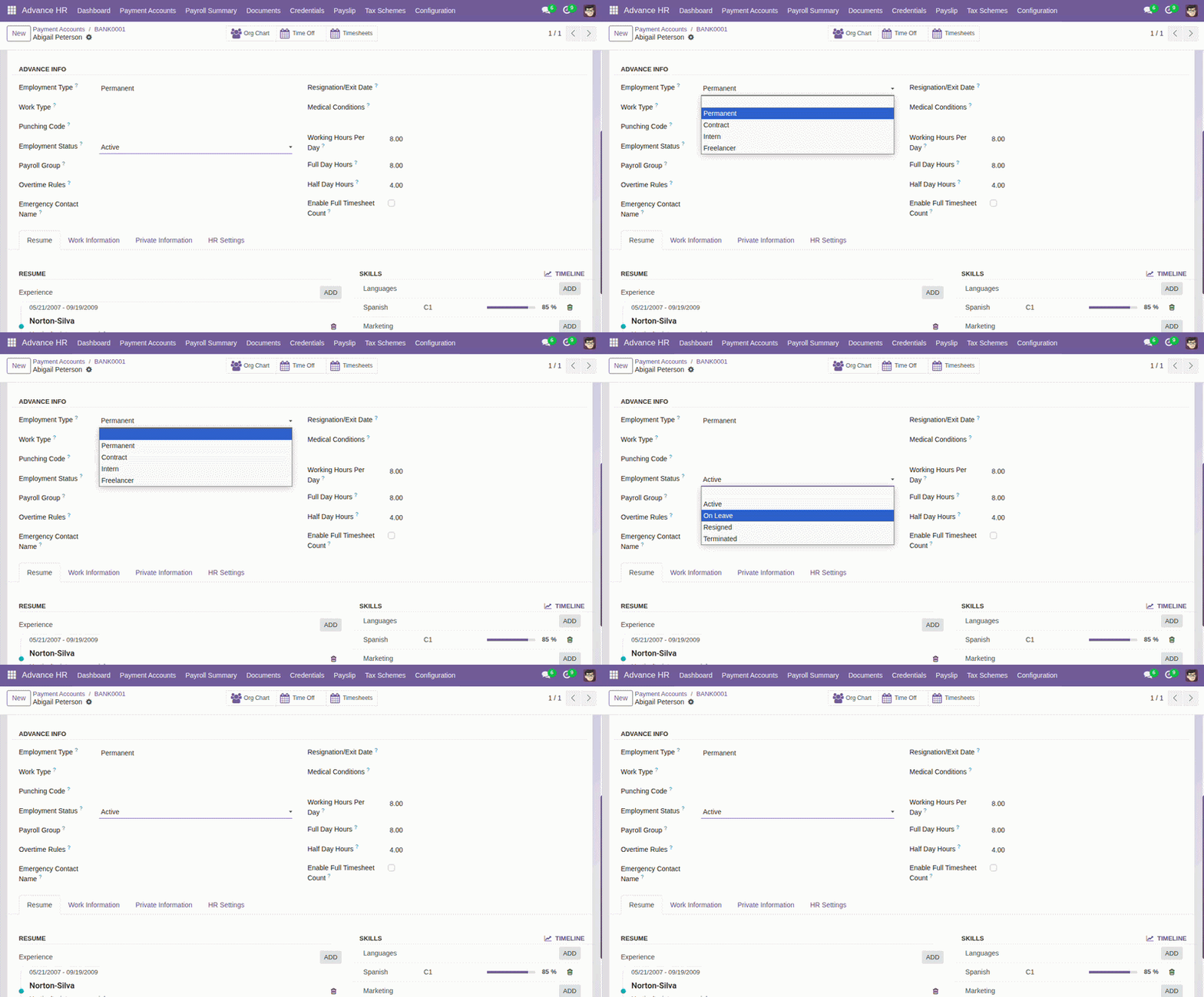
What this covers: Under Employees → Configuration, Advance HR exposes Employee Types and Employee Status as master lists. Values you define here appear on employee forms and drive filters—e.g. excluding leavers from payslip batches or segmenting contractors vs staff.
Keep the lists short and match your policy documents; update status promptly when someone joins or leaves.
How it works
Values created here appear on the employee form where Employment Type and Employment Status are selected. Keeping the list aligned with HR policy avoids free-text drift.
Step-by-step
- Open Employees app → Configuration.
- Open Employee Types or Employee Status.
- Add or edit entries your organization needs.
- On each employee, pick the correct type and status.
Fields Table
| List | Typical use | Example values |
|---|---|---|
Employee Type |
How the person is engaged. |
Permanent, Contract, Intern |
Employee Status |
Lifecycle state for HR and payroll eligibility. |
Active, On Leave, Resigned |
Field labels explained
Employee Type
Master list under Employees → Configuration → Employee Types. Distinguishes employment models so you can filter reports and map groups to different payroll or contract rules.
Employee Status
Master list under Employee Status. Signals whether the person should appear in active headcount, receive payslips, or be excluded after exit.
Using them on the employee form
Each employee has fields that reference these lists—keeping values aligned with HR policy avoids wrong inclusion in payroll batches.
Tips
- When someone exits, update status so they are excluded from future payslip batches.
- Match “contractor” style types to payroll groups if tax differs.