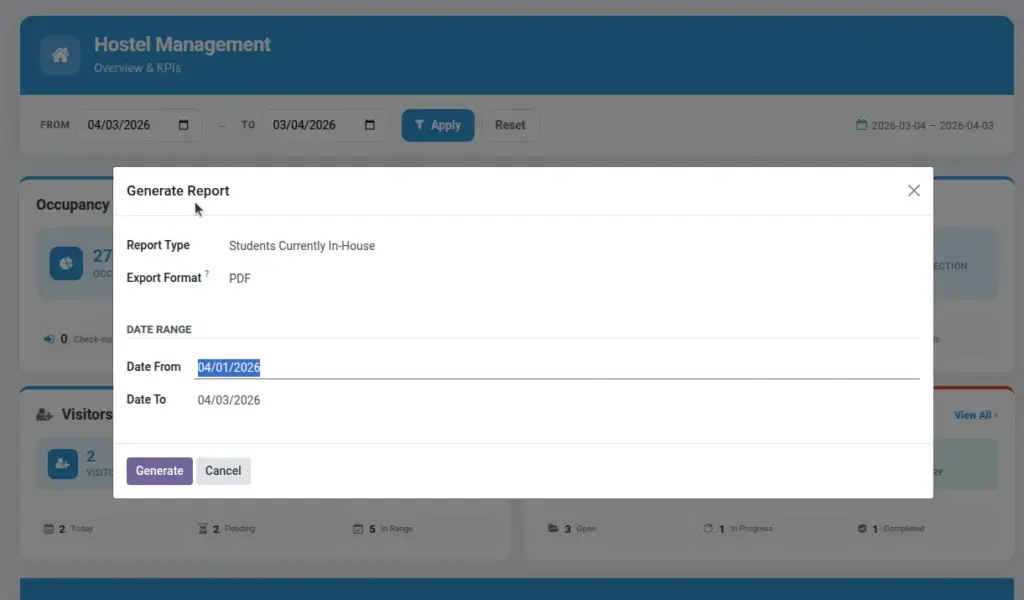
Generate operational summaries: in‑house students, damage charges, violation charges, and more.
Overview
The Reports area consolidates key operational summaries into ready‑to‑export files. Use it to answer common questions fast—who is currently in‑house, how much was charged for damages/violations, or occupancy trends—without manual data wrangling.
- Catalog: Students In‑House, Damage Charges, Violation Charges, and other operational summaries.
- Filters: Focus by date ranges, buildings, rooms, or categories as applicable.
- Formats: PDF for sharing/printing; Excel for analysis.
How It Works
- Pick report type and filters.
- Choose export format (PDF or Excel).
- Download or print.
Step‑by‑Step Guide
- Go to Control → Reports → Generate Report.
- Select the report and set date or building filters as needed.
- Click Generate and open the file.
Fields Table
| Field Name | Description | Example |
|---|---|---|
Report |
Which summary to run |
Students In‑House |
Filters |
Restrict data |
Building = North Wing |
Format |
Export type |
Field name explanation : Export format defaults can be set in Settings.
Fields explanation
- Report: The specific summary to generate (e.g., Students In‑House).
- Filters: Criteria such as date ranges or locations to narrow results.
- Format: PDF for sharing/printing; Excel for deeper analysis.
Tips
- Schedule reports by combining with external tools if needed.
Common Mistakes
- Using outdated filters and getting empty results — always clear filters between runs.
Image