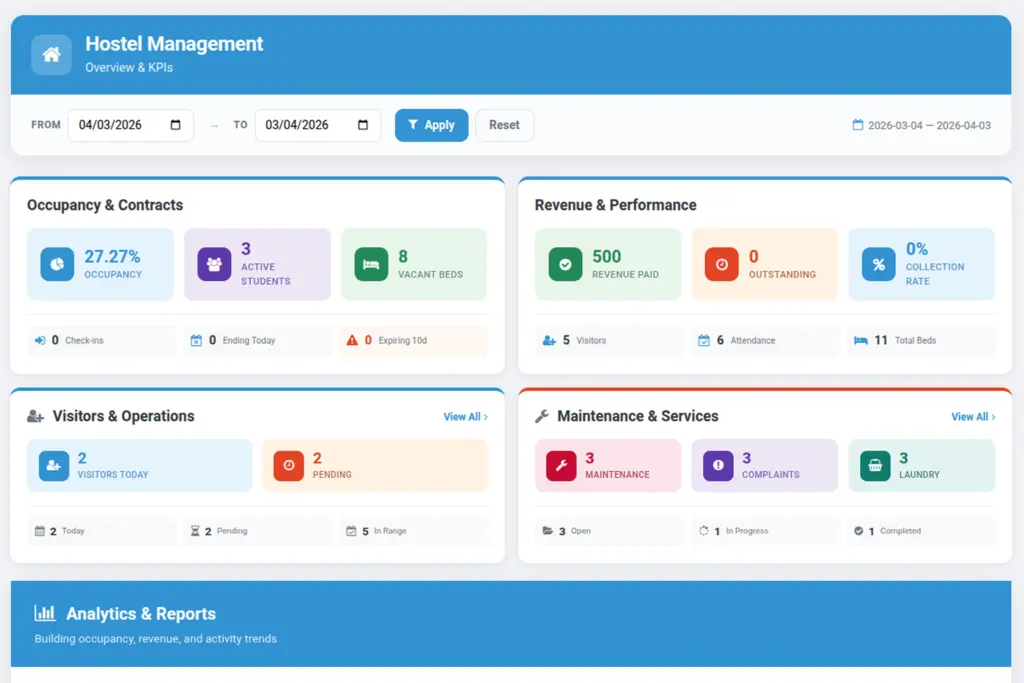
See today’s activity at a glance and jump straight into work.
Overview
The dashboard is your command center for day‑to‑day hostel operations. It surfaces live indicators such as check‑ins, contract expiries, active students, vacancies, visitors, open maintenance, attendance trends, revenue, complaints, laundry status, inspections, and active announcements—so you can spot issues early and act quickly.
- Who uses it: Hostel managers, wardens, and front‑desk teams for a real‑time pulse.
- What it shows: Actionable cards with counts and shortcuts to underlying lists.
- Why it matters: Prioritize tasks (e.g., pending check‑outs), prevent overbooking, and track revenue/dues.
- Filters: Adjust the date range to refocus charts and KPIs on the period you care about.
How It Works
- Numbers auto‑refresh based on your settings.
- Each card links to the relevant list (for example, “Open Maintenance”).
- Date filters adjust charts like revenue and attendance trends.
Step‑by‑Step Guide
- Open Dashboard from the left menu.
- Use the date range to focus on a period.
- Select a card like “Vacant Spaces” to allocate rooms faster.
Fields Table
| Field Name | Description | Example |
|---|---|---|
Active Students |
Number of students with active contracts today. |
128 |
Vacant Spaces |
Beds with no active contract. |
34 |
Revenue (Paid) |
Sum of paid rent invoices in the period. |
₹ 4,25,000 |
Fields explanation
- Active Students: Count of contracts active today.
- Vacant Spaces: Beds without active contracts.
- Revenue (Paid): Sum of paid rent invoices in the selected period.
- Other cards: Derived from their modules (e.g., Open Maintenance excludes Completed/Cancelled).
- Date range: Impacts charts and any period‑based KPIs.
Tips
- Use “Vacant Spaces” to quickly see beds ready for allocation.
- Enable expiry highlights to track upcoming contract endings.
Common Mistakes
- Ignoring overdue invoices: review “Revenue Outstanding.”
- Forgetting date filters: charts may look empty outside range.
Image