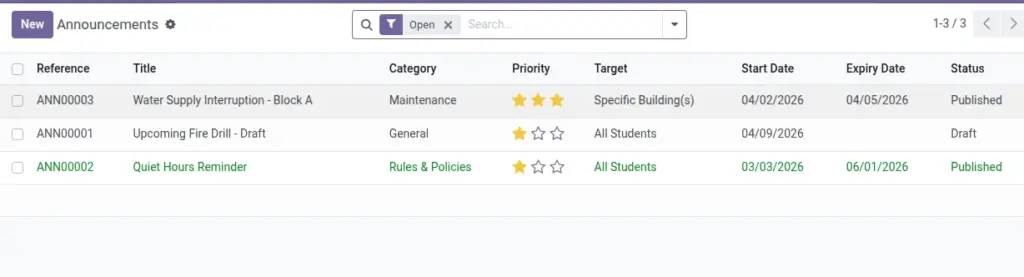
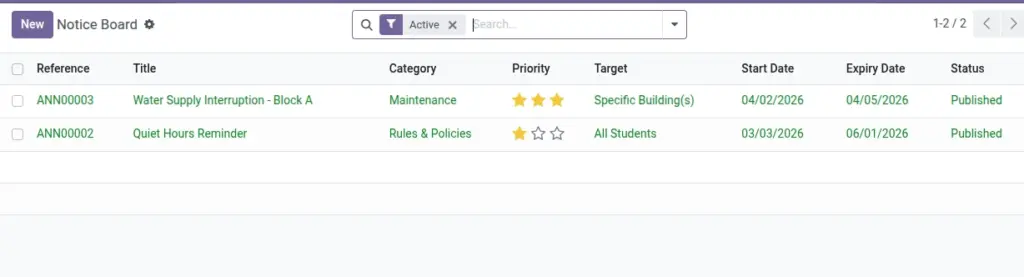
Publish important notices to all students or to specific buildings.
Overview
The Announcements module is the central notice board for broadcasting information to all residents or targeted buildings. It provides scheduling, prioritization, and optional email distribution so important messages reach the right audience at the right time.
- What you can publish: Safety notices, events, maintenance windows, rule updates, or urgent alerts.
- Targeting: Post to All Students or restrict to specific buildings to avoid noise.
- Timing: Control visibility with Start and Expiry dates; expired posts remain for audit/history.
- Organization: Use Categories and Priority to keep the board structured and highlight urgent items.
- Optional emails: When enabled, publishing can notify recipients by email in addition to in‑app visibility.
How It Works
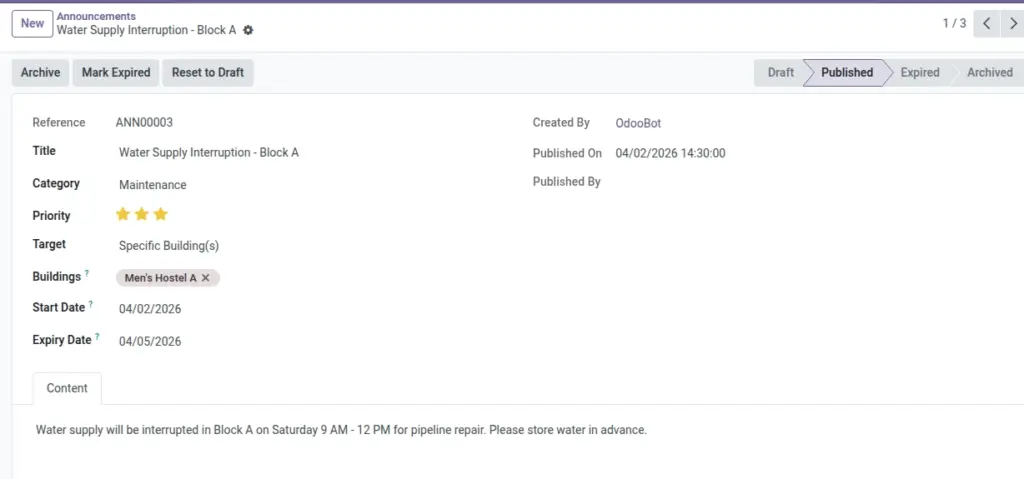
- Draft → Published → (Expired) → Archived.
- Targets: All Students or Specific Buildings.
- Email broadcast can be enabled in Settings.
Step‑by‑Step Guide
- Go to Communication → Announcements → New.
- Set Title, Category, Content, Priority, and Target.
- Choose Start/Expiry dates. Publish when ready.
Fields Table
| Field Name | Description | Example |
|---|---|---|
Title |
Headline |
Fire Drill on Friday |
Reference |
Auto number |
ANN/2026/0123 |
Category |
Grouping |
Safety |
Priority |
Low/Normal/High/Urgent |
Urgent |
Content |
HTML body |
Evacuation procedure… |
Target |
All or Buildings |
All Students |
Buildings |
When targeting buildings |
North Wing |
Start / Expiry |
Visibility window |
10‑Jun / 12‑Jun |
Status |
Draft/Published/Expired/Archived |
Published |
Field name explanation : “Email broadcast” posts a note and can send emails if configured.
Fields explanation
- Title: Short headline shown on the notice board and in emails.
- Reference: Auto sequence for tracking and audits.
- Category: Topic grouping (e.g., Safety/Events) for filtering and reporting.
- Priority: Visual emphasis and ordering on boards and digests.
- Content: HTML body; include concise, actionable information.
- Target: Audience scope — All Students or specific Buildings.
- Buildings: Only when Target = Buildings; limits visibility accordingly.
- Start / Expiry: Visibility window; after expiry, students no longer see it but records remain.
- Status: Draft (internal), Published (visible), Expired (past window), Archived (hidden, kept for history).
Tips
- Use categories like “Safety”, “Events”, “Maintenance”.
Common Mistakes
- Publishing with a future “Start Date” makes it invisible until that date.
Image