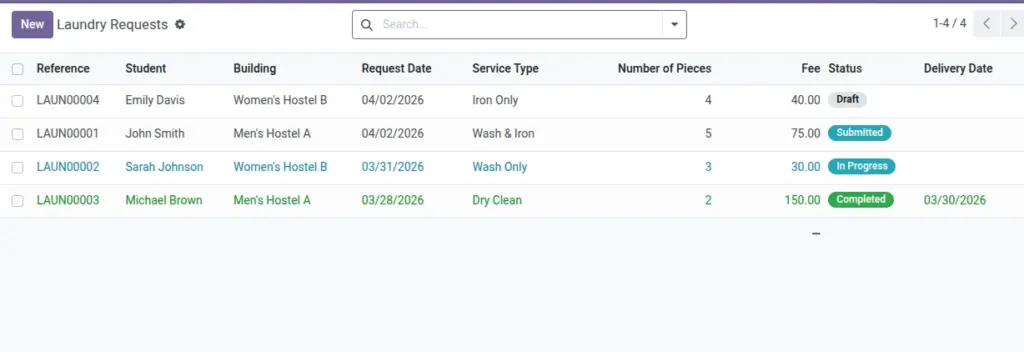
Track laundry requests, item counts, service types, and fees.
Overview
Laundry manages student requests for washing, ironing, and dry cleaning with itemized counts and configurable fees. It standardizes turnaround, enforces limits if needed, and keeps a transparent record for billing and service quality.
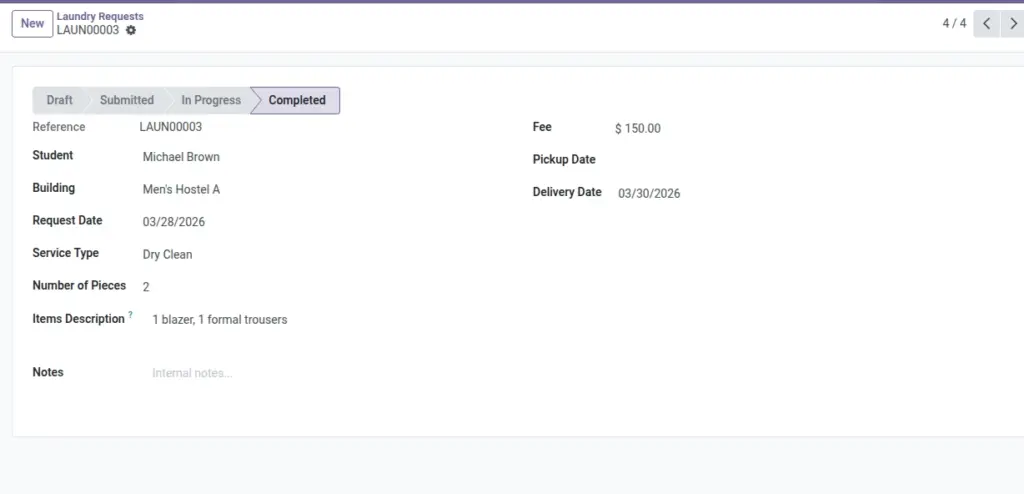
- Workflow: Draft → Submitted → In Progress → Completed with pickup/delivery dates.
- Pricing: Auto‑calculate fees per service × quantity; override when allowed.
- Controls: Optional item caps per period; warnings and blocks on exceedance.
How It Works
- Each request has a state: Draft → Submitted → In Progress → Completed.
- Fees can be set per item type and multiplied by quantity.
- Delivery date is set when completed if not already provided.
Step‑by‑Step Guide
- Go to Services → Laundry → New.
- Choose Student, Service Type (Wash/Iron/etc.), Quantity, and Building (optional).
- Submit and process the request. Mark as Completed when done.
Fields Table
| Field Name | Description | Example |
|---|---|---|
Reference |
Auto sequence number |
LAU/2026/0032 |
Student |
Who requested |
Ravi Kumar |
Building |
Optional drop‑off point |
South Wing |
Request Date |
When raised |
2026‑06‑10 |
Service Type |
Wash/Iron/Wash & Iron/Dry Clean |
Wash & Iron |
Items Description |
What is included |
2 shirts, 1 jeans |
Quantity |
Number of pieces |
3 |
Fee |
Amount to charge |
₹ 180 |
Pickup / Delivery |
Dates |
10‑Jun / 11‑Jun |
State |
Status of the request |
In Progress |
Field name explanation : Fee can auto‑populate from Settings based on service and quantity.
Fields explanation
- Reference: Auto sequence number for tracking.
- Student: Requesting resident; used for billing and delivery.
- Building: Optional drop‑off/pickup point.
- Request Date: When the request was created.
- Service Type: Wash/Iron/Wash & Iron/Dry Clean; drives pricing rules.
- Items Description: Free text summary of items to avoid disputes.
- Quantity: Item count; can enforce caps by policy.
- Fee: Computed or manual amount to charge.
- Pickup / Delivery: Planned/actual dates; delivery may auto‑fill on completion.
- State: Draft/Submitted/In Progress/Completed for workflow tracking.
Tips
- Keep “Items Description” consistent for clear billing.
Common Mistakes
- Marking Completed without setting delivery date; the system will set it to today automatically.
Image