Publish menus and control bookings with cut‑off times and charges.
Overview
Mess & Meals lets you publish daily menus, accept meal bookings, and control cut‑offs so the kitchen can plan accurately. It supports attendance capture at serving time and optional meal charges, giving a full picture from planning to consumption.
- Menus: Define items per date and meal type (Breakfast/Lunch/Dinner/Snack).
- Bookings: Students (or staff) reserve meals before the cut‑off window.
- Service: Mark attendance to confirm served meals and compute charges if enabled.
How It Works
- Each Mess can have Menus for Breakfast, Lunch, Dinner, and Snacks.
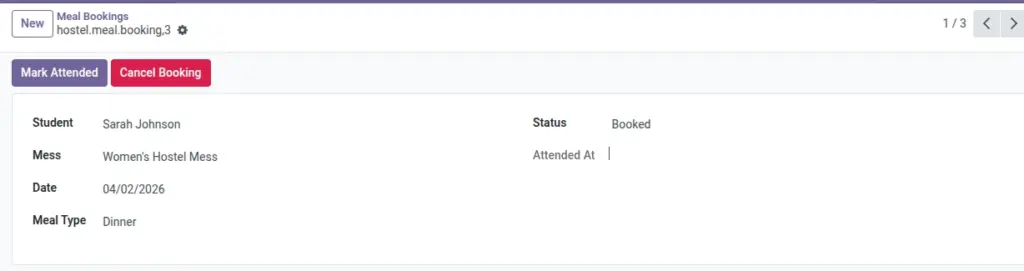
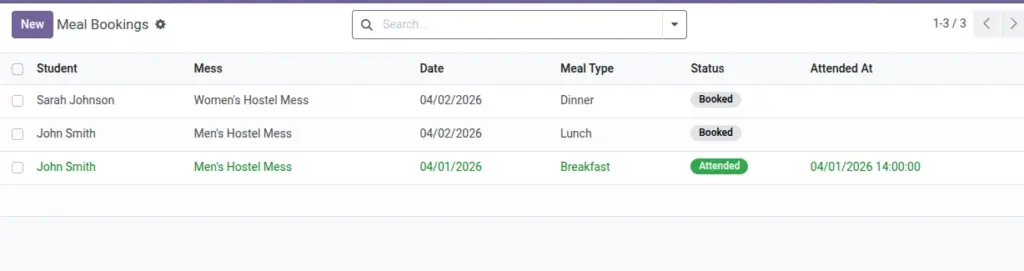
- Students book meals; bookings can be marked Attended or Cancelled.
- Optional charges can apply to attended meals.
Step‑by‑Step Guide
- Create a Mess under Services → Mess.
- Add daily Menus (date + meal type + description).
- Students or staff create Meal Bookings.
- At meal time, mark Bookings as Attended.
Fields Table
| Field Name | Description | Example |
|---|---|---|
Mess Name |
Dining hall name |
Main Canteen |
Menu Date |
Date of the menu |
2026‑06‑10 |
Meal Type |
Breakfast/Lunch/Dinner/Snack |
Dinner |
Menu Title |
Short summary |
Punjabi Thali |
Description |
Items included |
Paneer, Dal, Roti |
Booking State |
Booked/Attended/Cancelled |
Booked |
Field name explanation : “Attended” can be used to count chargeable meals if enabled.
Fields explanation
- Mess Name: Dining hall; used for grouping menus and bookings.
- Menu Date: Specific date menu applies to.
- Meal Type: Breakfast/Lunch/Dinner/Snack for planning and counts.
- Menu Title: Short descriptor shown to students.
- Description: Items included; keep concise and clear.
- Booking State: Booked/Attended/Cancelled to reflect service outcome.
Tips
- Use unique menus per date/meal — duplicates are blocked.
Common Mistakes
- Creating bookings after the cut‑off (system will warn).
Image