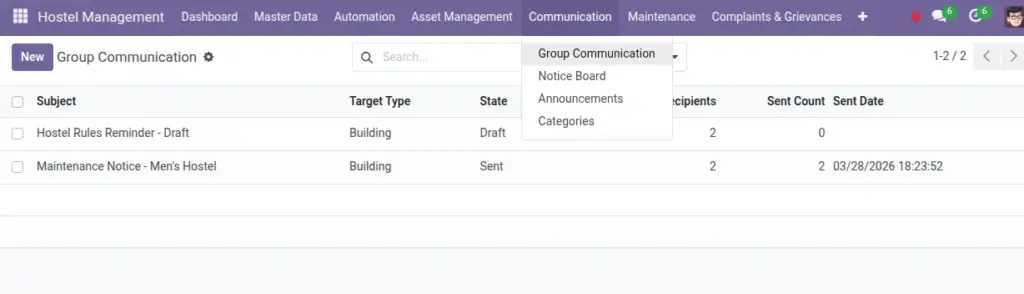
Send messages or emails to students by building, unit, room, bed, or custom selection.
Overview
Group Communication broadcasts messages to targeted student cohorts based on current allocations (building/unit/room/bed) or custom picks. It supports multiple channels—email, in‑app notifications, and optionally SMS—so important updates reach everyone.
- Targeting: Dynamic groups from active contracts or explicit custom lists.
- Channels: Email, notification, SMS (if configured) with optional templates.
- Traceability: Delivery log tracks sent/failed per student for follow‑up.
How It Works
- Set Subject and Message. Choose Target Type and selection.
- Pick channels and an email template (optional).
- Send and review the log for sent/failed messages.
Step‑by‑Step Guide
- Go to Communication → Group Communication → New.
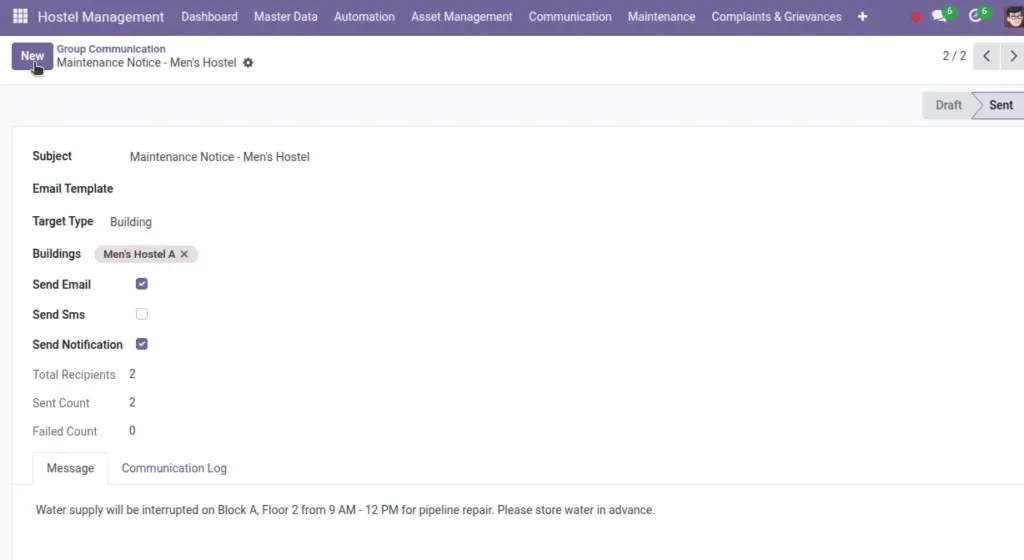
- Write the message and choose whom to send to.
- Enable channels and click Send. Check the Communication Log.
Fields Table
| Field Name | Description | Example |
|---|---|---|
Subject |
Message title |
Water supply update |
Message |
HTML body |
Water will be off 2–4 pm |
Target Type |
Building/Unit/Room/Bed/Custom |
Building |
Selection |
Records to target |
North Wing |
Send Email / SMS / Notification |
Channels |
Email + Notification |
Template |
Email template (optional) |
General Notice |
Status |
Draft/Sent |
Sent |
Log |
Per‑student results |
25 sent, 2 failed |
Field name explanation : Targets are based on active contracts to find current students.
Fields explanation
- Subject: Title shown in email/notification headers.
- Message: HTML content; keep concise and actionable.
- Target Type: How recipients are selected (location‑based or custom).
- Selection: Specific building/unit/room/bed or custom list.
- Send Email / SMS / Notification: Enabled channels; requires proper configuration.
- Template: Optional email template to standardize design.
- Status: Draft/Sent to track completion.
- Log: Per‑student results, including failures for follow‑up.
Tips
- Use “Custom Selection” for VIP or event‑specific groups.
Common Mistakes
- Sending to empty selections — the system will warn you.
Image