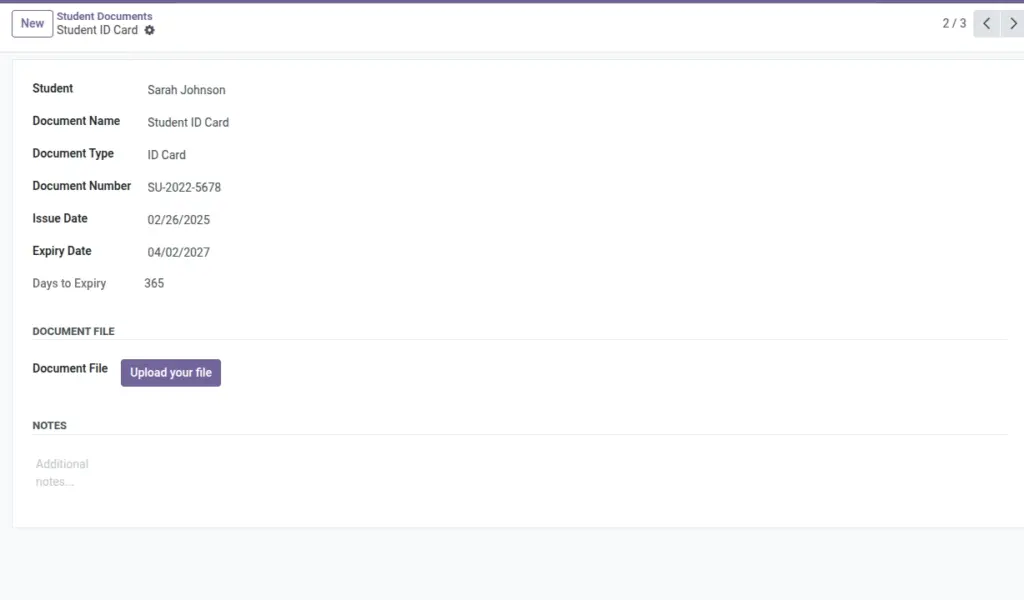
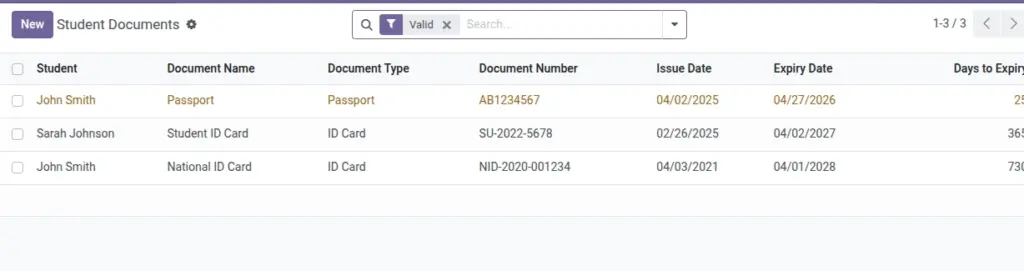
Store and track IDs, passports, visas, and other files with expiry alerts.
Overview
The Student Documents area centralizes identity and compliance files (IDs, passports, visas, etc.) per student. It tracks validity, highlights upcoming expiries, and—if configured—can prevent check‑in when mandatory documents are missing or expired, reducing legal and operational risk.
- Document lifecycle: Capture number, issue/expiry dates, and file attachments for quick retrieval.
- Alerts: “Expiring soon” and “Expired” badges guide proactive renewals.
- Policy enforcement: Optional hard blocks on check‑in until required documents are valid.
How It Works
- Upload each document with issue/expiry dates.
- Counts of expiring/expired docs are visible on the student record.
- Check‑In can require valid ID/Passport/Visa (enable in Settings).
Step‑by‑Step Guide
- Open the student profile or go to Operations → Student Documents → New.
- Choose Document Type (ID Card, Passport, Visa, etc.) and enter dates.
- Upload the file and Save.
Fields Table
| Field Name | Description | Example |
|---|---|---|
Student |
Owner of the document |
Priya Sharma |
Document Name |
Free text |
Passport |
Document Type |
Classification |
Passport |
Document Number |
Official ID |
P1234567 |
Issue / Expiry Date |
Validity window |
2024‑01‑01 / 2034‑01‑01 |
File |
Binary attachment |
passport.pdf |
Days to Expiry |
Auto‑computed |
120 |
Expired / Expiring Soon |
Flags for alerts |
No / Yes |
Field name explanation : “Expiring Soon” window is configurable in Settings.
Fields explanation
- Student: Profile owner; documents attach to this record.
- Document Name: Friendly label (e.g., Passport, Visa).
- Document Type: Classification used for policies and filters.
- Document Number: Official identifier for verification.
- Issue / Expiry Date: Validity window used for alerts and check‑in rules.
- File: Actual scanned copy; required for audits and on‑site checks.
- Days to Expiry: Computed countdown from today; negative means expired.
- Expired / Expiring Soon: Flags based on Settings thresholds.
Tips
- Use clear filenames (e.g., “Passport‑Priya‑2034.pdf”).
Common Mistakes
- Missing expiry dates cause documents to be treated as invalid for check‑in rules.
Image