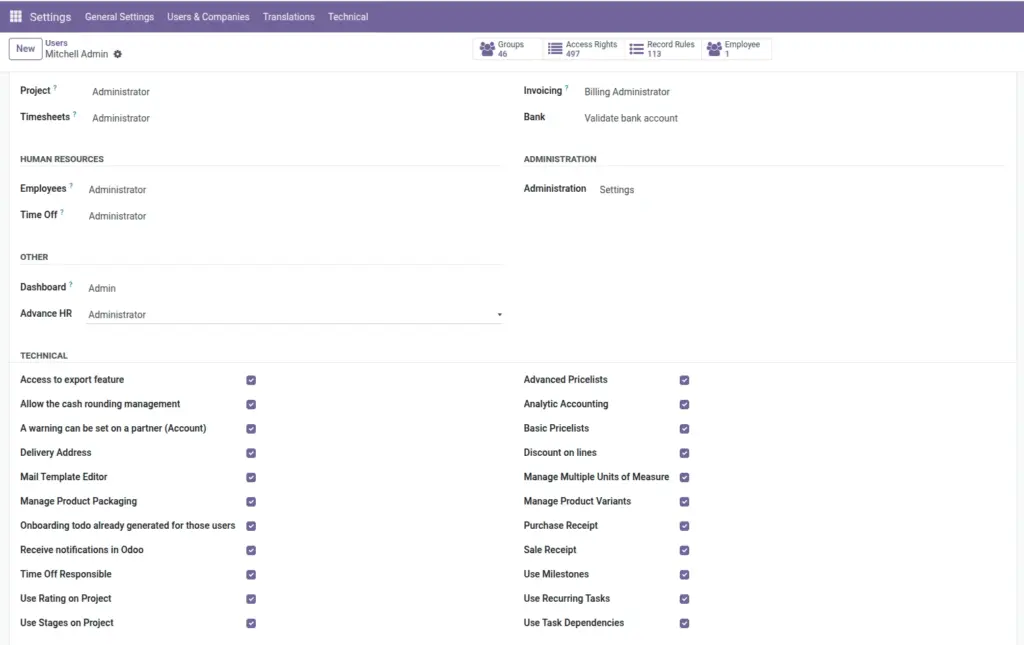
Overview
Why it matters: Many Advance HR behaviours (where hours come from, how OT is derived, whether task timers appear) are controlled once for the whole company. Putting them under Settings avoids scattering critical switches across many menus and keeps environments (test vs production) comparable.
What this covers: This app block holds defaults for dashboard appearance, optional working-day assumptions, total and OT hours count methods, full/half day thresholds, auto OT, fractional day counting, and often project task timer and validation options. The same ideas appear in HR-focused docs—here they are the system-wide source of truth.
Coordinate changes with payroll before go-live; mid-month changes affect live payslips.
Where to open
Go to Settings and open the Advance HR application block. You need configuration rights. Some options overlap with topics on Timesheets & Attendance Settings—this page lists the full set typically found in the product.
General & dashboard
- Dashboard icon version: Visual style for activity dashboard icons.
- Total working days: Optional default for monthly working-day assumptions where used.
Hours & payroll input
- Total hours count method: Timesheet, attendance, or manual—same idea as HR settings.
- OT hours count method: Source for overtime hours.
- Working hours per day, full/half day hours: Thresholds for day splits.
- Enable auto OT count: Add hours beyond thresholds automatically when enabled.
- Fractional day count: Use hours ÷ working hours per day instead of whole days only, when offered.
Projects & tasks
Settings may include task timer (start/stop on project tasks) and requiring deadline / allocated hours when logging time. These tie to Project Tasks & Timesheet Finish.
Fields Table
| Setting label | Area | Example |
|---|---|---|
Dashboard icon version |
Dashboard UI |
v3 |
Total working days |
General |
22 |
Total hours count method |
Hours |
Timesheet |
OT hours count method |
Hours |
Attendance |
Working hours per day |
Hours |
8.0 |
Full day hours / Half day hours |
Hours |
8.0 / 4.0 |
Enable auto OT count |
Hours |
Yes |
Fractional day count |
Hours |
Yes |
Enable task timer |
Projects |
Yes |
Task time / date required |
Projects |
Yes |
Field labels explained
Dashboard icon version
Selects asset pack for dashboard icons—change only for visual refresh.
Total working days
Optional default when a module needs a monthly day count without recomputing.
Total hours count method / OT hours count method
Company-wide defaults for where hours feed payroll; see Timesheets & Attendance Settings.
Working hours per day / Full / Half day hours
Global thresholds for day conversion and OT—must match your policy documents.Enable auto OT countLets the engine push excess hours into OT automatically.
Fractional day count
Uses precise division instead of rounding to whole days only.
Enable task timer / Task time date required
Controls whether project tasks show start/stop and whether dates/hours are mandatory on tasks.
Tips
- Change global hour methods in a maintenance window—mid-cycle changes affect payslips.
- Document your choices in internal runbooks so payroll and IT stay aligned.