Overview
The QR Code Scanner lets warehouse staff, IT helpdesk, and auditors look up assets in seconds. Scan a barcode label on the equipment or type a name, serial number, or asset code – the system finds the matching record and shows key details on screen.
From the scanner you can jump to the full asset record, start a transfer, or schedule maintenance without navigating menus.
How It Works
Open Asset Pro > Operations > Asset Scanner. Use your device camera or a USB barcode scanner to read the code. The scanner searches asset barcodes and names, then displays status, type, location, and assigned employee.
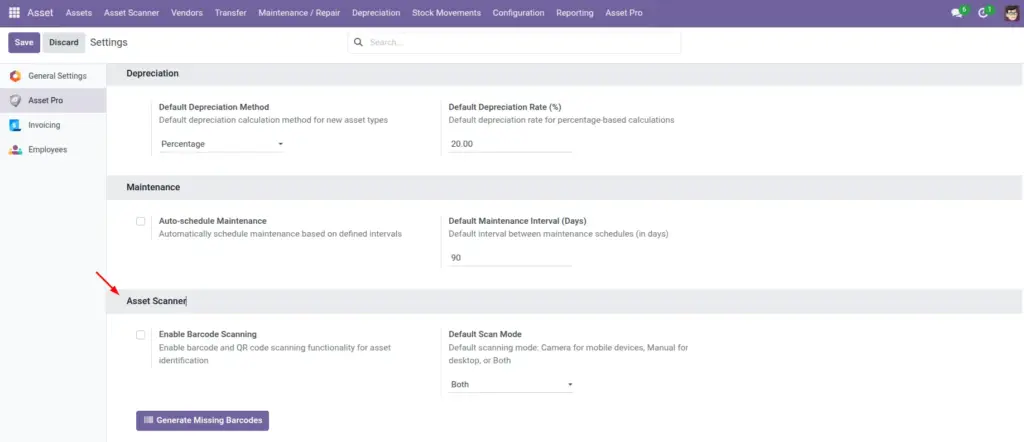
Quick-action buttons let you create a transfer or open full details in one click. Barcode scanning can be enabled or disabled in Settings.
Step-by-Step Guide
- Go to Asset Pro > Operations > Asset Scanner.
- Allow camera access if prompted (for mobile or tablet scanning).
- Scan the asset barcode or enter a Search Term / Search Barcode manually.
- Review the found asset details: name, status, type, and product.
- Click View Full Details to open the complete asset form.
- Optionally click Create Transfer or Schedule Maintenance for quick actions.
Fields Table
| Field Name | Description | Example |
|---|---|---|
Search Term |
Name or keyword to find an asset. |
Dell Laptop |
Search Barcode |
Scanned or typed barcode value. |
ASSET-00421 |
Found Asset |
Matching asset record. |
Dell Laptop #1042 |
Asset Name |
Display name of found asset. |
Dell Laptop #1042 |
Asset Barcode |
Barcode stored on the asset. |
ASSET-00421 |
Status |
Current asset status. |
Assigned |
Asset Type |
Category of the asset. |
IT Equipment |
Product |
Linked product if applicable. |
Dell Latitude 5540 |
Field Explanations
Search Term
Partial names work – “Dell” shows all matching Dell assets.
Search Barcode
Must match the barcode field on the asset record exactly.
Found Asset
If nothing is found, verify the barcode was printed from Odoo and is not smudged.
Asset Name
Confirms you found the right item before taking action.
Asset Barcode
Compare the scanned code with this field to catch mislabeled equipment.
Status
Quick check – is this asset available or already assigned to someone else?
Asset Type
Helps auditors verify they scanned the expected category.
Product
Useful for IT teams matching hardware to procurement records.
Tips (Pro Tips)
- Print barcode labels from Odoo when creating assets – scanning only works if barcodes exist.
- Use the scanner during annual physical audits – much faster than paper checklists.
- Train warehouse staff on mobile devices for floor-level scanning.
Common Mistakes
- Scanning codes not linked to any asset – generate and print labels from Odoo first.
- Assuming the scanner updates location automatically – you still need to create a transfer.
- Disabling barcode scanning in Settings and wondering why the camera does not appear.
Visual Reference