Overview
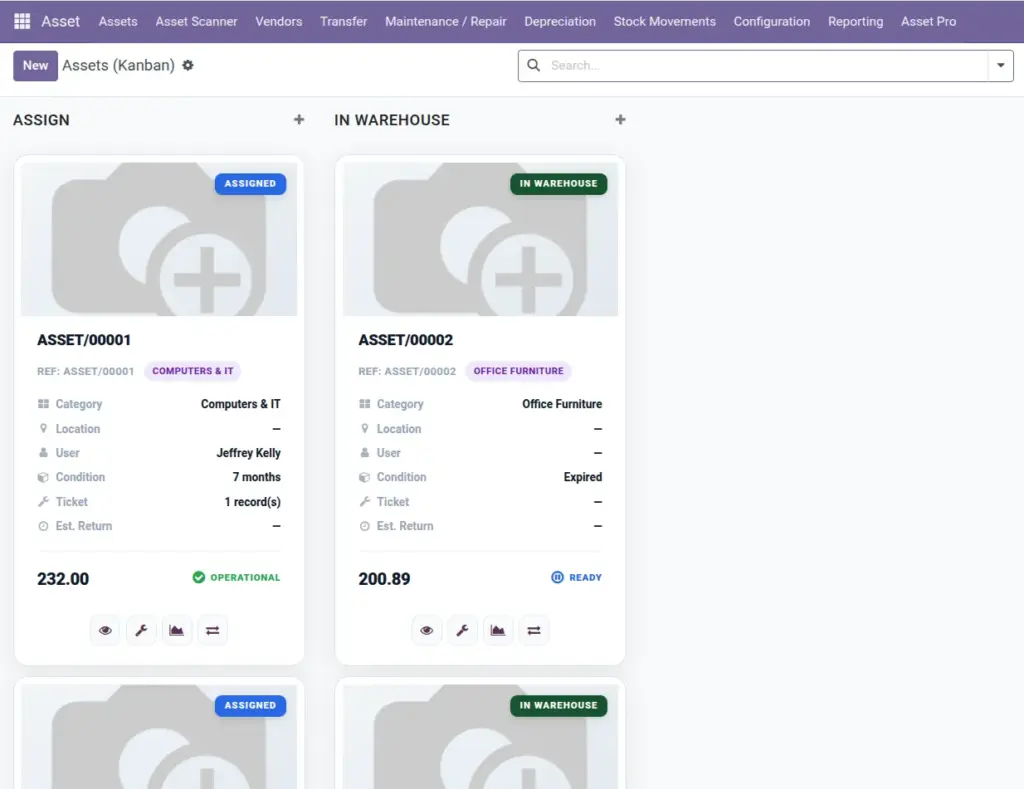
The Asset Kanban Board gives you a bird’s-eye view of all your assets as visual cards – like sticky notes on a wall. Each card shows the asset photo, name, type, location, and current status color so you can spot problems at a glance.
Instead of scrolling through long spreadsheet-style lists, managers can see which laptops are assigned, which printers are in repair, and which warehouse items are available – all on one screen.
How It Works
Open Asset Pro > Operations > Asset Kanban Board. Assets appear as cards grouped by status (In Warehouse, Assigned, Under Repair, and so on). Each card displays the asset image you uploaded, the asset name, type, and location.
Click any card to open the full asset record. Use filters at the top to narrow by company, location, asset type, or assigned employee. The board refreshes automatically when assets are updated elsewhere in the system.
Step-by-Step Guide
- Go to Asset Pro > Operations > Asset Kanban Board.
- Use the search bar to find a specific asset by name or barcode.
- Apply filters (Asset Type, Location, Company) to focus on one group – for example, all IT equipment at the New York office.
- Click a card to open the asset form and update details, assign an employee, or start a transfer.
- Upload or update the Asset Image on the asset form – the photo appears on the kanban card immediately.
- Review status colors: green for available, blue for assigned, orange for repair, red for overdue maintenance.
Fields Table
| Field Name | Description | Example |
|---|---|---|
Asset Image |
Photo displayed on the kanban card. |
Photo of forklift |
Asset Name |
Title shown on the card header. |
Forklift FL-07 |
Asset Type |
Category label on the card. |
Vehicles |
Location |
Where the asset currently sits. |
Warehouse B |
Assigned To |
Person linked to the asset. |
Mike Chen |
Status |
Drives card color and column grouping. |
Assigned |
Current Value |
Book value shown on expanded card details. |
$18,500 |
Barcode |
Scannable code for quick lookup. |
ASSET-00421 |
Field Explanations
Asset Image
A good photo makes the board useful for non-technical staff who may not know asset numbers by heart.
Asset Name
Keep names short but unique so cards are easy to scan visually.
Asset Type
Filter by type to create focused boards – e.g., show only IT equipment during an audit.
Location
Helps warehouse teams confirm an asset is where it should be without opening each record.
Assigned To
Shows accountability at a glance. Empty means the asset is unassigned.
Status
The most important visual cue. Keep statuses up to date so the board reflects reality.
Current Value
Useful for finance reviews directly from the board view.
Barcode
Print barcode labels and scan them with the QR Scanner for instant card lookup.
Tips (Pro Tips)
- Upload photos for all high-value assets – the board becomes your daily command center.
- Use filters to create “views” for each department without changing any settings.
- Review the board weekly with your team to catch assets stuck in “Repair” too long.
Common Mistakes
- Leaving assets without photos – cards all look the same and the board loses its main benefit.
- Not updating status after a transfer – cards stay in the wrong column and confuse everyone.
- Ignoring filter options and scrolling through hundreds of cards manually.
Visual Reference