Overview
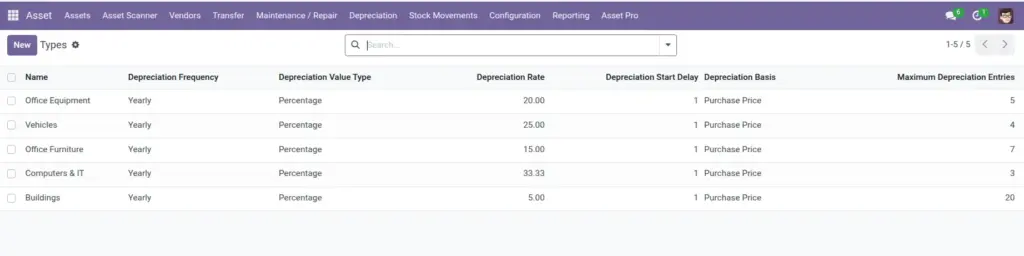
Not every asset is the same. A vehicle needs license plate and mileage; a laptop needs RAM and serial number; a machine needs production hours. Custom Asset Types let you define extra fields per category without changing the base system.
When staff create an asset of that type, the custom fields appear automatically on the form.
How It Works
Custom fields are configured on the asset type record under the Custom Fields tab. Each field has a label, type (text, number, date, dropdown, checkbox, file, etc.), and optional default value. Values are stored on the asset and appear in reports and the kanban view.
Step-by-Step Guide
- Go to Assets > Configuration > Asset Types and open a type (e.g., Vehicles).
- Open the Custom Fields tab and click Add a line.
- Enter a Field Label, choose a Field Type, and set whether it is required.
- For dropdown fields, add selection options with labels and values.
- Set a Default Value and Help Text to guide users.
- Save the asset type. Create or open an asset of this type – custom fields appear on the form.
Fields Table
| Field Name | Description | Example |
|---|---|---|
Field Label |
Name shown to users on the form. |
License Plate |
Field Type |
Kind of data: text, number, date, dropdown, etc. |
Text |
Required |
Whether users must fill this in. |
Yes |
Default Value |
Pre-filled value for new assets. |
N/A |
Help Text |
Hint shown below the field. |
Enter state registration number |
Sequence |
Order fields appear on the form. |
10 |
Selection Options |
Choices for dropdown fields. |
Gas, Diesel, Electric |
Custom Field Values |
Stored answers on each asset. |
ABC-1234 |
Field Explanations
Field Label
Use everyday language – “License Plate” not “LP_NUM”.
Field Type
Pick the type that prevents bad data – dates for expiry, numbers for mileage.
Required
Only mark truly essential fields as required to avoid slowing down data entry.
Default Value
Saves time for common answers but verify it applies to most assets.
Help Text
A short example reduces support questions from new users.
Sequence
Group related fields together by giving them close sequence numbers.
Selection Options
Keep dropdown lists short – 5-10 options maximum for clarity.
Custom Field Values
Filled in per asset. Appears in exports when the field is included in reports.
Tips (Pro Tips)
- Design custom fields with the people who use them – IT for laptops, fleet manager for vehicles.
- Use dropdowns instead of free text when values must be consistent for reporting.
- Review custom fields yearly and deactivate ones nobody uses anymore.
Common Mistakes
- Creating duplicate field labels on the same asset type – confuses users and breaks reports.
- Changing field types after data exists – old values may not convert cleanly.
- Adding too many required fields – staff skip asset creation entirely.
Visual Reference