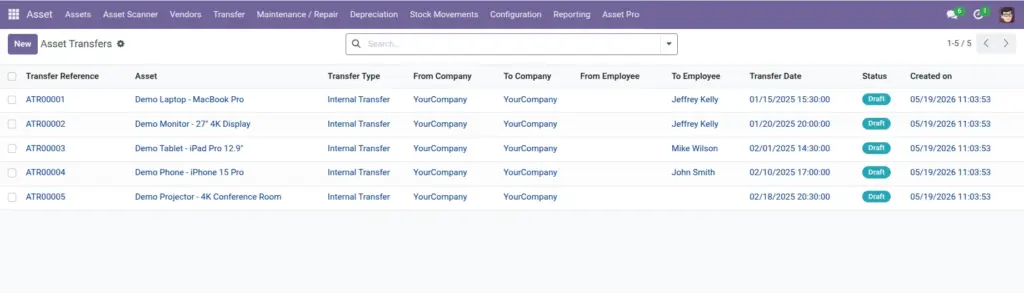
Overview
When an employee gets a new laptop, a forklift moves to another warehouse, or equipment shifts between subsidiaries, you create an Asset Transfer. The transfer records who had the asset, who receives it, where it moves from and to, and why.
Transfers can be internal (same company) or inter-company (between legal entities). Approval workflows can be required before the move is finalized.
How It Works
Each transfer starts in Draft. You select the asset, transfer type, destination location and/or employee, and a reason. When submitted, an approval request may be created automatically based on your settings. Once approved, the asset’s location and assignment update and the transfer is marked Transferred.
Every transfer gets a unique reference number for audit purposes.
Step-by-Step Guide
- Go to Asset Pro > Operations > Asset Transfers and click New.
- Select the Asset to move (must be In Warehouse or Assigned).
- Choose Transfer Type: Internal Transfer or Inter-Company Transfer.
- Set the To Location and/or To Employee for the receiving side.
- For inter-company moves, select the To Company (must differ from the current company).
- Enter a Transfer Reason (required) and optional notes.
- Click Submit. If approval is configured, wait for approvers. Once approved, confirm the transfer to update the asset record.
Fields Table
| Field Name | Description | Example |
|---|---|---|
Transfer Reference |
Unique ID for this transfer request. |
TRF/2025/0042 |
Asset |
The asset being moved. |
Dell Laptop #1042 |
Transfer Type |
Internal or inter-company. |
Internal Transfer |
From Location |
Where the asset is now (auto-filled). |
HQ – Floor 3 |
To Location |
Destination location. |
Remote Office – Austin |
From Employee |
Current holder of the asset. |
Sarah Johnson |
To Employee |
Person receiving the asset. |
Tom Rivera |
To Company |
Receiving company for inter-company moves. |
Acme Corp Europe |
Transfer Reason |
Why the move is happening. |
Employee relocation to Austin office |
Status |
Draft, Pending Approval, Approved, Transferred, or Cancelled. |
Pending Approval |
Field Explanations
Transfer Reference
Use this number when discussing the move with finance or IT support.
Asset
Only assets in assignable status appear. Disposed assets cannot be transferred.
Transfer Type
Choose inter-company only when ownership legally changes between subsidiaries.
From Location
Filled automatically from the asset — verify it is correct before submitting.
To Location
The system checks capacity and allowed asset types at the destination.
From Employee
Documents who is giving up the asset for accountability.
To Employee
The new responsible person after the transfer completes.
To Company
Required for inter-company transfers. Triggers separate approval rules.
Transfer Reason
Always write a clear reason — auditors and managers rely on this field.
Status
Do not skip steps. A transfer must reach Transferred status to update the asset.
Tips (Pro Tips)
- Create transfers instead of manually editing location and employee fields – you get a full audit trail.
- Use inter-company transfers for subsidiary moves; use internal for everyday reassignments.
- Add notes with ticket numbers or project codes for easier cross-referencing.
Common Mistakes
- Manually changing location on the asset form instead of creating a transfer – no history is kept.
- Submitting inter-company transfers with the same From and To company.
- Forgetting to confirm after approval – the asset stays at the old location.
Visual Reference