Overview
Approval workflows ensure the right people sign off before important actions happen – transferring a $5,000 laptop, disposing of company property, or activating a six-figure budget. You define who approves, in what order, and what happens on approval or rejection.
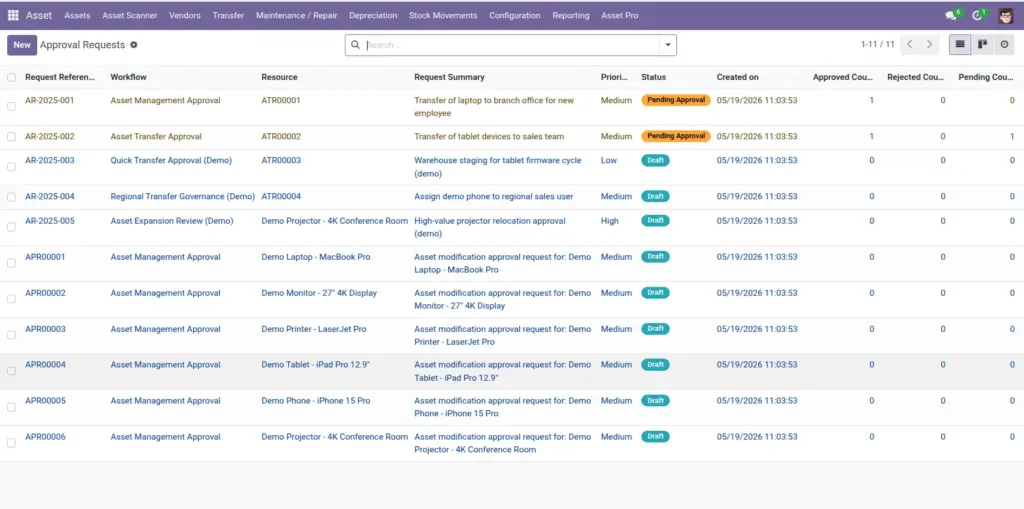
Requests appear in Asset Pro > Workflows > Approval Requests where approvers can approve, reject, or add notes.
How It Works
A workflow targets a specific record type (asset, transfer, disposal, budget). It contains one or more steps, each with an approver (specific user, group, or role). When a qualifying action occurs, a request is created and moves through each step until fully approved or rejected.
Settings let you choose default workflows for assets and transfers and enable auto-creation of approval requests.
Step-by-Step Guide
- Go to Asset Pro > Workflows > Approval Workflows and click New.
- Enter a Workflow Name and select the Target Model (e.g., Asset Transfer).
- Add workflow steps with sequence, approver type, and optional time limits.
- Configure what happens on approval and rejection for each step.
- Go to Settings and assign this workflow as the default for transfers or assets.
- When a user submits a transfer or disposal, an approval request is created automatically. Approvers act from the Approval Requests menu.
Fields Table
| Field Name | Description | Example |
|---|---|---|
Workflow Name |
Descriptive name for this approval chain. |
Transfer Approval – IT Assets |
Target Model |
What type of record triggers this workflow. |
Asset Transfer |
Step Name |
Label for an approval step. |
Department Manager Review |
Approver Type |
Specific user, group, or role. |
Approver Group |
Required Votes |
How many approvals needed at this step. |
1 |
Time Limit (Hours) |
Hours before escalation or auto-action. |
48 |
Request Reference |
Unique ID for an approval request. |
APR/2025/0088 |
Priority |
Low, Normal, High, or Urgent. |
Normal |
Request Summary |
Plain-language description of what needs approval. |
Transfer laptop to Austin office |
Status |
Pending, Approved, Rejected, or Cancelled. |
Pending |
Field Explanations
Workflow Name
Name it after the action and department – “Disposal Approval – Finance”.
Target Model
Each workflow applies to one record type. Create separate workflows for transfers and disposals.
Step Name
Approvers see this label – make it clear what they are approving.
Approver Type
Use groups for flexibility – “Asset Managers” rather than one person who may be on vacation.
Required Votes
Set to 2 or more for high-value items requiring dual approval.
Time Limit (Hours)
Prevents requests from sitting indefinitely. Pair with escalation steps.
Request Reference
Share this ID in email when following up on pending approvals.
Priority
Use Urgent for time-sensitive transfers before an employee’s last day.
Request Summary
Auto-filled from the underlying record. Verify it is clear before submitting.
Status
Approved requests trigger the underlying action (e.g., complete the transfer).
Tips (Pro Tips)
- Start with simple one-step workflows and add steps only where your policy requires them.
- Use approver groups so coverage continues when individuals are out of office.
- Review pending requests weekly in team meetings to prevent bottlenecks.
Common Mistakes
- Creating workflows without assigning them in Settings – they never trigger automatically.
- Too many approval steps – staff find workarounds and skip the system entirely.
- Using a single approver with no backup – requests stall during vacations.
Visual Reference