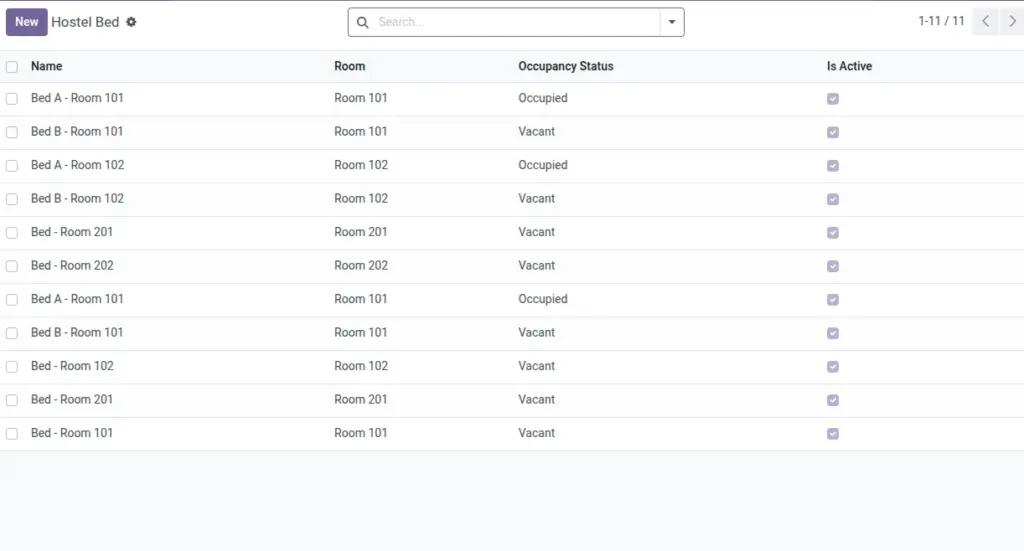
Keep bed inventory and see vacancy automatically from contracts.
Overview
Beds are the most granular inventory unit for allocations. Each bed belongs to a Room and reflects real‑time occupancy based on active student Contracts. Accurate bed data ensures correct availability, billing, and compliance with room capacities.
- Hierarchy: Building → Unit/Floor → Room → Bed.
- Occupancy logic: A bed is Occupied when an active Contract exists for its dates; otherwise Vacant.
- Operational controls: Use “Is Active” for usability (repairs/out of order) and “Active” for visibility in lists.
- Downstream impact: Occupancy drives rent invoicing, vacancy dashboards, and allocation workflows.
How It Works
- Each bed shows real‑time occupancy based on active contracts.
- Use “Active” to hide a bed temporarily (e.g., repairs).
Step‑by‑Step Guide
- Go to Master Data → Beds.
- Click New, select the Room, and name the Bed (e.g., B1).
- Save. Occupancy updates automatically when contracts change.
Fields Table
| Field Name | Description | Example |
|---|---|---|
Name |
Bed label |
B1 |
Room |
Parent room |
201-A |
Is Active |
Operational bed flag |
Checked |
Active |
Visibility in lists |
Checked |
Occupancy Status |
Vacant/Occupied (auto) |
Occupied |
Field name explanation : “Occupancy Status” changes when a Contract is activated or closed.Fields explanation
- Name: Bed label shown across allocations and reports (e.g., B1).
- Room: Parent room; determines the unit and building automatically.
- Is Active: Operational availability (repairs/out of service) — excludes from allocation logic.
- Active: Visibility in lists and searches — archive instead of delete to preserve history.
- Occupancy Status: Computed from active contracts: Vacant or Occupied.
Tips
- Label beds consistently (B1, B2, B3) for quick identification.
Common Mistakes
- Deleting beds instead of deactivating them — prefer deactivation to keep history.
Image