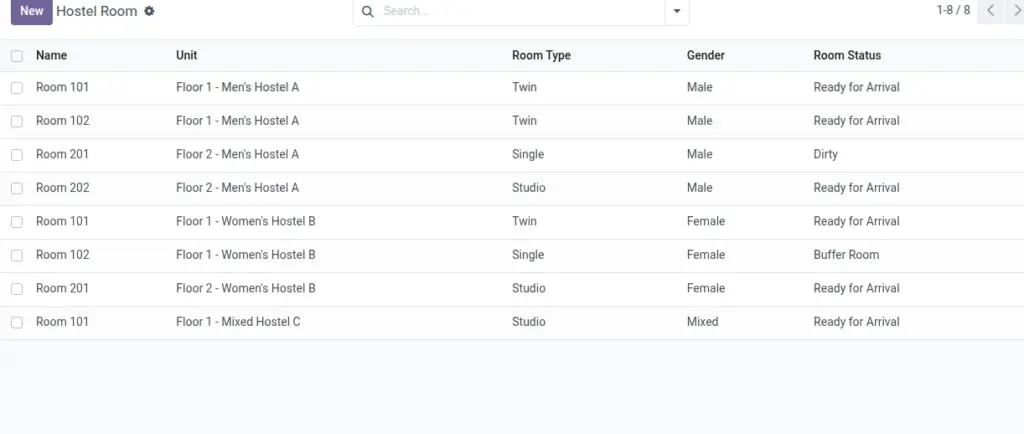
Create room types, gender policy, and readiness status.
Overview
Rooms sit under units and contain beds for allocation. Room type and gender policy drive who can be allocated and how many, while status communicates readiness to housekeeping and front desk.
- Capacity: Determined by number of beds; type indicates configuration (Single/Twin/Studio).
- Readiness: Use status (Ready/Dirty/Buffer/Out of Order) to coordinate turnarounds.
- Compliance: Optional gender setting enforces building/unit rules where needed.
How It Works
- Room Type and Gender guide allocations and pricing.
- Status shows if a room is ready, needs cleaning, or is out of order.
Step‑by‑Step Guide
- Go to Master Data → Rooms.
- Click New, select Unit, set Name and Room Type.
- Set Gender (Male/Female/Mixed) if needed.
- Update Room Status (Ready, Dirty, Buffer, Out of Order).
- Save and add Beds.
Fields Table
| Field Name | Description | Example |
|---|---|---|
Name |
Room number or name |
201-A |
Unit |
Parent unit/floor |
Floor 2 |
Room Type |
Single, Twin, or Studio |
Twin |
Gender |
Male, Female, Mixed |
Female |
Room Status |
Dirty, Ready, Buffer, Out |
Ready |
Active |
Hide or show this room |
Checked |
Field name explanation : “Room Status” helps plan check‑ins and inspections.
Fields explanation
- Name: Room number/name used across allocations.
- Unit: Parent unit; connects room to its building.
- Room Type: Single/Twin/Studio; indicates configuration and typical capacity.
- Gender: Optional override aligning with building policy.
- Room Status: Dirty/Ready/Buffer/Out of Order for housekeeping coordination.
- Active: Archive to remove from use temporarily.
Tips
- Use a naming pattern like Floor‑Room (e.g., 2‑101).
Common Mistakes
- Leaving room unassigned to a unit prevents proper allocation.
Image