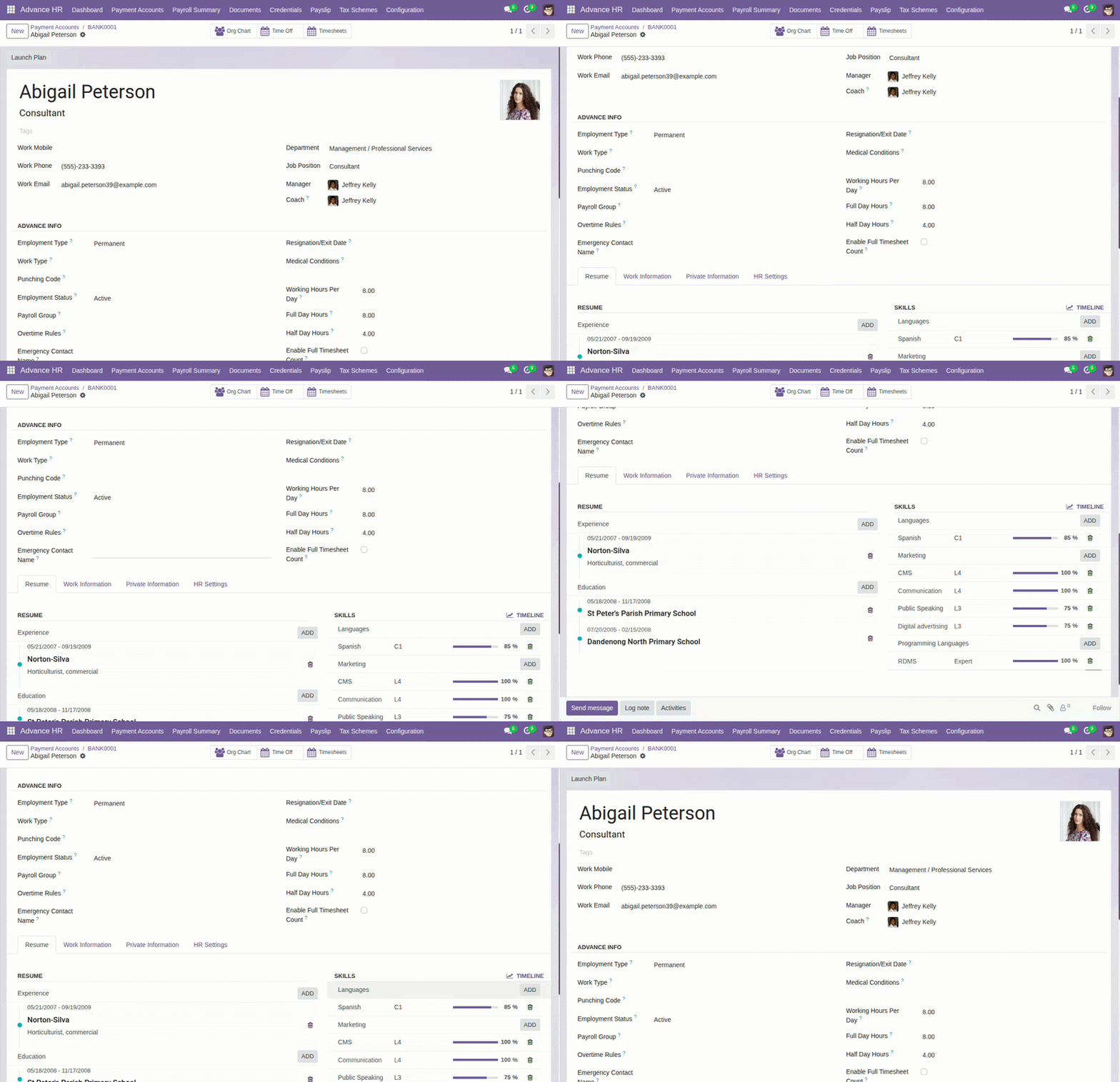
Overview
Why it matters: Payroll and attendance only work if each person’s master data is complete and consistent. Advance HR adds fields beyond basic HR—punching code, work pattern, hours thresholds, payroll group, and overtime policy—so downstream payslips do not guess or fail silently.
What this covers: On the employee form you capture identifiers for devices (punching code), how the person is employed (type and status), how many hours define a full or half day, and links to which pay and OT rules apply. Emergency contacts support operations, not payroll math.
Getting these fields right early avoids wrong working-day counts, misrouted pay, and OT that does not match policy.
How It Works
Punching code links to biometric or RFID systems. Employment details guide salary structures and overtime. Working hours per day define when a day counts as full or half.
Step-by-Step Guide
- Open the employee profile.
- Enter the Punching Code if you use a biometric system.
- Select Employment Type and Employment Status.
- Pick a Work Type (e.g., Full-time).
- Set Working Hours Per Day, Full Day Hours, and Half Day Hours.
- Link a Payroll Group and Overtime Rules if applicable.
Fields Table
| Field Name | Description | Example |
|---|---|---|
Punching Code |
Unique code for attendance devices. |
EMP-0458 |
Employment Type |
Contract type. |
Permanent |
Work Type |
Full-time, Part-time, etc. |
Full-time |
Employment Status |
Current status. |
Active |
Working Hours Per Day |
Hours per workday. |
8.0 |
Full Day Hours |
Threshold for full day. |
8.0 |
Half Day Hours |
Threshold for half day. |
4.0 |
Payroll Group |
Group for pay cycle and tax. |
Monthly Staff |
Overtime Rules |
Policy that defines OT. |
Standard Overtime |
Emergency Contact Name |
Contact person. |
Alex Carter |
Emergency Contact Number |
Phone of contact. |
+1 222 333 4444 |
Field labels explained
Punching Code
Unique ID sent to attendance hardware or imports. Must match what the device records so check-in/out rows attach to the right employee.
Employment Type
High-level classification (e.g. permanent, contract) from Employee Types; may affect which payroll group or rules apply.
Work Type
Pattern of work (full-time, part-time, etc.) linked to Work type masters and salary logic.
Employment Status
Whether the person is active, on leave, exited, etc.—from Employee Status. Inactive statuses should stop new payslips.
Working Hours Per Day
Expected hours per standard workday; used with logged hours to infer full/half days and some rate conversions.
Full Day Hours / Half Day Hours
Thresholds on the employee (or company) defining how many hours equal a full or half day for this person’s payroll.
Payroll Group
Links the employee to country, currency, pay frequency, and tax scheme—see Payroll Groups & Tax Schemes.
Overtime Rules
Selects which overtime policy applies for OT caps and approvals.
Emergency Contact Name / Number
Operational contact, not used in pay calculations; visible to authorised HR users.
Tips
- Set default hours per day that match your payroll rules.
- Keep employment status updated (e.g., Resigned) to stop future payslips.
Common Mistakes
- Leaving punching code empty when using biometric devices.
- Not linking a payroll group, causing tax rules to be missed.