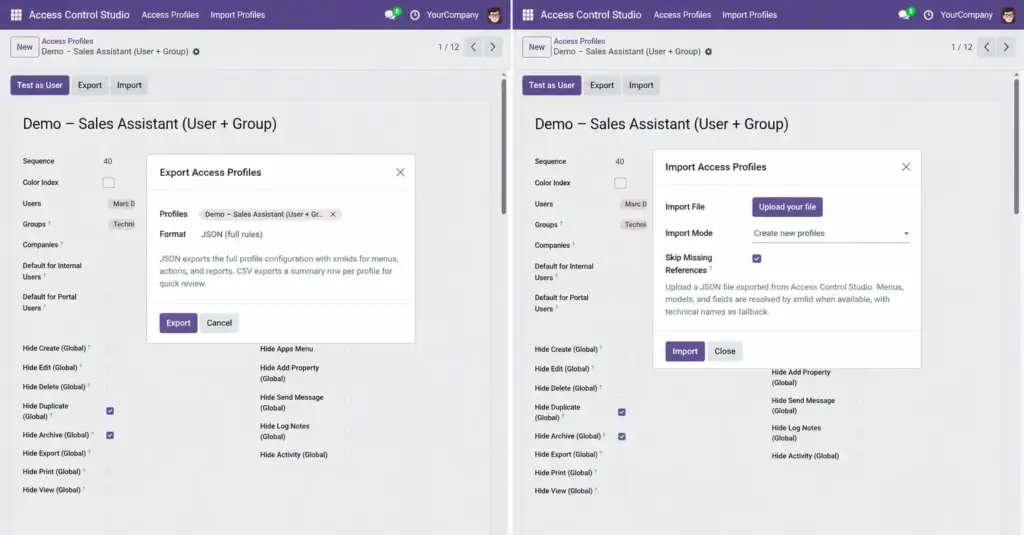
Back up your access rules or copy them between databases with Export (JSON/CSV) and Import (JSON).
Overview
Building profiles takes care. Export lets you download them; Import brings them into another database (for example, from staging to production).
JSON keeps full rule details. CSV is a summary for review in Excel. Import accepts JSON and can create new profiles, update by name, or skip existing ones.
How It Works
Export from the profile list/form header. Import from the list/form or Access Control Studio → Import Profiles.
Missing menus or fields in the target database can be skipped with warnings when Skip Missing References is on. An import log explains what happened, and chatter notes keep an audit trail.
Step-by-Step Guide
- To export: open Access Profiles, select the profiles (or open one), click Export.
- Choose JSON for a full copy or CSV for a summary, then download the file.
- On the target database, open Import Profiles (or Import on the list).
- Upload the JSON file, choose Import Mode, keep Skip Missing References unless you want strict failures.
- Run the import and read the Import Log.
- Open imported profiles, assign users/groups for the new database, and Test as User.
Fields Table
These are the settings you will see for this feature, explained in everyday language.
| Field Name | Description | Example |
|---|---|---|
Profiles (export) |
Which profiles to include in the file. |
Sales + Warehouse profiles |
Format |
JSON (full) or CSV (summary). |
JSON |
Import File |
The JSON file to upload. |
acs_profiles.json |
Filename |
Stored file name. |
acs_profiles.json |
Import Mode |
Create new / Update existing by name / Skip existing. |
Update existing by name |
Skip Missing References |
Continue when a menu/field is missing; log a warning. |
Checked (recommended) |
Import Log |
Results and warnings after import. |
Created 2, updated 1, skipped 0 |
Field Explanations
Each field from the table above is explained in more detail here.
Profiles (export)
Export only what you need to reduce clutter and risk.
Format
Use JSON to move rules between Odoo databases; CSV for stakeholder review.
Import File
Must be a JSON export from ACS.
Filename
Informational.
Import Mode
Update by name is ideal when refreshing production from a known export. Create new avoids overwriting. Skip existing leaves current profiles untouched.
Skip Missing References
Different databases may lack the same apps; skipping avoids a failed import.
Import Log
Always read this – it tells you what to fix manually.
Tips
- Export before major profile edits as a backup.
- After import, re-check Users/Groups – people differ between databases.
- Store JSON exports in your IT change folder with a date in the filename.
Common mistakes
- Trying to import a CSV – import expects JSON.
- Assuming users were imported – only rules/profiles are; assign people again.
- Ignoring the import log when menus were skipped – those hides never applied.
Image