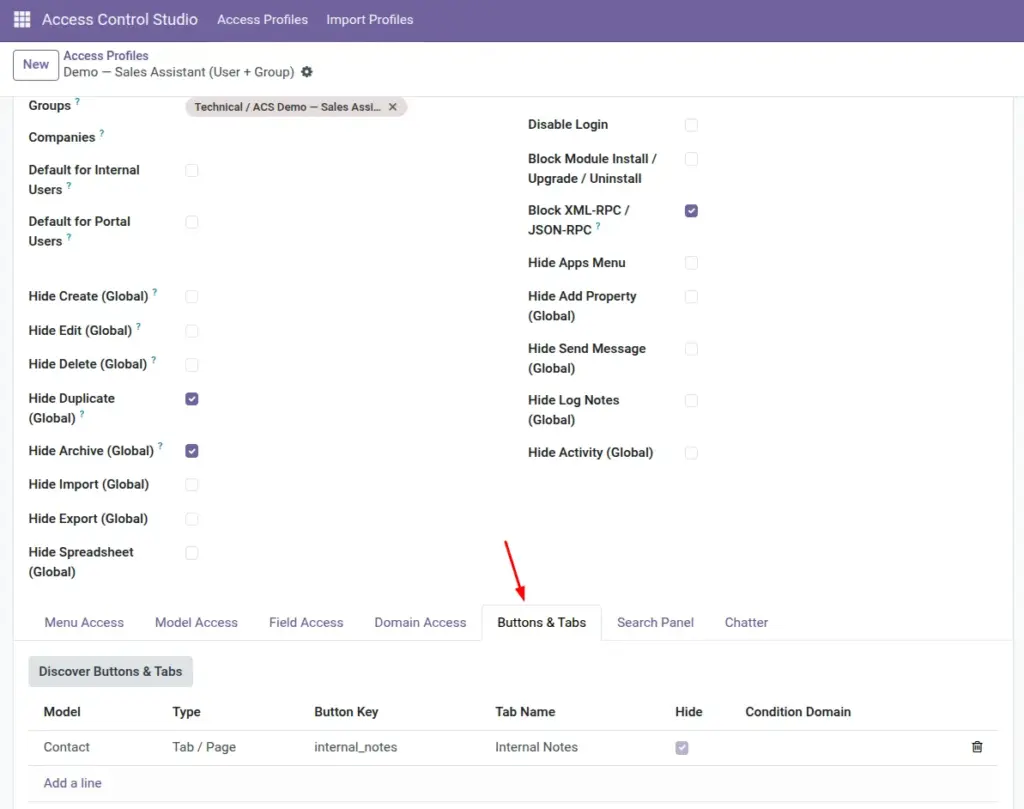
Remove dangerous or distracting buttons and notebook tabs – Confirm, Cancel, smart buttons, or a whole “Extra Info” tab – with optional Discover to find their names.
Overview
Forms have action buttons (Confirm, Validate), smart buttons (totals, linked documents), and tabs (pages on the form). The Buttons & Tabs tab lets you hide those for a profile.
If you do not know the technical button key, use Discover Buttons & Tabs: choose a model, discover items, select what to hide, and add them to the profile.
How It Works
Each line stores a Button Key and a Type (object button, action, smart button, tab, and more). With Hide on, that control disappears for matched users.
You can add a Condition Domain so the button only hides in certain situations (for example, hide Confirm when already cancelled).
For object buttons, ACS also blocks calling that action behind the scenes — not only hiding the icon.
Step-by-Step Guide
- Open the profile → Buttons & Tabs.
- Click Discover Buttons & Tabs, select the Model, then click Discover.
- Tick the items to control → Add Selected.
- Or add a line manually: set Model, Button Key, Type, and optional Tab Name.
- Leave Hide checked. Add a Condition Domain only if hiding should be situational.
- Save and Test as User on a real form of that model.
Fields Table
These are the settings you will see for this feature, explained in everyday language.
| Field Name | Description | Example |
|---|---|---|
Model |
Form/model where the button or tab lives. |
Sales Order |
Technical Name |
Model system name. |
sale.order |
Button Key |
Technical name of the button, smart button, tab, or kanban action. |
action_confirm |
Type |
Object / Action / Smart / Stat / Tab / Page / Kanban Link. |
Object Button |
Tab Name |
Friendly label for tabs. |
Other Info |
Hide |
Hide this control for the profile. |
Checked |
Condition Domain |
Only hide when the record matches. |
[(‘state’,’=’,’draft’)] |
Discover → Selected |
Whether to add this discovered item. |
Checked rows |
Discover → Source View |
Where the item was found. |
Form view |
Field Explanations
Each field from the table above is explained in more detail here.
Model
Must match the screen you are simplifying.
Technical Name
Reference only.
Button Key
The identifier Odoo uses internally. Prefer Discover instead of guessing.
Type
Tells ACS how that control is rendered so it can hide it correctly.
Tab Name
Helps humans recognize notebook pages when reviewing the profile later.
Hide
Default on — that is the purpose of the line.
Condition Domain
Optional situational hiding. Leave empty to always hide.
Discover → Selected
In the wizard, mark rows you want to push into the profile.
Discover → Source View
Shows which view definition contained the button/tab.
Tips
- Always prefer Discover over typing keys by hand.
- Hide “Cancel” or “Refund” for roles that should not reverse documents.
- After adding lines, remove unused discoveries so the list stays readable.
Common mistakes
- Hiding a button users still need for their daily workflow — test with a real task checklist.
- Wrong Type for a key — the control may remain visible; re-run Discover.
- Relying only on UI hide for critical actions without also checking model rights.
Image