Copy these ready-made recipes for common roles. Each scenario lists which profile settings to turn on and which chapters to open for detail.
Overview
Managers rarely start from a blank form. Use these business scenarios as blueprints, then adjust names and assignments for your company.
After building a scenario, always Test as User with a checklist of daily tasks that must still work.
How It Works
For each scenario below: create one Access Profile, assign the right users or groups, apply the listed settings, save, and test.
You can combine a light company baseline (default profile) with a stricter role profile for specialists.
Step-by-Step Guide
- Pick the scenario that matches your need.
- Create a clearly named profile (example: “Sales Assistant – Limited”).
- Assign the Sales / User group (or specific users).
- Apply the settings listed in the Fields table for that scenario.
- Run Test as User and confirm both blocks and allowed tasks.
- Document the profile purpose in the profile chatter for the next admin.
Fields Table
These are the settings you will see for this feature, explained in everyday language.
| Field Name | Description | Example |
|---|---|---|
Sales assistant |
Hide Accounting/Settings menus; hide cost fields; block delete/export on Contacts & Orders. |
Sales / User group |
Read-only auditor |
Read-Only User on; Hide Export optional; allow menus they must review. |
External auditor user |
Warehouse clerk |
Hide Prices/Accounting; Model Access on Products: no create/delete; simplify search. |
Inventory / User |
Portal lockdown |
Default for Portal Users; Hide Apps; global hide create/delete/import/export; limited menus. |
New portal customers |
Hide Settings from staff |
Menu Access: hide Settings and Configuration menus; Disable Developer Mode. |
All internal staff baseline |
No customer list download |
Hide Export (Global) or per Contacts/Orders; optionally hide spreadsheet. |
Sales + Support |
Only my sales orders |
Domain Access on Sales Order with USER_ID + Use Environment User. |
Salespeople |
Intern view-only |
Read-Only User; Hide Apps Menu; hide chatter send/log if needed. |
Temporary intern account |
Field Explanations
Each field from the table above is explained in more detail here.
Sales assistant
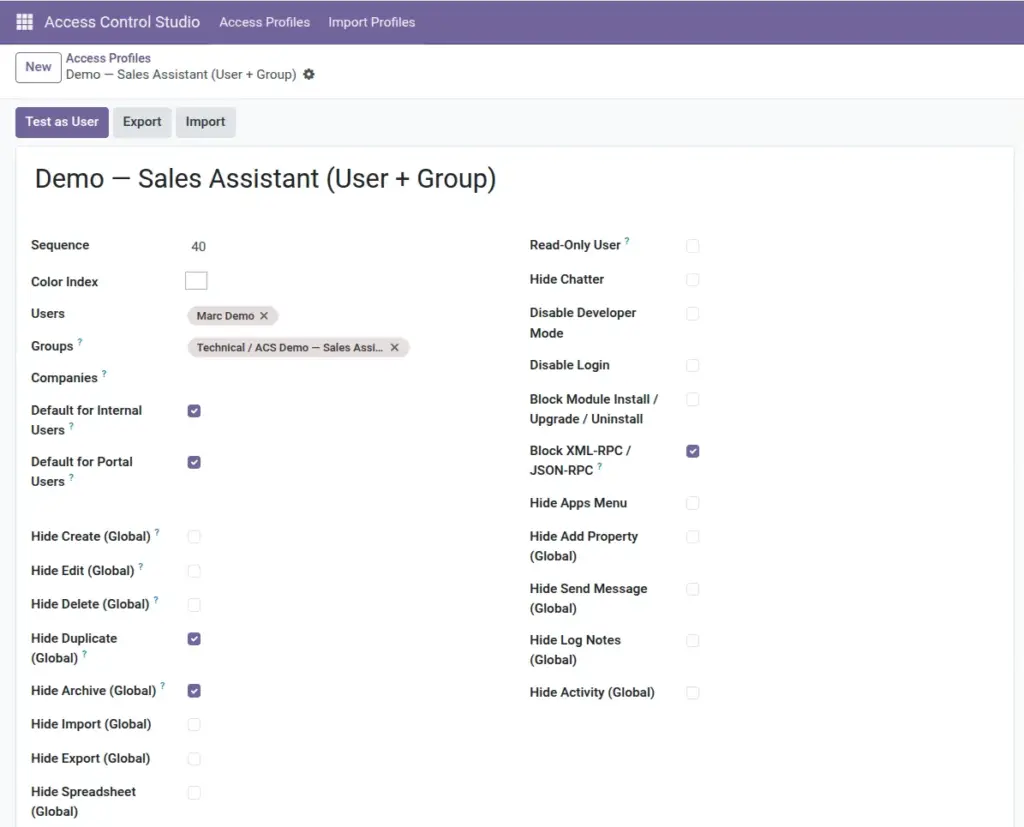
Goal: sell and update customers without seeing finance setup or product cost. Use Menu Access + Field Access + Model Access (Hide Delete/Export).
Read-only auditor
Goal: inspect data without changing it. Prefer the single Read-Only User switch over dozens of model lines.
Warehouse clerk
Goal: fulfill stock moves without changing master price data. Hide sensitive fields and limit product create/delete.
Portal lockdown
Goal: portal users only reach what you invite them to. Use Default for Portal Users plus strong global hides. Study the Portal Starter template for ideas.
Hide Settings from staff
Goal: stop casual configuration changes. Put this on your internal default profile.
No customer list download
Goal: reduce data leaks. Pair Hide Export with Field Access on sensitive columns.
Only my sales orders
Goal: privacy between salespeople. Domain Access with USER_ID; managers stay on a separate unrestricted profile.
Intern view-only
Goal: training access without risk. Read-Only + Hide Apps keeps the UI small and safe.
Tips
- Name profiles after jobs, not people – people change, jobs stay.
- Start milder than you think, then tighten after one week of feedback.
- Keep a shared spreadsheet: Role → Profile → Owner → Last tested date.
Common mistakes
- Copying every flag from a starter template without reading what Block RPC or Disable Login does.
- Putting auditors on the same profile as data-entry clerks.
- Building five overlapping sales profiles instead of one clear Sales Assistant profile.
Image