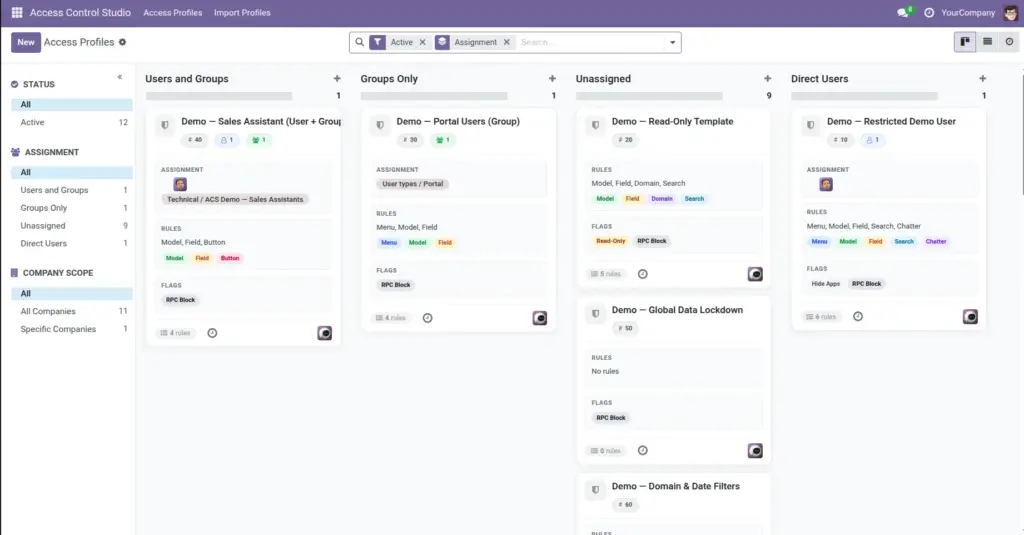
An Access Profile is a named package of rules. Assign it to people or teams, and Odoo applies those rules when they work.
Overview
Think of a profile like a “permission pack.” Example: Sales Team – Limited might hide Accounting menus, block deleting customers, and hide salary fields.
You can assign a profile to:
- Specific Users (for example, one intern)
- Groups (for example, everyone in Sales / User)
- Optionally limit it to certain Companies in a multi-company database
Profiles appear as cards on a board (Kanban). You can also use a list view, archive old profiles, and color-code them.
How It Works
When a profile is Active and assigned to someone, Odoo merges its rules into that person’s session. If several profiles apply, restrictions add up (more on that in How Rules Combine).
Archiving a profile turns its effects off without deleting your setup. Domain (record) rules linked to that profile are deactivated too.
Each profile can also carry “global” switches (read-only user, hide Apps menu, and so on) plus detailed tabs for menus, models, fields, and more.
Step-by-Step Guide
- Open Access Control Studio → Access Profiles.
- Click New (or use quick create on the Kanban card).
- Enter a clear Name, for example “Warehouse Staff – No Prices”.
- Add Users and/or Groups who should receive these rules.
- Optional: select Companies if the profile should apply only in some companies (leave empty for all).
- Set Sequence if you care about order on the board; pick a Color to spot the card quickly.
- Save, then configure Global Restrictions and the rule tabs described in later chapters.
Fields Table
These are the settings you will see for this feature, explained in everyday language.
| Field Name | Description | Example |
|---|---|---|
Name |
Title of the profile shown on the board and in lists. |
Sales Assistants |
Active |
When off (archived), rules stop applying. |
On for live teams; off for drafts |
Color Index |
Card color on the Kanban board. |
Blue for sales, green for warehouse |
Sequence |
Sort order on the board / list (drag handle in list). |
10, 20, 30… |
Users |
People who get this profile directly. |
John, Maria |
Groups |
Odoo security groups whose members all get this profile. |
Sales / User |
Companies |
Limit where the profile applies. Empty = all companies. |
US Company only |
Default for Internal Users |
New internal employees are auto-added to this profile. |
One “Staff Base” profile |
Default for Portal Users |
New portal users are auto-added to this profile. |
One “Portal Lockdown” profile |
Assignment (computed) |
Shows whether the profile uses users, groups, both, or neither. |
Users and Groups |
Company Scope (computed) |
All Companies vs Specific Companies. |
Specific Companies |
Rule Types (computed) |
Summary of which tabs have rules. |
Menu, Model, Field |
Line Count |
How many detailed rule lines exist. |
12 |
Field Explanations
Each field from the table above is explained in more detail here.
Name
Use business language your team understands. Avoid vague names like “Profile 1”.
Active
Uncheck or archive when you need a pause. Prefer archive over delete so history stays.
Color Index
Purely visual – helps managers scan the board.
Sequence
Lower numbers often appear first; useful when many profiles exist.
Users
Best for exceptions: one person needs stricter rules than their group.
Groups
Best for teams. Anyone added to that Odoo group later inherits the profile.
Companies
In multi-company setups, leave empty unless the same person should have different access depending on company.
Default for Internal Users
Only one profile can be the internal default. Great for a baseline lockdown for every new employee.
Default for Portal Users
Same idea for portal/customer users. Only one portal default is allowed.
Assignment (computed)
A quick health check – “Unassigned” profiles do nothing until you add people.
Company Scope (computed)
Helps filter profiles that are company-specific.
Rule Types (computed)
Shows at a glance if the profile only hides menus, or also has field/domain rules.
Line Count
Higher count means more detailed rules; empty profiles only use global toggles.
Tips
- Create one profile per role or scenario (Sales Limited, Accountant Read-Only), not one giant profile for everyone.
- Combine group assignment for the team plus user assignment for exceptions.
- Check the Kanban chips (Menu, Model, Field…) to confirm rules were actually added.
Common mistakes
- Leaving Users and Groups empty – the profile never applies to anyone.
- Making two profiles “Default for Internal Users” – only one can hold that flag.
- Deleting a profile instead of archiving when you only need a temporary stop.
Image