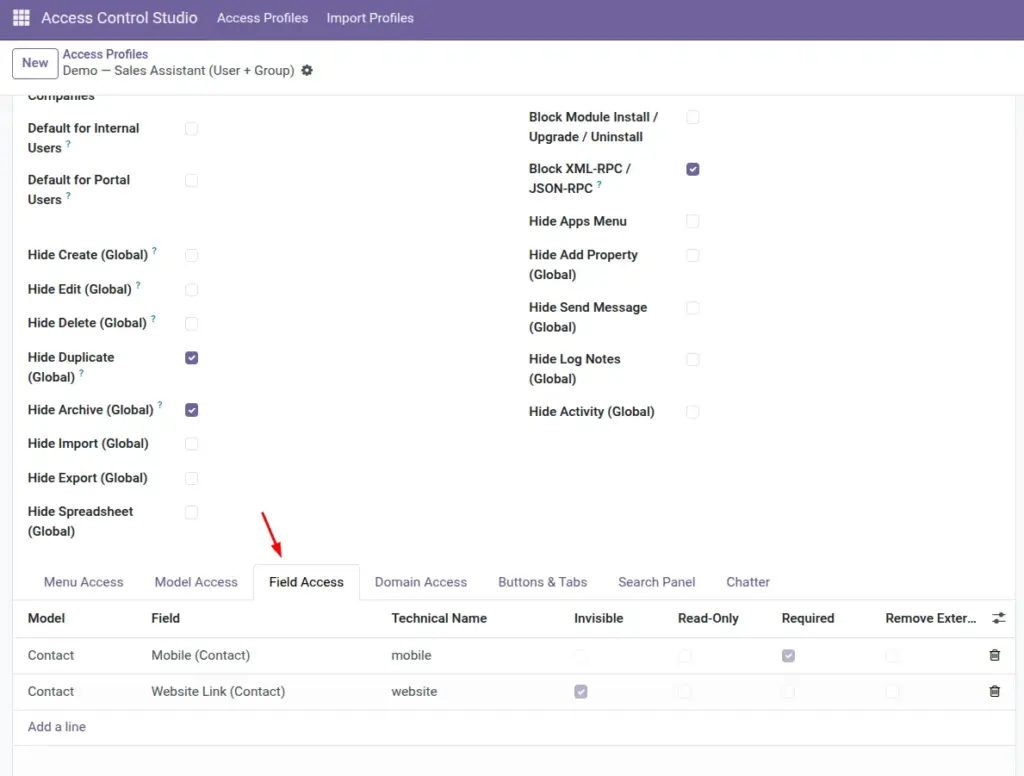
Field Access controls individual pieces of information on a form – hide salary, make phone numbers read-only, or require a field before saving.
Overview
Fields are the boxes and labels on a form: Name, Email, Credit Limit, Cost, and so on.
With Field Access you can make a field invisible, read-only, or required for people on this profile. You can also remove the little external-link shortcut on related records, block quick-create on dropdowns, and apply rules only when certain conditions are true.
How It Works
Pick a model, then pick a field on that model. The switches decide how that field behaves for matched users.
Conditional options use a condition domain: the invisible/readonly/required behavior applies only when the record matches that condition (for example, only on confirmed orders).
Relation Domain narrows what appears in a many2one / many2many dropdown (for example, only show vendors, not all contacts).
Step-by-Step Guide
- Open the profile → Field Access.
- Add a line → choose Model, then Field.
- Tick Invisible, Read-Only, and/or Required as needed.
- Optional: enable Remove External Link so users cannot jump to the related record.
- Optional: set Relation Domain to limit dropdown choices.
- Optional: for situational rules, fill Condition Domain and the Conditional Invisible / Read-Only / Required boxes.
- Save and open a sample record as the target user to confirm.
Fields Table
These are the settings you will see for this feature, explained in everyday language.
| Field Name | Description | Example |
|---|---|---|
Model |
Record type that owns the field. |
Employee |
Field |
The field to protect. |
Wage / Salary |
Technical Name |
System field name (read-only). |
wage |
Invisible |
Field is hidden completely. |
Hide cost on product for sales |
Read-Only |
Visible but not editable. |
Customer code set by system |
Required |
Must be filled before saving. |
Force phone on contacts |
Remove External Link |
Removes the open-related-record shortcut. |
Prevent jumping into restricted forms |
Remove Create |
Blocks quick-create on relational fields. |
No creating products from a sales line |
Remove Create & Edit |
Blocks create-and-edit popup on relations. |
Same as above, stricter |
Relation Domain |
Extra filter on dropdown options. |
[(‘supplier_rank’,’>’,0)] |
Condition Domain |
When the record matches this, apply conditional flags. |
[(‘state’,’=’,’sale’)] |
Conditional Invisible |
Hide field only if condition matches. |
Hide discount after confirmation |
Conditional Read-Only |
Lock field only if condition matches. |
Lock prices when confirmed |
Conditional Required |
Require field only if condition matches. |
Require reason when cancelling |
Field Explanations
Each field from the table above is explained in more detail here.
Model
Always select the model first; the field list depends on it.
Field
Use the human label when searching. Confirm with Technical Name if several fields look alike.
Technical Name
Helps support teams and imports identify the exact field.
Invisible
User cannot see the value in the UI (and related protections apply). Prefer this for secrets like cost or wage.
Read-Only
Good when people need to see a value but must not change it.
Required
Forces complete data entry for this role.
Remove External Link
Stops “peeking” into related records via the arrow/link control.
Remove Create
Useful when dropdowns would otherwise let users create new related records on the fly.
Remove Create & Edit
Stronger block on creating related records from the field.
Relation Domain
Keeps lists short and safe – only the contacts/products they should pick.
Condition Domain
Advanced: write when the special behavior should turn on. Ask an Odoo-capable colleague if you are unsure of domain syntax.
Conditional Invisible
Pairs with Condition Domain for situational hiding.
Conditional Read-Only
Pairs with Condition Domain for situational locking.
Conditional Required
Pairs with Condition Domain for situational required fields.
Tips
- Hide Cost / Margin fields for salespeople; keep them visible for managers on another profile.
- Use Read-Only instead of Invisible when people need the value to do their job.
- Test conditional rules on both matching and non-matching records.
Common mistakes
- Making a field Required and Invisible at the same time – users cannot fill what they cannot see.
- Applying Relation Domain with invalid syntax – dropdowns may appear empty.
- Forgetting that Administrators are exempt – always Test as User.
Image