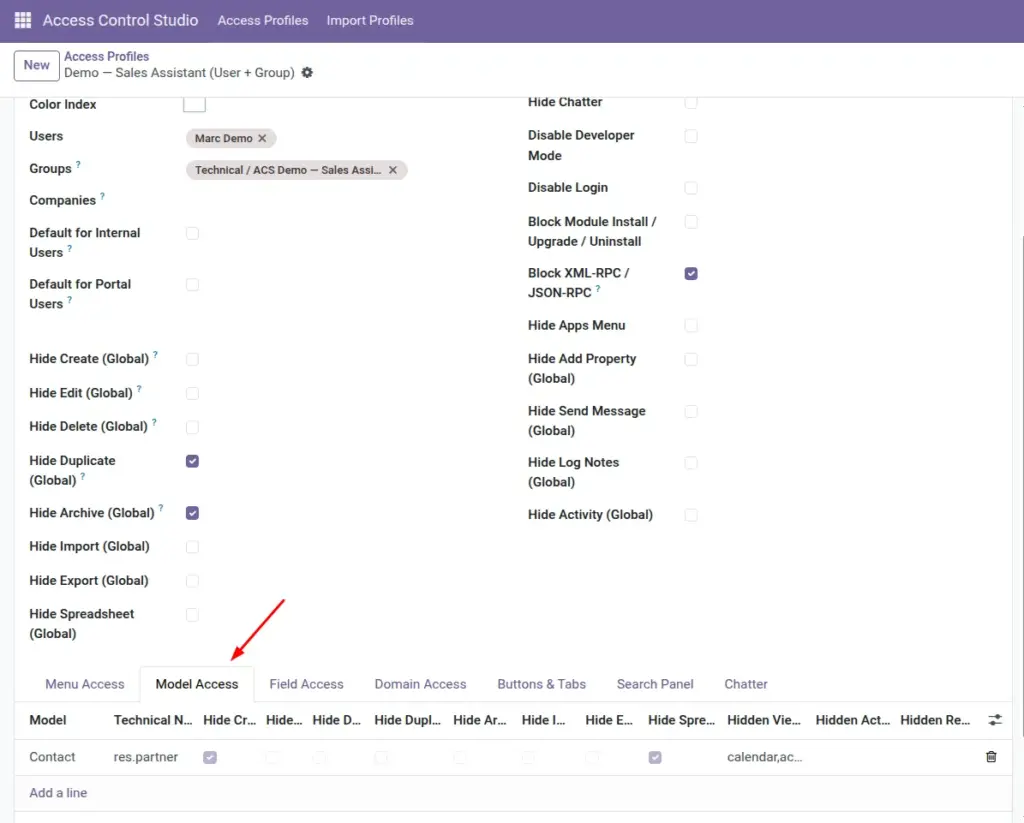
Model Access decides what people can do on a type of record – for example Contacts, Sale Orders, or Products – including create, edit, delete, views, and reports.
Overview
In Odoo, a “model” is a type of business record (Contacts, Invoices, Tasks). You do not need the technical name day to day – pick it from the list by its business label.
On the Model Access tab you can hide Create, Edit, Delete, Duplicate, Archive, Import, Export, and Spreadsheet for that model only. You can also hide certain view layouts (list, kanban, pivot…), actions, and print reports.
How It Works
Rules apply in the screen and on the server. If Create is hidden for Contacts, the user should not be able to create contacts through the UI or by other normal means.
Hidden view types remove those switches (for example, hide Pivot so someone only uses the list). Hidden actions and reports remove those options from action / print menus.
If a Global Hide Create is already on, you do not need to repeat it on every model – use Model Access for exceptions and targeted apps.
Step-by-Step Guide
- Open the profile → Model Access tab.
- Add a line and select the Model (for example, Contact).
- Tick the actions to block: Hide Create, Edit, Delete, Duplicate, Archive, Import, Export, Spreadsheet as needed.
- Optional: in Hidden Views, type view types to remove, separated by commas (list, form, kanban, pivot, graph, calendar, activity).
- Optional: select Hidden Actions and Hidden Reports for that model.
- Save and test with a user who has this profile.
Fields Table
These are the settings you will see for this feature, explained in everyday language.
| Field Name | Description | Example |
|---|---|---|
Model |
Which record type the rules apply to. |
Contact |
Technical Name |
System name of the model (read-only). |
res.partner |
Hide Create |
Blocks creating new records of this type. |
Warehouse cannot create products |
Hide Edit |
Blocks changing existing records. |
Interns can view orders only |
Hide Delete |
Blocks deleting records. |
Never delete invoices |
Hide Duplicate |
Blocks the Duplicate action. |
Stop cloning price lists |
Hide Archive |
Blocks archive / unarchive. |
Keep partners active/inactive controlled |
Hide Import |
Blocks import for this model. |
No bulk contact import |
Hide Export |
Blocks export for this model. |
No customer list download |
Hide Spreadsheet |
Blocks spreadsheet features for this model. |
Limit data extracts |
Hidden Views |
Comma-separated view types to hide. |
pivot,graph |
Hidden Actions |
Specific actions to remove from menus. |
A custom “Mass Update” action |
Hidden Reports |
Print / PDF reports to hide. |
Hide cost sheet report |
Field Explanations
Each field from the table above is explained in more detail here.
Model
Choose the business object people work with. If unsure, open the screen in Odoo and note its name, then find it here.
Technical Name
Shown for clarity when two labels look similar. You rarely type this yourself.
Hide Create
Removes ability to add new records of this type.
Hide Edit
Makes records view-only for this model (for this profile).
Hide Delete
Essential for financial or historical documents.
Hide Duplicate
Useful when duplication would copy confidential lines.
Hide Archive
Stops soft-removal of records.
Hide Import
Model-level alternative to Global Hide Import.
Hide Export
Model-level alternative to Global Hide Export.
Hide Spreadsheet
Stops spreadsheet-based access paths for that model.
Hidden Views
Example: allow list and form only; hide pivot/graph so analytics stay with managers.
Hidden Actions
Pick server/window actions bound to the model that should not appear.
Hidden Reports
Hide specific PDFs or printouts from the Print menu.
Tips
- Start with Hide Delete and Hide Export on sensitive models, then tighten further if needed.
- Use Hidden Views to simplify UI for store-floor users (list + form only).
- Write down the business reason in the profile chatter when you hide a report.
Common mistakes
- Hiding the form view while leaving create enabled – users may get stuck.
- Only hiding Export but leaving sensitive fields visible on screen – also use Field Access.
- Duplicating the same global policy on every model line – use Global Restrictions instead.
Image