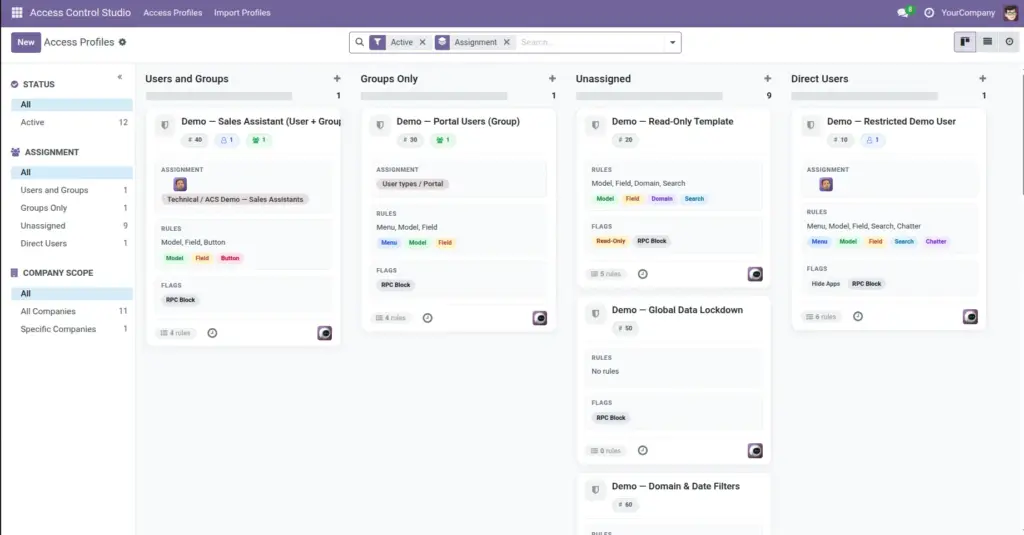
The Access Profiles board (Kanban) is your daily console – scan who is assigned, what rule types exist, archive drafts, and filter quickly.
Overview
When you open Access Control Studio → Access Profiles, you land on a card board. Each card is one Access Profile.
Cards show at a glance: assigned users/groups, companies, rule-type chips (Menu, Model, Field, Domain, Button, Search, Chatter), and flags such as Read-Only, Default Internal/Portal, No Login, Hide Apps, or RPC Block.
You can switch to a list view for bulk export/import, or keep using the board for day-to-day management.
How It Works
Cards are commonly grouped by Assignment: Direct Users, Groups Only, Users and Groups, or Unassigned. Unassigned profiles do nothing until you add people.
From a card menu you can edit, delete, archive/restore, and change color. Archiving turns rules off without deleting your setup.
Search filters help you find profiles that are read-only, missing rules, company-specific, or marked as defaults.
Step-by-Step Guide
- Open Access Profiles and confirm you are in Kanban (card) view.
- Scan columns/groups for Unassigned profiles – either assign people or archive them.
- Use quick create on the board to start a profile with Name, Users, and Groups.
- Open a card to edit full rules, or use the card menu to Archive when a role is retired.
- Switch to list view when you need Export or multi-select work.
- Use search filters (Active, Has rules, Read-Only, Default…) to keep a large board manageable.
Fields Table
These are the settings you will see for this feature, explained in everyday language.
| Field Name | Description | Example | |
|---|---|---|---|
Kanban / Card view |
Visual board of profiles (default). |
Daily management |
|
List view |
Spreadsheet-like list with export/import headers. |
Bulk export |
|
Assignment grouping |
Groups cards by users/groups/unassigned. |
Find empty profiles |
|
Rule type chips |
Icons/labels showing which tabs have rules. |
Menu + Field |
|
Color |
Card color for visual sorting. |
Blue = sales roles |
|
Archive / Restore |
Turn a profile off or back on. |
Seasonal contractor role |
|
Active filter |
Show live vs archived profiles. |
Active only |
|
Has Any Rules / Empty |
Find profiles with or without detailed lines. |
Empty drafts |
|
Quick create |
Create a profile from the board with basic fields. |
Name + Sales group |
Field Explanations
Each field from the table above is explained in more detail here.
Kanban / Card view
Best overview for managers – status and assignment without opening every form.
List view
Better when sorting by sequence or exporting several profiles.
Assignment grouping
Quick health check: anything in Unassigned should be intentional drafts only.
Rule type chips
If a card shows “No rules” and no global flags, it will not change user experience.
Color
Optional visual cue for departments or severity.
Archive / Restore
Prefer archive over delete so you can restore later.
Active filter
Archived profiles are hidden by default – clear the filter to find them.
Has Any Rules / Empty
Use Empty to clean up unfinished drafts.
Quick create
Fast start; open the form afterward to set global flags and tabs.
Tips
- Review Unassigned weekly so drafts do not pile up.
- Color-code by department for faster scanning.
- Open the card chatter after import/export to see audit notes.
Common mistakes
- Leaving important profiles Unassigned and wondering why nothing changed.
- Deleting instead of archiving a profile you might need again.
- Only looking at one profile form and forgetting the user is also on another card.
Image