Overview
Once assets are registered, your daily work happens on the asset record itself – assigning a laptop to a new hire, marking a printer as under repair, checking warranty expiry, or attaching an invoice PDF. This chapter covers those everyday tasks that keep your asset register accurate.
Think of each asset record as a living file folder: it should always reflect who has the item, where it is, and what condition it is in.
How It Works
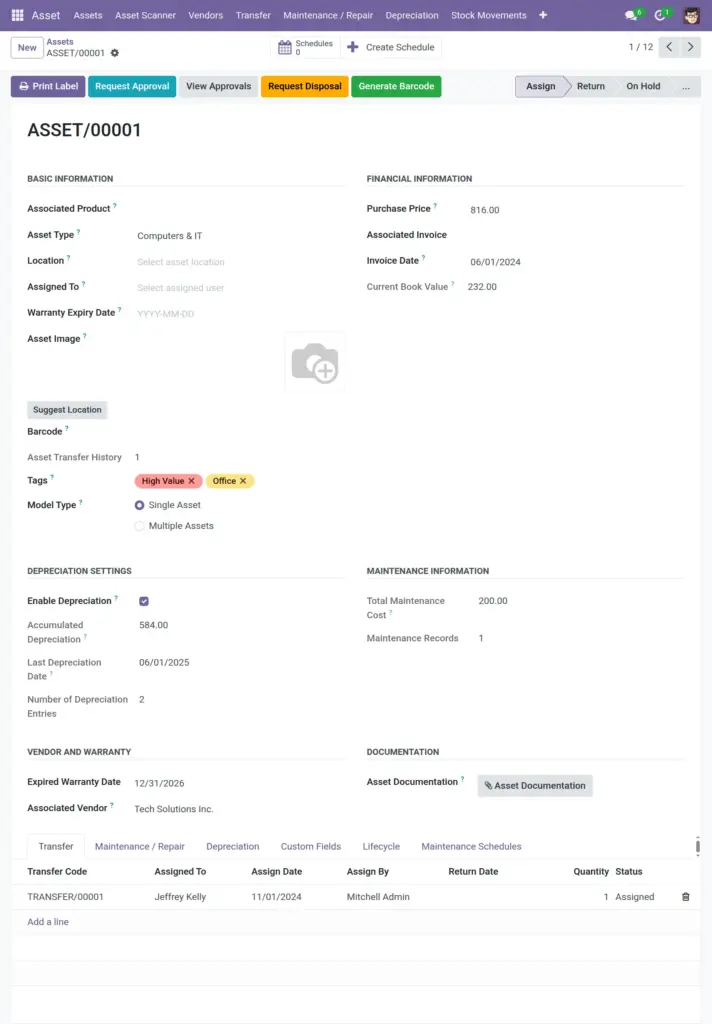
Open any asset from Assets > Assets, the Kanban board, or the Scanner. The form shows financial details, location, assignment, warranty, maintenance alerts, and custom fields for that asset type.
Status drives what you can do – only available assets (In Warehouse, Returned) can be assigned. Assigned assets should be transferred or returned before disposal. The chatter section at the bottom lets you attach documents and leave notes visible to your team.
Step-by-Step Guide
- Go to Assets > Assets and open the asset you need to update.
- To assign equipment, set Assigned To to the employee and change Status to Assigned. Save the record.
- To return equipment, clear or change Assigned To, set Status to Returned or In Warehouse, and update Location if it goes back to storage.
- To mark under repair, change Status to Repair or Maintenance. Add a note in chatter explaining the issue.
- Set Warranty Expiry Date from the purchase invoice or vendor documentation.
- Upload an Asset Image and attach warranty PDFs or manuals using the chatter attachment button.
- Review the maintenance section on the asset form for upcoming or overdue service dates.
Fields Table
| Field Name | Description | Example |
|---|---|---|
Asset Name |
Display name on lists and kanban cards. |
Dell Latitude 5540 – LAP-042 |
Status |
Current operational state of the asset. |
Assigned |
Assigned To |
User responsible for the asset right now. |
Sarah Johnson |
Location |
Physical place where the asset is kept. |
HQ – Floor 2 – IT Storage |
Company |
Legal entity that owns the asset. |
Acme Corp USA |
Warranty Expiry Date |
Last day of manufacturer or vendor warranty. |
2027-03-15 |
Remaining Warranty |
Days left until warranty expires (shown on kanban). |
412 days |
Next Maintenance Date |
When the next scheduled service is due. |
2025-06-01 |
Overdue Maintenance |
Count of maintenance jobs past due date. |
1 |
Asset Image |
Photo for visual identification. |
Photo of laptop |
Barcode |
Unique scannable code for the asset. |
ASSET-LAP-042 |
Field Explanations
Asset Name
Update the name if the asset is rebranded or renumbered, but keep barcode stable for label consistency.
Status
Keep status current – outdated status breaks kanban columns, reports, and transfer rules.
Assigned To
Always assign to a real user account tied to an employee. Avoid leaving laptops “assigned” to people who left the company.
Location
Update location when the asset moves rooms, even before a formal transfer is processed.
Company
Cannot usually be changed casually on multi-company setups – use inter-company transfers instead.
Warranty Expiry Date
Enter this at purchase time. The kanban board highlights assets nearing expiry.
Remaining Warranty
Calculated automatically from warranty date – use it to decide whether to repair in-house or claim vendor support.
Next Maintenance Date
Comes from linked maintenance schedules. Click through to create or complete maintenance.
Overdue Maintenance
A red flag on the kanban card. Address overdue items before assigning asset to new users.
Asset Image
Replace the photo if the asset is repaired or upgraded so field teams recognize the current unit.
Barcode
Do not change after labels are printed unless you reprint all physical tags.
Tips (Pro Tips)
- Review assigned assets monthly – especially IT equipment – to catch items still assigned to former employees.
- Use chatter notes for repair ticket numbers so support teams can trace issues later.
- Set warranty dates on day one; recovering warranty info years later is difficult.
- Create a transfer record for official handoffs instead of only editing Assigned To – transfers keep audit history.
Common Mistakes
- Editing location and employee fields without a transfer or return – no audit trail for auditors.
- Leaving status as Assigned when the item is actually in the warehouse.
- Ignoring overdue maintenance badges on the kanban board until equipment breaks down.
- Attaching sensitive documents without checking who has access to the asset record.
Visual Reference