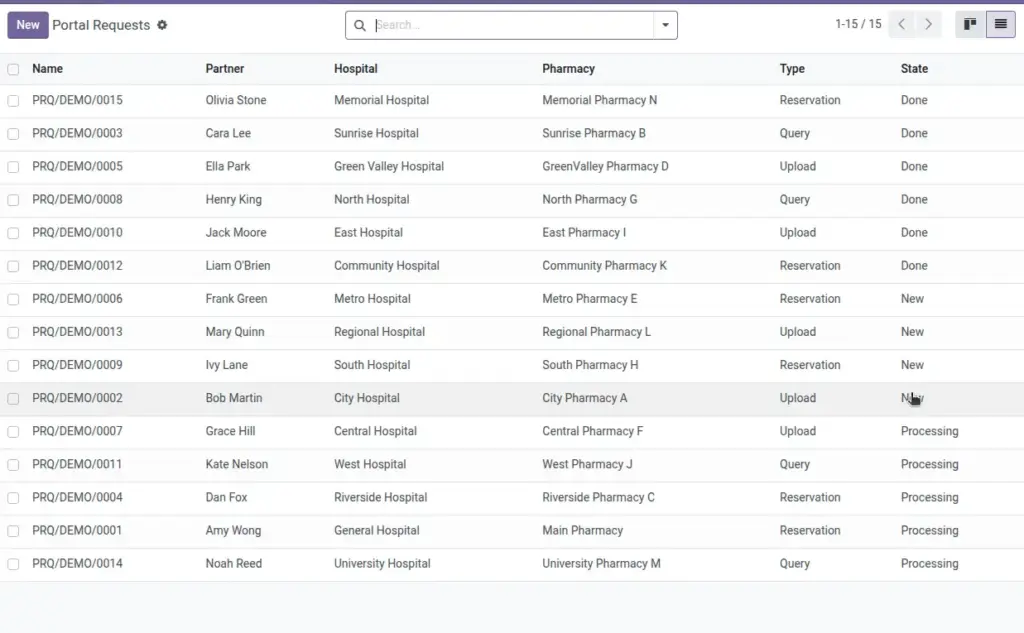
Manage uploads, reservation requests, and general queries coming from patients or customers.
Overview
Portal Requests centralize incoming patient and customer submissions so your team can respond consistently and track progress. Each request shows who submitted it, what type it is (upload, reservation, or query), and which hospital/branch it belongs to, with file attachments when provided.
Moving requests from New → Processing → Done keeps your service queue tidy and gives managers a clear view of workload and turnaround times.
How It Works
- Each request has a Type (Upload, Reservation, Query) and a State (New, Processing, Done).
- Link to Hospital, Pharmacy, and the Contact (Partner).
Step-by-Step Guide
- Go to Pharmacy → Operations → Portal Requests → New.
- Select Hospital and optional Pharmacy.
- Choose the Type and add a description in Name.
- Attach files if needed and move the request through State until Done.
Fields Table
| Field Name | Description | Example |
|---|---|---|
Hospital |
Receiving organization. |
City General |
Pharmacy |
Branch handling the request. |
CGH OP |
Contact |
Person who submitted the request. |
Jane Doe |
Type |
Upload, Reservation, or Query. |
Upload |
Attachments |
Files shared by the contact. |
scan.pdf |
State |
New, Processing, or Done. |
Processing |
Field Names Explained
Hospital
Receiving organization that will process the request.
Pharmacy
Branch responsible for follow‑up actions.
Contact
Person who submitted the request.
Type
Use Reservation for pickup times; Upload for documents; Query for questions.
Attachments
Files provided by the contact (e.g., prescriptions).
State
New, Processing, or Done—track to keep the queue clean.
Tips
- Save common replies as templates to speed up responses.
Common Mistakes
- Forgetting to move to Done keeps metrics inflated—close items promptly.
Image