Give users the right access, set their default hospital, and control which hospitals they can work with.
Overview
Access controls help you keep data private and workflows simple. Users can be limited to specific hospitals and given a default hospital so filters and forms pre‑select the right context. Roles govern what actions they can perform, such as viewing, creating, approving, or managing pharmacy records.
Setting this up correctly reduces mistakes (like posting to the wrong branch) and shortens training time because interfaces load with the user’s everyday location ready to go.
How It Works
- Default Hospital sets the hospital that opens by default for the user.
- Hospitals Access lists all hospitals the user can access.
- Security roles define what actions the user can do (e.g., read, create, approve).
Step-by-Step Guide
- Go to Settings → Users & Companies → Users. Open a user.
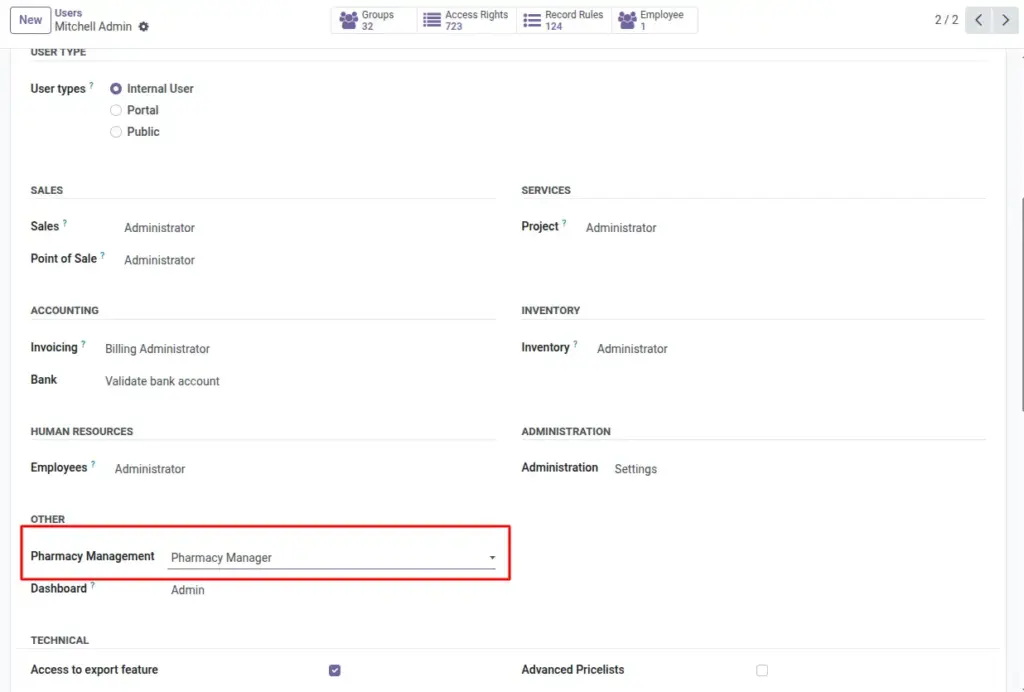
- Under Pharmacy section, set Default Hospital.
- Add hospitals to Hospitals Access that the user can work with.
- Assign the right Access Rights for Pharmacy (e.g., User, Manager).
- Save. Ask the user to refresh to apply changes.
Fields Table
| Field Name | Description | Example |
|---|---|---|
Default Hospital |
Hospital selected by default for this user. |
City General |
Hospitals Access |
Hospitals the user can open/work with. |
City General, North Medical |
Pharmacy Role |
Access level for pharmacy features. |
Manager |
Field Names Explained
Default Hospital
Preselects the hospital in forms and filters for the user.
Hospitals Access
List of hospitals the user may access and work with.
Pharmacy Role
Access level determining actions the user can take.
Tips
- Use the Manager role sparingly—prefer standard roles for most staff.
- Review access quarterly to reflect staff moves.
Common Mistakes
- Leaving Hospitals Access empty prevents users from seeing any hospital data.
- Setting the wrong default hospital slows daily workflows.
Image