Add hospitals, create pharmacy branches, and link warehouses and stock locations.
Overview
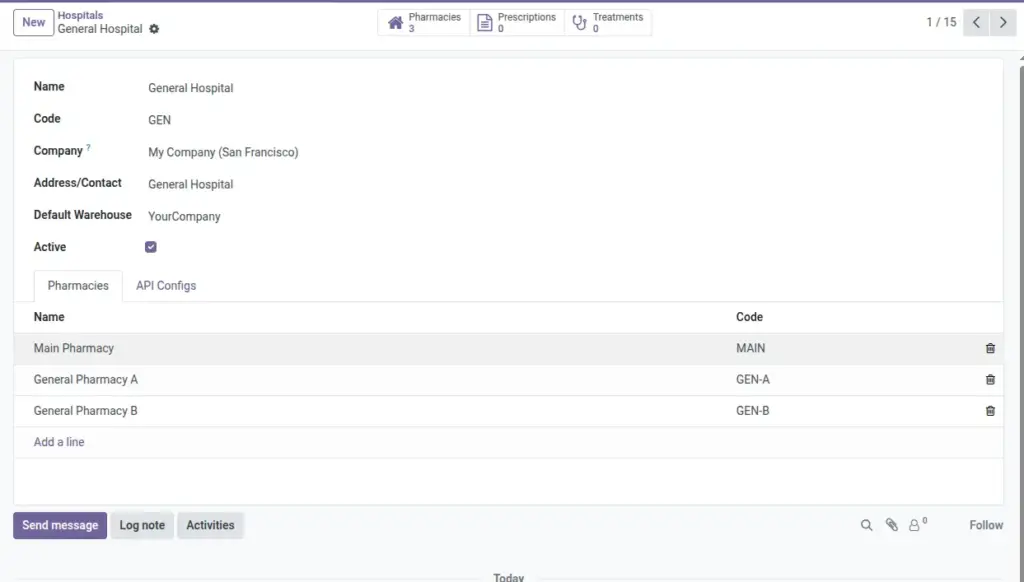
Hospitals are your top-level healthcare entities and hold the ownership, address, and default warehouse that supply their branches. Within each hospital, you can create one or more pharmacy branches (for example, an Outpatient Pharmacy and an Inpatient Pharmacy). Each branch can point to its own warehouse or stock location, which ensures that deliveries and dispensing draw stock from the correct shelves. Setting this structure correctly provides clean separation of inventory, accurate reporting by site, and simpler daily operations for staff who switch between locations.
As a best practice, assign users a default hospital to reduce clicks during data entry. When a branch has its warehouse selected, the branch’s stock location can be auto-derived, minimizing configuration errors and making it easier to start dispensing safely on day one.
How It Works
- Hospitals define company ownership, address, and default warehouse.
- Pharmacies belong to a hospital and have their own warehouse or location.
- Users can have a default hospital and access to multiple hospitals.
Step-by-Step Guide
- Go to Pharmacy → Configuration → Hospitals → New.
- Enter Hospital Name and select the Company. Optional: set a Default Warehouse.
- Save. Use the smart buttons to view related pharmacies and prescriptions later.
- Go to Pharmacy → Configuration → Pharmacies → New.
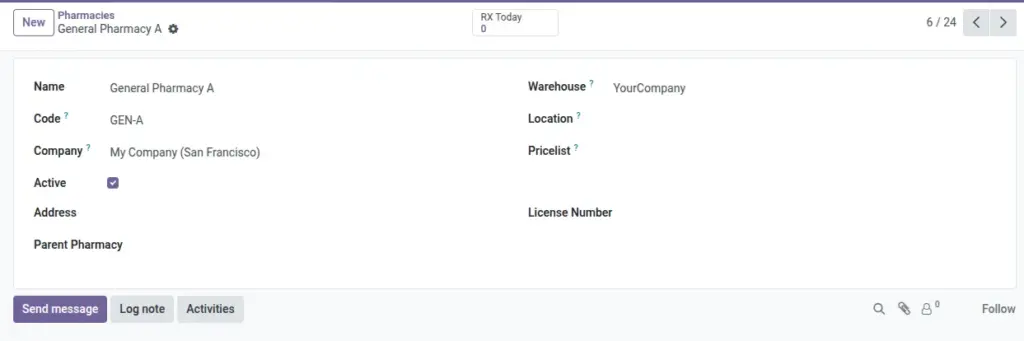
- Choose the Hospital, enter a Branch Name and Code, and select a Warehouse. The primary Location will fill automatically if not set.
- Optionally add Address, Pricelist, and License Number.
- Save. The KPIs show prescriptions, expiring lots, and placeholders for sales.
Fields Table
| Field Name | Description | Example |
|---|---|---|
Hospital Name |
The display name of the hospital. |
City General Hospital |
Company |
Which company owns this hospital. |
Healthcare Group Ltd. |
Address/Contact |
Partner record for the hospital’s address. |
123 Wellness Ave |
Default Warehouse |
Warehouse used for stock operations at the hospital level. |
HOSP/WH |
Pharmacy Name |
Display name for a pharmacy branch. |
CGH Outpatient Pharmacy |
Branch Code |
Unique code for the branch used in reports. |
CGH-OP |
Warehouse |
Warehouse serving this branch’s stock. |
OP/WH |
Location |
Primary stock location for the branch. |
WH/Stock/OP |
License Number |
Regulatory license identifier for the branch. |
LIC-00923 |
Field Names Explained
Hospital Name
The public name of the hospital shown in menus and reports.
Company
The legal company that owns this hospital; controls multi‑company visibility.
Address/Contact
The partner card holding the hospital’s address and phone/email.
Default Warehouse
Warehouse used by default for stock operations at this hospital.
Pharmacy Name
Display name for the pharmacy branch visible to users.
Branch Code
Short unique identifier for reporting and exports.
Warehouse
Warehouse that supplies this branch; choose one per branch if you separate stock.
Location
Main stock location; auto‑filled from warehouse to prevent mistakes.
License Number
Regulatory license or certificate number for compliance checks.
Tips
- Set a Default Hospital in your user profile to speed up daily work.
- Keep Branch Codes short and consistent for clear reporting.
- Use a dedicated warehouse per branch if you need strict stock separation.
Common Mistakes
- Leaving Warehouse empty on the branch can break deliveries. Always set it.
- Using the same Branch Code for two branches causes duplicates in reports.
Image