

Overview
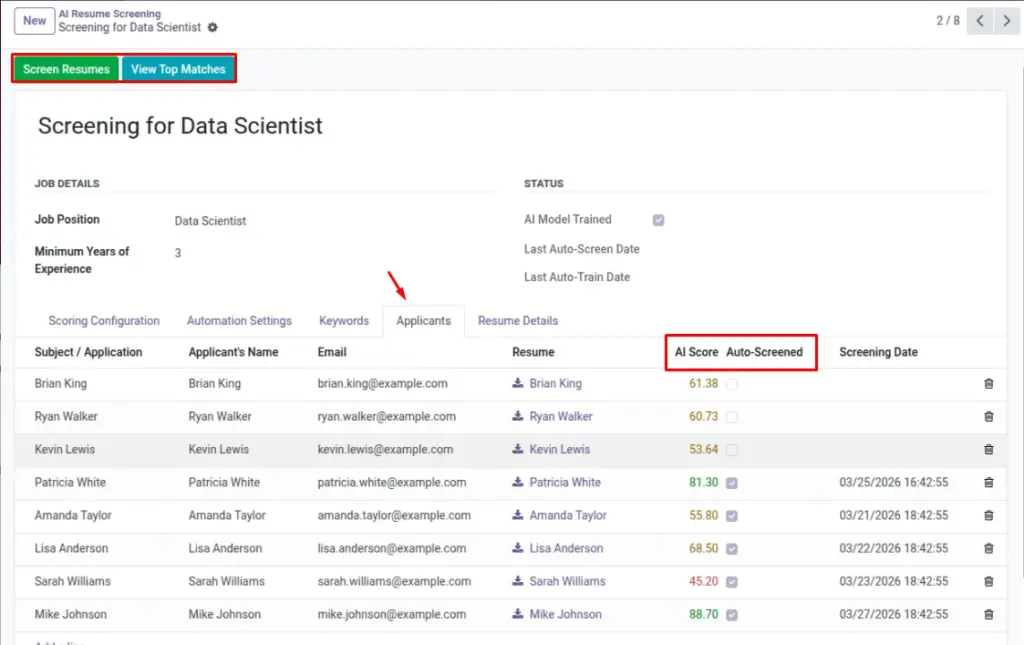
Odoo offers multiple views to make navigation fast. Kanban gives a visual overview of screenings or applicants; List views let you sort and filter (e.g., by AI Score); Form views expose key actions like Train and Screen. Knowing where each piece lives helps you move confidently from setup to action to review.
How It Works
Kanban shows cards for quick scanning and status; click a card to open the detailed form where you’ll find header buttons like Train AI Model and Screen Resumes. List views display many records at once and allow sorting/filtering—add the AI Score column to rank applicants. Use the breadcrumbs and tabs to switch between related information (e.g., keywords, applicants).
Step-by-Step Guide
- From AI Resume Screening, switch between Kanban and List.
- Open a Form to access Train/Screen buttons.
- In Applicants, enable the AI Score column and sort descending.
Fields Table
| Field Name | Description | Example |
|---|---|---|
AI Score |
Appears in applicants views for quick ranking. |
85 |
Model Trained |
Form header indicator on the screening. |
True |
Train AI Model |
Header button to build/update the model. |
Action |
Screen Resumes |
Header button to score applicants. |
Action |
Field Explanations
AI Score
Column you can add to the Applicants list for ranking candidates quickly.
AI Model Trained
Header indicator on Screening forms that shows model readiness.
Train AI Model (button)
Builds/refreshes the model so screening can run.
Screen Resumes (button)
Scores eligible applicants and writes AI Scores.
Tips
- Save favorite filters: “Score ≥ 75”.
- Use Kanban for visual groupings; List for bulk actions.
Common Mistakes
- Not adding AI Score to visible columns in the list.
- Forgetting to use filters to narrow large lists.
Image