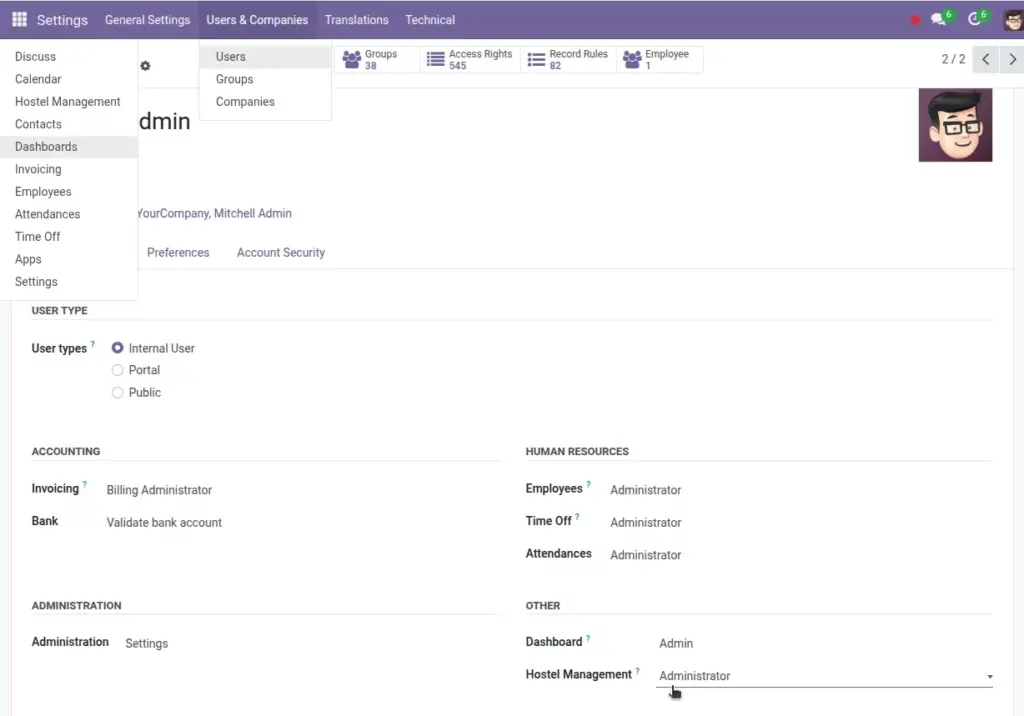
Control who can view, create, edit, approve, and export data across the Hostel Management system.
Overview
Roles and permissions define what each user can do in the system. Use them to separate duties (warden vs accounts vs security), reduce mistakes, and protect sensitive data like invoices and penalties.
- Role-based access: Users get permissions through security groups/roles.
- Least privilege: Give only the access needed for the job.
- Audit & control: Restrict finance exports and approval actions to authorized staff.
How It Works
- Each user is assigned one or more roles (security groups).
- Roles grant menu access and CRUD permissions (Create/Read/Write/Delete).
- Some actions may be restricted further (for example: posting invoices, approving visitors, or exporting reports).
Step‑by‑Step Guide
- Go to Settings → Users & Companies → Users.
- Open a user record.
- In Access Rights, assign the required roles for Hostel modules and (if needed) Accounting.
- Save. Ask the user to log out and log back in to refresh menus.
Fields Table
| Role | Typical access | Notes |
|---|---|---|
Hostel Admin |
All modules + settings |
Limit to 1–2 trusted users. |
Warden / Manager |
Contracts, Check‑In/Out, Visitors, Attendance, Announcements, Inspections |
No accounting posting unless required. |
Accounts / Finance |
Rent invoices, penalties, reports, exports |
Restrict operational edits where possible. |
Security / Gate |
Visitors check‑in/out, view in‑house list |
Read-only on student data if possible. |
Maintenance Staff |
Maintenance requests, asset views (optional) |
Cannot see finance. |
Field name explanation : Actual group names may differ based on your Odoo configuration; map the intent (what the role should do) to the closest access rights.
Common permission patterns
- Read-only users: Can view lists and forms but cannot create/edit/delete.
- Approvers: Can approve/validate actions (visitors, check‑out, penalties) but not change master data.
- Finance-only: Can generate/post invoices and export reports but cannot change allocations.
Tips
- Test with a non-admin user account after changing roles (menus should match expectations).
- Document who has Admin access and review quarterly.
Common Mistakes
- Giving “Admin” access to all staff (increases risk of accidental deletes/edits).
- Mixing too many roles for one user (hard to troubleshoot access issues).
- Forgetting re-login after access changes (menus may not refresh immediately).
Image