

Overview
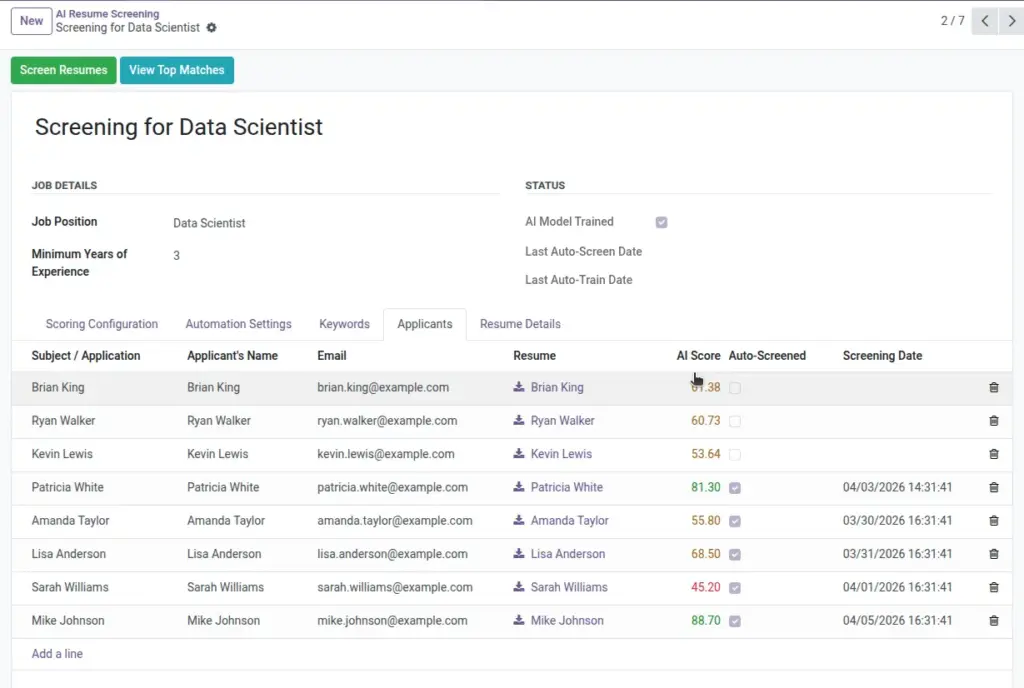
Applicants linked to the job show an AI Score once screened. This gives you a fast, objective way to rank candidates before deep reading or interviews. Use views and filters to scan the top segment first, then move promising profiles through your standard Odoo recruitment pipeline.
Keep in mind that AI is an assistant. Combine the score with resume review and interviews to confirm skills, experience depth, and culture fit.
How It Works
After screening, each applicant’s record stores an AI Score. In the Applicants list, add the AI Score column and sort descending to see your best matches first. Open a candidate to review their resume and notes, then move them through your usual Odoo stages (e.g., phone screen, interview, offer). Re-screen if you change criteria or add many new applicants.
Step-by-Step Guide
- Open Recruitment → Applicants.
- Use the AI Score column to sort descending.
- Open top profiles, review resumes, and move them along your pipeline.
Fields Table
| Field Name | Description | Example |
|---|---|---|
AI Score |
Overall score on the applicant (0–100). |
88 |
Resume Text |
Text extracted from the PDF resume. |
“Python developer with 5 years…” |
Job Position |
Role the applicant is linked to. |
Software Developer |
AI Screening |
Screening used to generate the score. |
Developer Screening Q2 |
Field Explanations
AI Score
The 0–100 rating calculated for the applicant.
Resume Text
Parsed text used by the AI (derived from the PDF resume).
Job Position
The role the applicant applied for; ties into the relevant screening.
AI Screening (internal link)
Links the applicant to the screening that produced the score.
Tips
- Use filters to view only applicants above a chosen threshold (e.g., ≥75).
- Combine with your standard Odoo stages for a smooth process.
Common Mistakes
- Ignoring medium scorers who might be great culture fits—scan a few.
- Over-relying on AI—use it to assist, not replace judgment.
Image