Overview
Not everyone in your company should edit budgets or approve disposals. Asset Management Pro uses three access roles – User, Manager, and Scanner – to control who sees sensitive financial data and who can change records.
Your Odoo administrator assigns these roles on each person’s user profile. This chapter explains what each role can do so you request the right access level.
How It Works
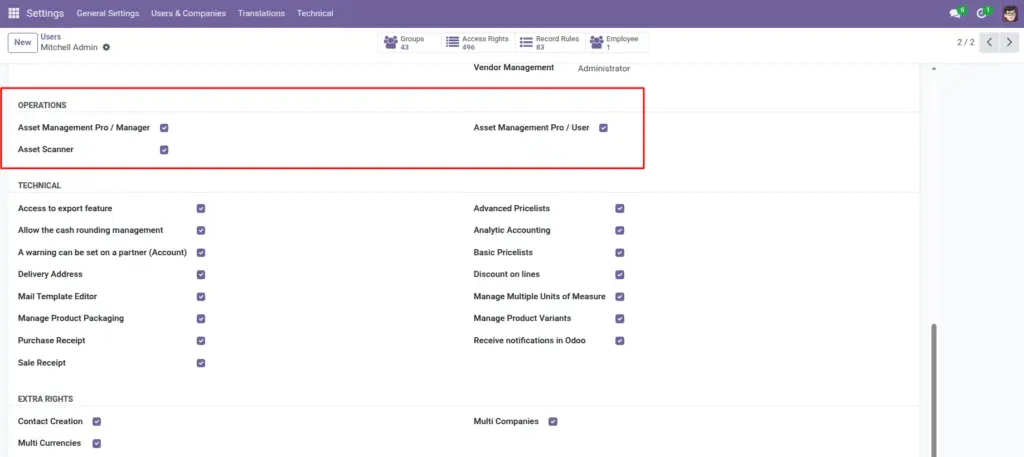
Roles are Odoo security groups under the Operations category. Asset Management Pro / User is for daily staff who view and update assets. Asset Management Pro / Manager includes User rights plus full create/edit/delete on configuration, budgets, workflows, and compliance. Asset Scanner is a limited role for field staff who only need the scanner and read-only asset lookup.
Menus hide automatically based on role – if you cannot see Budget Management, you likely have User access only. Company rules further limit which assets appear based on allowed companies.
Step-by-Step Guide
- Ask your Odoo administrator to open Settings > Users and select the user.
- On the Access Rights tab, find the Operations section.
- Assign Asset Management Pro / User for standard staff who manage day-to-day assets.
- Assign Asset Management Pro / Manager for team leads, finance, and IT administrators.
- Assign Asset Scanner for warehouse or field staff who only scan and look up assets.
- Set Allowed Companies on the user profile for multi-company environments.
- Have the user log out and back in – menu changes take effect on next login.
Fields Table
| Field Name | Description | Example |
|---|---|---|
Asset Management Pro / User |
Standard role for daily asset operations. |
IT support technician |
Asset Management Pro / Manager |
Full access including config, budgets, compliance. |
Asset manager |
Asset Scanner |
Scanner-only access for field lookup. |
Warehouse picker |
Allowed Companies |
Which companies the user can see. |
Acme USA only |
Access Rights Tab |
Where roles are assigned on the user form. |
Settings > Users |
Menu Visibility |
Menus shown or hidden by role. |
Budget menu – Manager only |
Record Rules |
Automatic filters limiting data by company. |
User sees only own company assets |
Implied Groups |
Manager automatically includes User rights. |
Manager inherits User |
Field Explanations
Asset Management Pro / User
Can view and update most asset records, create transfers and disposal requests, but cannot change system settings or approval workflow definitions.
Asset Management Pro / Manager
Use for people who configure locations, asset types, budgets, predictive analytics, compliance rules, and settings. Includes all User permissions.
Asset Scanner
Ideal for staff who only scan barcodes during stock checks. Cannot edit asset financial fields or approve workflows.
Allowed Companies
Even Managers only see companies listed here. Set carefully for multi-entity organizations.
Access Rights Tab
Only Odoo administrators or settings managers can change roles – regular users cannot grant themselves access.
Menu Visibility
If a menu is missing, check role first before assuming the module is broken.
Record Rules
Work silently in the background – a user may have Manager role but still see one company if only one is allowed.
Implied Groups
You do not need to assign both User and Manager – assigning Manager is enough.
Tips (Pro Tips)
- Follow least-privilege: give User role by default, Manager only where needed.
- Use Scanner role for seasonal audit teams instead of full User access.
- Review access quarterly when employees change departments or leave the company.
- Document who has Manager access – they control financial and compliance settings.
Common Mistakes
- Giving everyone Manager access “to avoid permission issues” – increases data risk and accidental config changes.
- Forgetting to remove access when employees leave – former staff retain asset visibility.
- Assigning Scanner when the person also needs to create transfers – they will be blocked.
- Not setting Allowed Companies on multi-company databases – users see wrong or no records.
Visual Reference