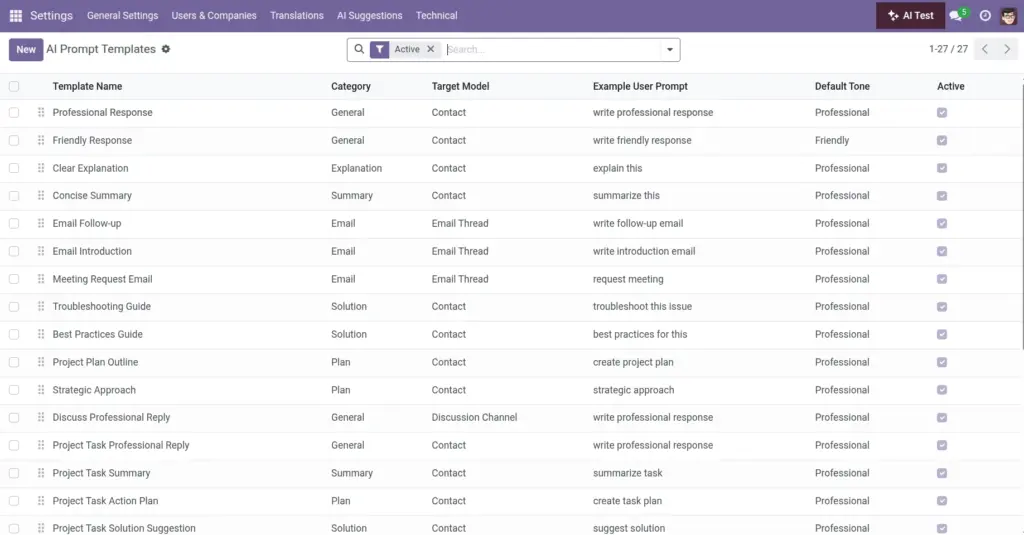
Overview
Prompt templates are manager‑curated instructions that shape longer outputs (emails, explanations, solutions, summaries, plans). They ensure brand consistency and help the assistant use the right record fields at the right time.
- Reusable guidance: One template powers many perfect responses.
- Model‑aware: Bind a template to a model to pull key data safely.
- Governable: Control tone, history depth, and allowed context.
Real‑life example: A “Renewal follow‑up” template references customer name, renewal date, and plan details—so every agent sends a clear, on‑brand message.
How It Works
- Create templates with placeholders like {context}, {record}, {tone}, {conversation}.
- Bind to a model to include record fields automatically.
- Active templates surface in AI actions when relevant.
Step-by-Step Guide
- Go to AI Prompt Templates.
- New → Name, Category (email, summary, etc.), Target Model (optional).
- Write the template body and set default tone/message count.
- Enable context options (history, record data, page context) as needed.
Fields Table
| Field Name | Description | Example | Use Purpose |
|---|---|---|---|
Template name |
Name of this template |
“Professional follow-up” |
Identify and search templates quickly |
Category |
Type of output |
email, summary, plan |
Route to the right workflow |
Target model |
Model this template is for |
sale.order |
Pull relevant fields automatically |
Template body |
Instruction text with placeholders |
Use {record} and {tone} |
Guide the AI with clear structure |
Example input |
Typical user request |
“Write a polite reminder” |
Match user intent more accurately |
Order |
Priority in the list |
10 |
Control which template is picked first |
Active |
Show or hide this template |
True |
Archive without deleting history |
Use conversation history |
Include recent messages |
True |
Maintain continuity in replies |
Use record data |
Include record fields |
True |
Personalize with live business data |
Use page context |
Include page metadata |
False |
Adapt to where the user is in Odoo |
Default tone |
Fallback tone |
Professional |
Guarantee baseline brand voice |
Default message count |
How much history to include |
5 |
Balance context with speed/cost |
Field name explanation
Template name
Manager‑friendly label for this template.
Category
The type of output (email, summary, plan, etc.).
Target model
Document type to pull fields from (e.g., Sales Order).
Template body
The main instruction with placeholders like {record}.
Example input
A typical user request that should use this template.
Order
Priority in case multiple templates match.
Active
Toggle visibility without deleting.
Use conversation history
Include recent messages for context.
Use record data
Merge key fields from the open document.
Use page context
Add UI/page details when helpful.
Default tone
Fallback voice (professional, friendly, etc.).
Default message count
How many recent messages to include.
Tips
- Ask providers to return JSON (e.g., {“body_html”:”…”}) for email use.
- Write plain language and specify tone, length, and structure.
Common Mistakes
- Overly technical prompts that confuse end users.
- Disabling record data when it’s needed for accuracy.
Image