Overview
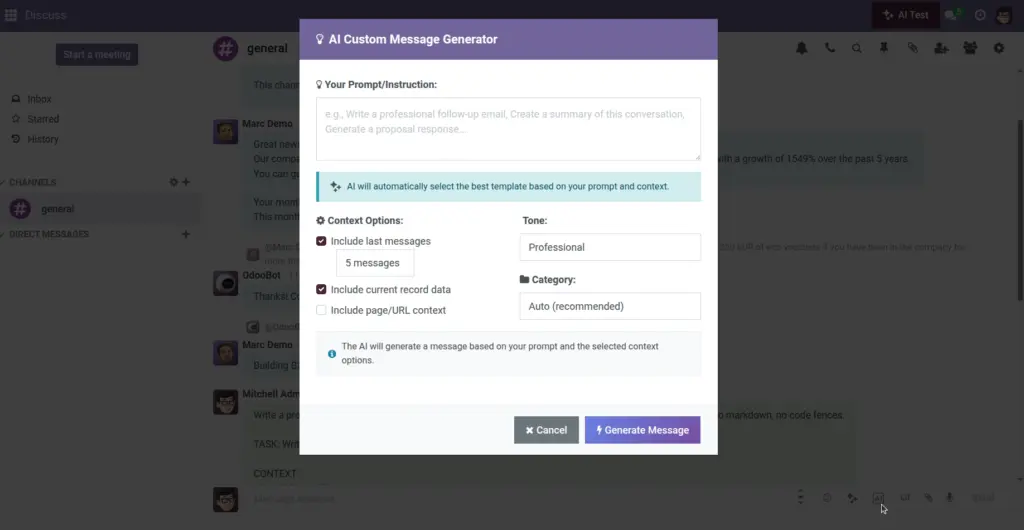
Use the Custom Message Generator when a unique situation needs special wording. You describe the goal in simple language; the assistant mixes in recent messages and record data to produce an accurate, on‑tone response.
- Free‑form: Write exactly what you need in plain English.
- Tone control: Switch between professional, friendly, formal, or casual.
- Smart context: Pull in just enough details to feel personal, not generic.
Real‑life example: “Short apology with delivery ETA and ask if a partial shipment helps.” The assistant drafts a concise note with next steps you can approve in seconds.
How It Works
- You write a short instruction.
- Choose tone and what context to include (recent messages, record data, page info).
- The AI blends it into a polished draft.
Step-by-Step Guide
- Click the wand (+) icon near the composer.
- Type what you need in simple language.
- Pick a tone and context options.
- Generate, review, and insert into the composer.
Fields Table
| Field Name | Description | Example | Use Purpose |
|---|---|---|---|
Your prompt |
What you want the AI to write |
“Follow-up with ETA” |
Set the goal in plain English |
Include last messages |
Blend recent thread into the answer |
Last 5 |
Preserve context and reduce back-and-forth |
Include record data |
Merge key fields from the open document |
Customer name, deadline |
Auto-personalize the reply |
Field name explanation
Your prompt
Plain‑language description of what you need.
Include last messages
Brings in recent thread context to stay on topic.
Include record data
Adds names, dates, and other key fields automatically.
Tips
- Ask for a length (e.g., 2–3 sentences).
- Mention if you need bullets, apology, or a next-step.
Common Mistakes
- Leaving the prompt blank or too vague.
- Forgetting to review tone and names.
Image