Overview
Why it matters: Creating payslips one by one does not scale. The generation wizard creates all (or selected) employees’ payslips for a month in one action, while skipping duplicates so you do not silently overwrite or double-pay a period.
What this covers: You open the wizard from the payslip flow, optionally restrict to certain employees, choose month and year, then generate. New payslips appear in draft for calculation and review; existing payslips for the same employee and period are left unchanged.
Run this after timesheets and attendance are stable for the period—see Payslip Lifecycle & Approval for what happens next.
How It Works
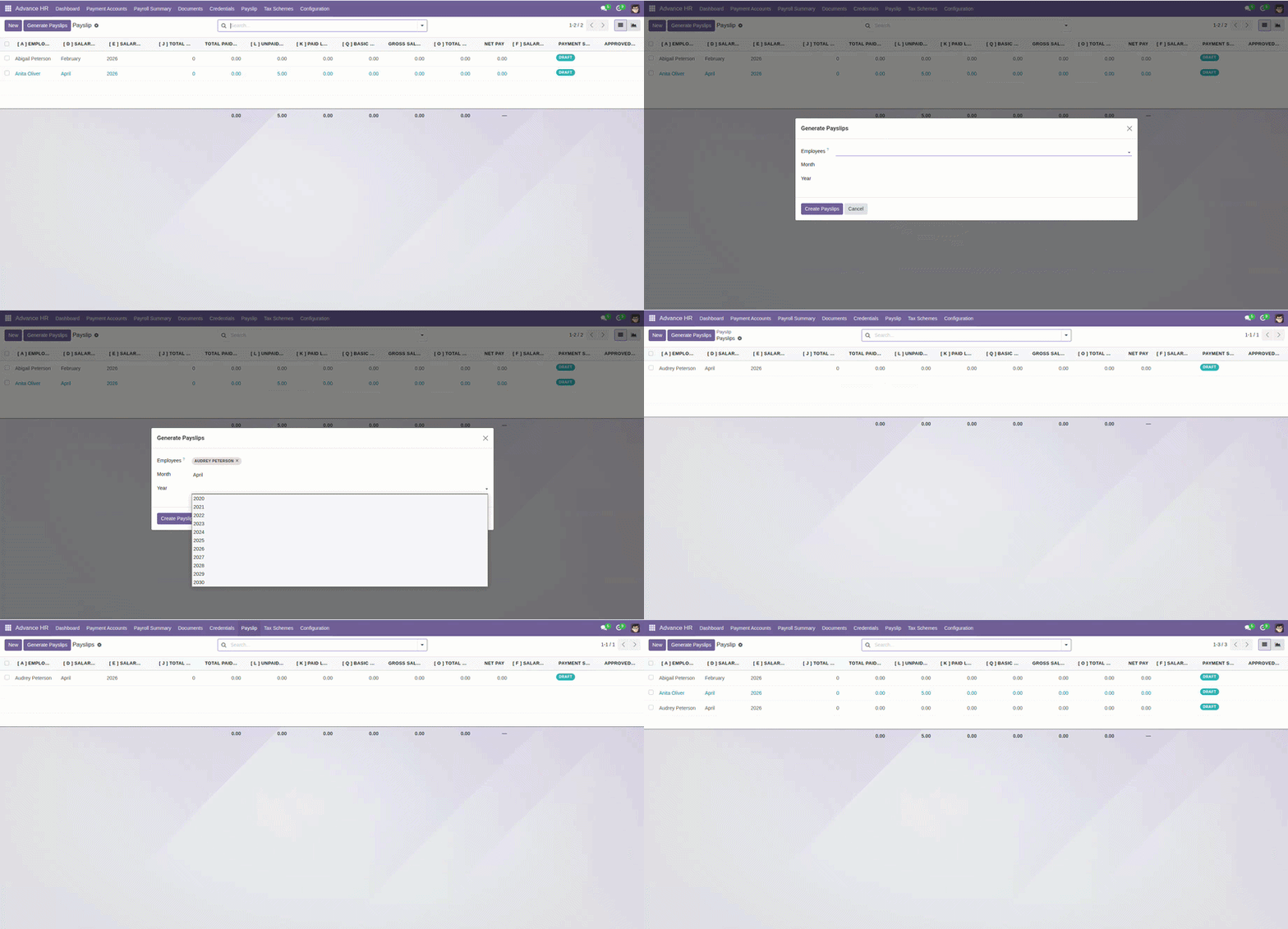
Select employees (or leave blank for all), choose month and year, then run the wizard. You’ll get a list of newly created payslips to review.
Step-by-Step Guide
- Open the Payslip Wizard.
- (Optional) Select one or more employees.
- Choose Month and Year.
- Click Generate. The system prevents duplicates for the same employee and period.
Fields Table
| Field Name | Description | Example |
|---|---|---|
Employees |
Leave blank for all employees. |
(empty) |
Month |
Target month. |
January |
Year |
Target year. |
2026 |
Field labels explained
Employees
Optional multi-select. Empty means “all eligible employees” in scope; use filters to limit a test run or a department pilot.
Month
Calendar month the payslip belongs to—drives period and day calculations.
Year
Calendar year paired with month; must match your fiscal interpretation if you use non-calendar months.
Tips
- Run the wizard after confirming timesheets/attendance are final.
- Use filters to quickly spot who already has a payslip.
Common Mistakes
- Trying to regenerate payslips for the same month—duplicates are skipped.
- Forgetting to finalize timesheets before running payroll.