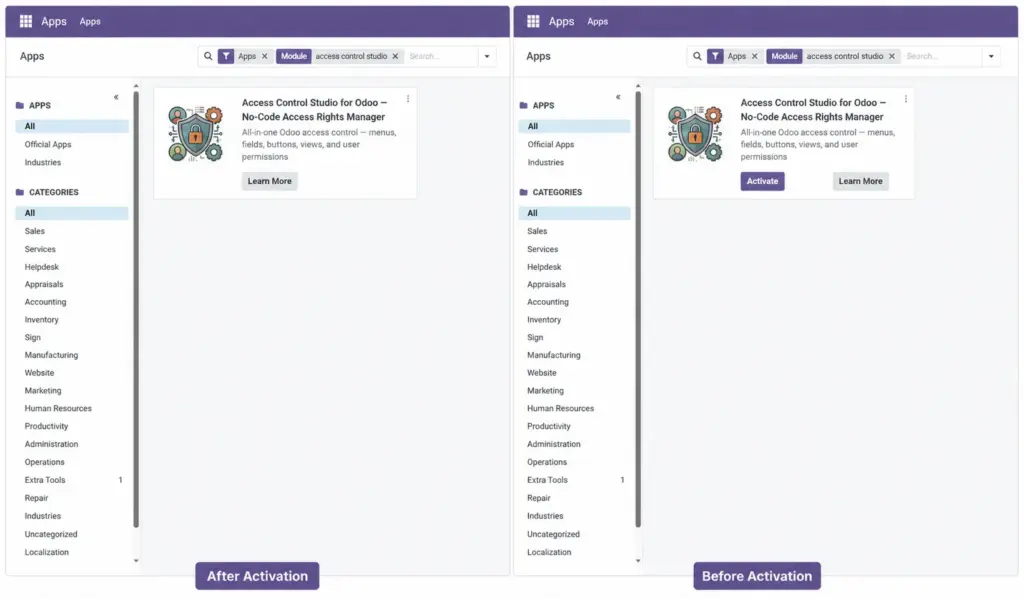
After Access Control Studio is installed, learn how to open it and who should manage access profiles in your company.
Overview
Access Control Studio is an Odoo app that lets you control what people can see and do – menus, buttons, fields, records, and more – without writing code.
If the app is not installed yet, complete Setup Access Control Studio first (download, upload, restart, activate, and give permission).
Instead of changing Odoo security settings one by one, you create an Access Profile: a named set of rules you assign to users or teams. When someone logs in, those rules apply automatically.
Who this guide is for: managers and administrators who decide what staff, salespeople, accountants, or portal users should access.
How It Works
After the app is installed, people with the right permission see Access Control Studio in the main apps menu.
- Access Control Studio / Manager – can create and edit profiles, test access, and import/export.
- Access Control Studio / Administrator – full control. Importantly, ACS rules do not restrict Administrators, so they never lock themselves out.
End users (salespeople, warehouse staff, portal customers) do not open this app. They simply experience fewer menus, hidden buttons, or limited records based on the profiles assigned to them.
Step-by-Step Guide
- Confirm setup is done using Setup Access Control Studio (app installed and your user has Manager or Administrator rights).
- Refresh Odoo, open the main app switcher, and click Access Control Studio.
- Click Access Profiles to see the board of profiles (cards).
- Optional: open Settings → Users & Companies → Users and give Manager rights to other colleagues who will help configure access.
- Create your first simple profile (name + assign one test user), then continue with later chapters to add rules.
Fields Table
These are the settings you will see for this feature, explained in everyday language.
| Field Name | Description | Example |
|---|---|---|
Access Control Studio / Manager |
Lets someone create and change access profiles. |
HR manager who sets up sales team restrictions |
Access Control Studio / Administrator |
Full access to ACS; not restricted by any profile. |
IT / system admin |
Access Profiles menu |
Main screen listing all your access rule sets. |
Kanban board of profiles |
Import Profiles menu |
Bring profiles in from a JSON file exported elsewhere. |
Copy rules from staging to production |
Field Explanations
Each field from the table above is explained in more detail here.
Access Control Studio / Manager
Give this to people who should design access rules but do not need to bypass them. Managers still follow ACS rules when they work in Odoo as themselves.
Access Control Studio / Administrator
Use for trusted admins only. They can always see everything ACS would otherwise hide, which prevents accidental lockouts.
Access Profiles menu
This is your daily workspace: create profiles, assign people, and open each tab of rules.
Import Profiles menu
Use when moving rules between databases. Export is available from the profile list or form; import has its own menu entry.
Tips
- Start with one test user and one simple profile before rolling out company-wide.
- Keep at least one Administrator account that is not locked down by ACS.
- Use the built-in inactive templates (Internal Starter / Portal Starter) as ideas, then copy the approach into your own active profiles.
Common mistakes
- Assigning Manager rights to everyone – only access designers need this app.
- Testing rules while logged in as Administrator – you will not see restrictions; use Test as User instead.
- Editing Odoo’s technical security groups for day-to-day UI hiding – ACS profiles are the simpler place for that.
Image