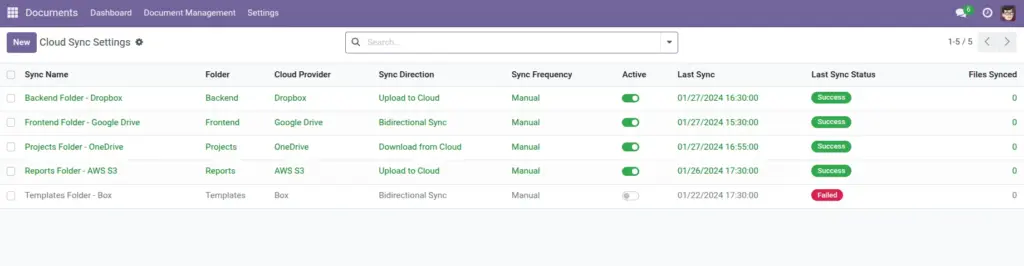
1) Overview
Cloud Sync connects an Odoo folder to your cloud storage so you can keep a copy of documents outside Odoo. Many companies use this as a backup or to keep a mirror of important folders in a tool they already use.
Use Cloud Sync when you want to:
- Backup critical folders (Finance, Legal, HR) to a cloud provider.
- Reduce risk by keeping a second copy of key documents outside Odoo.
- Support existing workflows when teams already work with Drive/Dropbox/OneDrive/Box.
Real-life example: Your company wants a nightly backup of “Legal / Contracts” to AWS S3. Cloud Sync runs daily and records the status, so you can quickly confirm that the backup succeeded.
Before you start: Cloud Sync is usually a manager/admin task. You may need credentials (tokens or keys) from your IT team.
How it works
- You create a Cloud Sync configuration and attach it to a specific Folder.
- You pick a Provider (Google Drive, Dropbox, OneDrive, Box, AWS S3).
- You choose Sync Direction: Upload, Download, or Bidirectional.
- You choose Sync Frequency: Manual, Real-time, Hourly, or Daily.
- You test the connection, then activate it.
Simple strategy: Start with Upload to Cloud + Manual on one folder (like “Finance / 2026”), test it, then expand.
Step-by-step guide
- Go to Documents → Document Management → Cloud Sync (or Documents → Settings → Cloud Sync Settings).
- Click Create.
- Set a clear Sync Name (example: “Finance 2026 → Google Drive”).
- Select the Folder you want to sync.
- Select the Cloud Provider.
- Choose Sync Direction and Sync Frequency.
- Set Cloud Folder ID or Cloud Folder Path (depending on your provider and setup).
- In the Authentication tab:
- For Google Drive/Dropbox/OneDrive/Box: click Connect (if available) or paste tokens provided by IT.
- For AWS S3: enter AWS keys, region, and bucket details.
- Click Test Connection.
- Click Activate and then Sync Now.
Be careful with bidirectional sync
Bidirectional sync means changes can flow both ways. Agree on one “source of truth” with your team to avoid surprises.
Fields table (Cloud Sync Configuration)
| Field Name | Description | Example |
|---|---|---|
Sync Name |
Friendly name so you know what this sync does. |
Finance 2026 → Google Drive |
Folder |
The Odoo folder to sync. |
Finance / 2026 |
Cloud Provider |
Where you want to sync to/from. |
Google Drive |
Active |
Turns sync on/off. |
On |
Sync Direction |
Upload, Download, or Bidirectional. |
Upload to Cloud |
Sync Frequency |
Manual, Real-time, Hourly, Daily. |
Manual |
Cloud Folder ID |
Provider folder identifier (if needed). |
1A2B3C… |
Cloud Folder Path |
Provider folder path (if used). |
/Finance/2026 |
OAuth Client ID |
App ID for OAuth providers (Google/Dropbox/OneDrive/Box). |
(from IT) |
OAuth Client Secret |
Secret for OAuth providers (keep private). |
(hidden) |
OAuth Redirect URI |
URL you may need to copy into the provider’s app settings. |
/document/cloud_sync/oauth/12/callback |
Access Token |
Token used to access the provider (OAuth providers). |
(hidden) |
Refresh Token |
Used to refresh access when it expires. |
(hidden) |
Token Expiry |
When the access token expires. |
07/04/2026 14:00 |
AWS Access Key ID |
AWS credential (for S3 provider). |
AKIA… |
AWS Secret Access Key |
AWS credential (keep private). |
(hidden) |
AWS Region |
Region of the S3 bucket. |
ap-south-1 |
S3 Bucket |
Bucket name where files will be stored. |
company-docs |
Last Sync |
Last time a sync ran. |
07/04/2026 11:40 |
Last Sync Status |
Success / Failed / In Progress. |
Success |
Last Sync Message |
Helpful message for troubleshooting. |
Connection test OK |
Files Synced |
Total files synced (counter). |
350 |
Files in Last Sync |
How many files were processed in the most recent sync. |
12 |
Field Explanations
Sync Name
Your label for this sync. Make it readable so you know what it does (folder + provider).
Folder
The Odoo folder being synced. Choose a stable folder structure (avoid moving it often).
Cloud Provider
Where files will be synced to/from (Google Drive, Dropbox, OneDrive, Box, AWS S3).
Active
On = sync is allowed to run. Off = sync will not run until reactivated.
Sync Direction
- Upload to Cloud: Odoo is the source; cloud is the copy/backup.
- Download from Cloud: Cloud is the source; Odoo receives files.
- Bidirectional: Both sides can change files (use only with clear team rules).
Sync Frequency
- Manual: Only runs when you click “Sync Now”. Best for first setup.
- Real-time: Tries to sync quickly when changes happen. Use after testing.
- Hourly/Daily: Runs on a schedule (good for backups).
Cloud Folder ID
A provider-specific identifier for the target folder. If your IT team gives you an ID, paste it here.
Cloud Folder Path
A provider path like /Finance/2026. Some setups prefer a path instead of an ID.
OAuth Client ID
The “App ID” created in the provider’s developer console (Google/Dropbox/OneDrive/Box). Usually provided by IT.
OAuth Client Secret
The “app password” paired with the Client ID. Keep it private.
OAuth Redirect URI
A URL you often must copy into the provider’s app settings so login can return to Odoo correctly.
Access Token
The key that allows Odoo to talk to the provider. Treat it like a password.
Refresh Token
Helps Odoo renew access when the access token expires (so sync keeps working).
Token Expiry
The time the current access token expires. If sync suddenly fails, expiry is a common reason.
AWS Access Key ID
AWS credential for S3 (like a username). Use only for the AWS S3 provider.
AWS Secret Access Key
AWS credential for S3 (like a password). Keep it private.
AWS Region
Where your bucket is hosted (example: ap-south-1).
S3 Bucket
The bucket name where files will be stored.
Last Sync
The last time a sync tried to run (manual or scheduled).
Last Sync Status
Quick health check: Success / Failed / In Progress.
Last Sync Message
Plain-language details. Read this first when troubleshooting.
Files Synced
A running counter of how many files were synced over time (helps confirm progress).
Files in Last Sync
How many files were handled in the most recent sync run.
Tips
- Create a separate “Cloud Sync Test” folder and validate settings there first.
- Use “Sync Now” after major uploads to confirm everything is mirrored.
- For AWS S3, ensure your permissions allow listing and deleting objects under the chosen prefix.
Common mistakes
- Turning on Real-time too early: Start manual until you trust the setup.
- Wrong cloud folder: Test with a non-production folder first.
- Sharing tokens: Tokens should be treated like passwords.
- Bidirectional without rules: Decide who edits where (Odoo vs cloud) to avoid conflicts.
Image