Overview
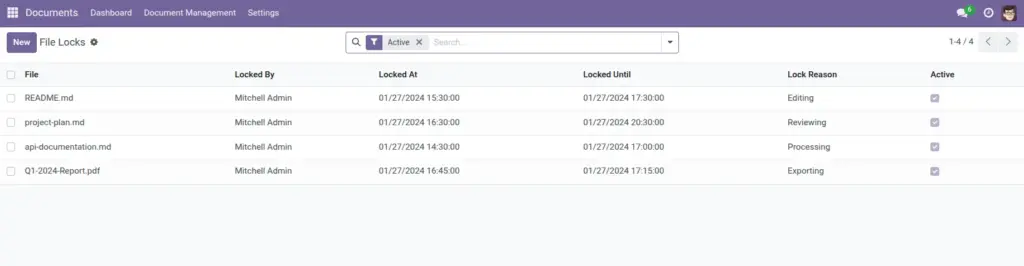
File locks are a teamwork signal: “I’m working on this file right now.” They help prevent two people from making changes at the same time and accidentally overwriting each other’s work.
Use a lock when you:
- Edit important files (budgets, price lists, contracts).
- Review documents and want others to wait until you finish.
- Process files (export, approvals, archiving) and need a temporary “pause” for others.
Real-life example: Two team members update a pricing sheet every Monday. With locks, the second person immediately sees it’s being edited, so they wait or coordinate instead of uploading a conflicting version.
How it works
- A file can have only one active lock at a time.
- A lock has a reason (Editing, Reviewing, Processing, etc.) and an optional message.
- Locks can expire automatically after the “locked until” time.
- Managers/admins may be able to force unlock if needed.
Example: You are updating a price list. Lock the file for 30 minutes with reason “Editing” so your teammate knows not to update it at the same time.
Step-by-step guide
- Open the file you are about to work on.
- Lock it (your interface may show a “Lock” option or lock status).
- Choose the lock Reason and set the lock time (if prompted).
- Add a short Lock Message like “Updating Q2 numbers”.
- When finished, unlock it (or let it expire if your process allows).
If you can’t unlock: If you didn’t create the lock and you don’t have permission, ask a manager/admin to unlock it, or wait for the lock to expire.
Fields table (File Lock)
| Field Name | Description | Example |
|---|---|---|
File |
The document that is locked. |
Q2 Budget.xlsx |
Locked By |
The person who locked the file. |
Maria |
Locked At |
When the lock started. |
07/04/2026 10:55 |
Locked Until |
When the lock will expire (if not unlocked earlier). |
07/04/2026 11:25 |
Reason |
Why the file is locked. |
Editing |
Active |
Shows whether the lock is currently active. |
Yes |
Lock Message |
Extra note to help teammates understand what’s happening. |
Updating supplier pricing |
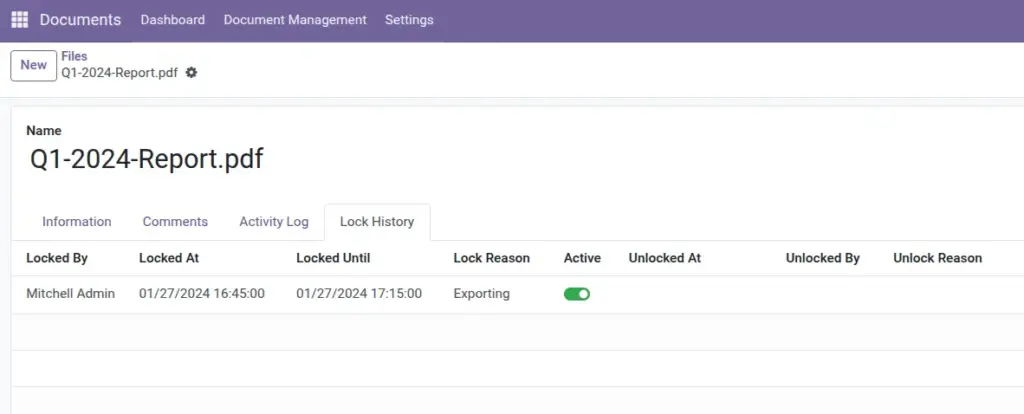
Unlocked At |
When the lock was released (if already unlocked). |
07/04/2026 11:18 |
Unlocked By |
Who unlocked the file. |
Maria |
Unlock Reason |
Why it was unlocked (manual, auto-expired, force unlock). |
Manual Unlock |
Field Explanations
File
The exact file affected.
Locked By
Contact this person if you urgently need access.
Locked At
The start time of the lock (useful to understand how long it has been locked).
Locked Until
Plan your work around this time.
Active
Shows whether the lock is currently in effect (active) or already ended (inactive).
Reason and Lock Message
Keeps the team aligned (no guesswork).
Unlocked At/By and Unlock Reason
Helpful when reviewing what happened later.
Tips
- Always add a lock message for important documents.
- Keep locks short; extend only if needed.
- If you’re reviewing, use reason “Reviewing” so others know it’s not being edited.
Common mistakes
- Locking and forgetting: If you finish early, unlock to avoid blocking others.
- Using locks for permissions: A lock is a teamwork signal, not a security tool. Use folder access control for security.
- Force unlocking too quickly: Check with the lock owner first to avoid losing their work.
Image