Overview
This chapter covers two everyday collaboration tools: Comments (discussion and feedback) and the Activity Log (history of key actions).
Use Comments when you want to:
- Request changes (“Please update page 2 with the new address”).
- Record decisions (“Approved by Finance on 7 April”).
- Keep context together so new team members understand why a file changed.
Use the Activity Log when you need:
- Traceability: who uploaded/renamed/moved/downloaded a file.
- Confidence: confirm that a share was accessed or a file was updated recently.
- Quick answers without guesswork (“It was moved yesterday by Alex”).
Real-life example: A file “Policy.pdf” looks different today. The Activity Log shows it was updated by HR yesterday, and the comments explain the reason for the change.
How it works
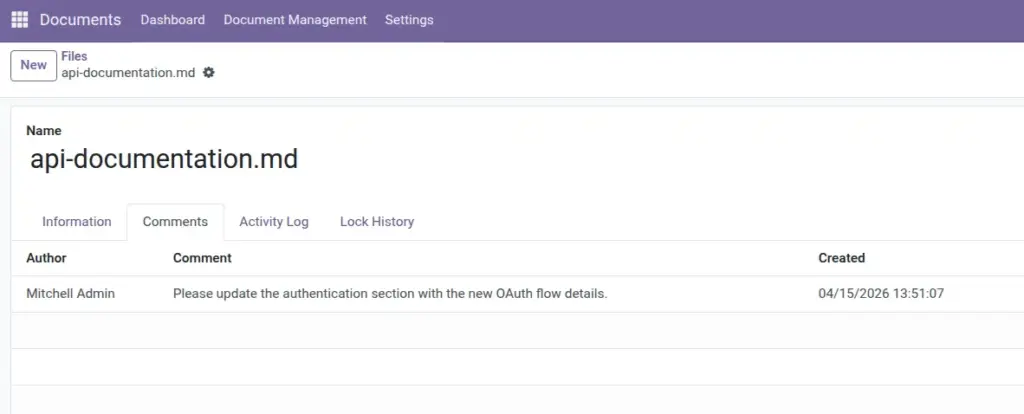
- Comments are linked to a specific file and show the author and time.
- You can reply to comments to keep a thread.
- You can mention people using
@username(if your system uses user logins as usernames). - Activity Log entries are created automatically when key actions happen.
Why this matters: When the team grows, “tribal knowledge” disappears. Comments + activity history keep the context with the document.
Step-by-step guide
- Open a file from Documents → Files (or from its folder).
- Go to the Comments tab to read the discussion.
- Add a new comment, or reply to an existing one.
- To notify someone, type
@usernamein your comment (if enabled). - Go to the Activity Log tab to see the history of actions.
Fields table (Comment)
| Field Name | Description | Example |
|---|---|---|
File |
The file the comment is about. |
Employee Handbook.pdf |
Author |
Who wrote the comment. |
Alex |
Comment |
The message text. |
Please update the leave policy section. |
Mentioned Users |
People mentioned with |
@hr.manager |
Replies |
Responses to the comment (thread). |
“Done — updated on page 4.” |
Created |
When the comment was posted. |
07/04/2026 12:05 |
Fields table (Activity Log)
| Field Name | Description | Example |
|---|---|---|
Timestamp |
When the action happened. |
07/04/2026 12:12 |
User |
Who performed the action. |
Maria |
Action Type |
Type of event recorded. |
File Moved |
File/Folder |
What item the action affects. |
Signed Contract.pdf |
Description |
Plain-language detail. |
File moved from “Legal” to “Legal / 2026” |
Field Explanations (Comment)
File
Keeps the discussion attached to the right document.
Author
So you know who to follow up with.
Comment
Keep it clear; include what needs to change and why.
Mentioned Users
Use mentions for action items (“@john please review”).
Replies
Keep the conversation in one chain instead of new comments everywhere.
Created
Helps track whether a request is still relevant.
Field Explanations (Activity Log)
Timestamp
Useful for “latest update” questions.
User
Shows who to contact for clarification.
Action Type
Helps you filter quickly (download vs rename vs move).
File/Folder
So you can open the right place immediately.
Description
The full story in one line.
Tips
- Write comments as clear tasks: “Please add supplier address on page 1”.
- Use activity history to settle confusion without blame (“It was moved yesterday”).
- For compliance work, activity logs help show “who accessed what”.
Common mistakes
- Putting decisions only in chat: Document decisions in comments so they stay with the file.
- Using vague comments: “Please fix this” is unclear. Say what and where.
- Ignoring the Activity Log: If something looks wrong, check the history first.
Image