Overview
Think of a folder as a drawer in a filing cabinet. Folders are the “main structure” of the Documents app. When folder names are clear and consistent, everyone can upload correctly and find files quickly.
Use folders to:
- Separate departments (Finance, HR, Sales, Legal) so files don’t mix.
- Group by time (2026 → April) or by project/customer (Project A → Contracts).
- Reduce mistakes by giving people an obvious place to upload.
- Control access (manager feature) so sensitive folders are limited to the right people.
Real-life example: HR creates “HR / Policies” for company policies and “HR / Employee Files” for confidential documents. Only HR users are allowed in “Employee Files”, but everyone can view “Policies”.
How it works
- Folders can have subfolders (unlimited levels).
- Each file belongs to a folder (or the “root” if not assigned).
- Folders show quick stats like File Count and Total Size.
- Folders can include Allowed Users and Allowed Groups to limit access (manager feature).
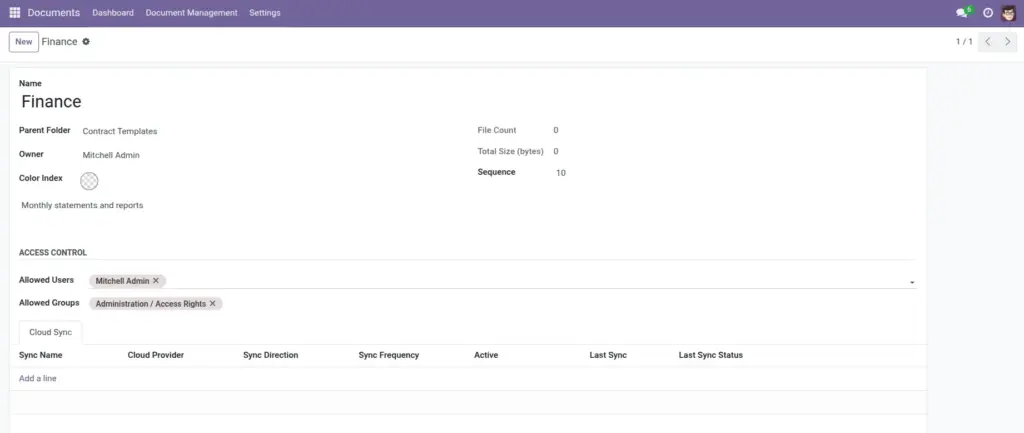
Example: Create a top-level folder “Finance”, then subfolders “2026”, “Invoices”, “Bank Statements”. Now everyone knows exactly where to upload and where to look.
Step-by-step guide
- Go to Documents → Document Management → Folders.
- Click Create.
- Fill in the folder Name.
- (Optional) Set a Parent Folder to make it a subfolder.
- (Optional) Add a short Description so others know what belongs here.
- (Managers) Set Allowed Users / Allowed Groups if access should be limited.
- Click Save.
Fields table (Folder)
| Field Name | Description | Example |
|---|---|---|
Name |
The folder name people will see. |
Finance |
Parent Folder |
Where this folder sits in the tree (blank = top level). |
Finance / 2026 |
Owner |
The main person responsible for this folder (not always the only user). |
Alex |
Description |
A short note about what should be stored here. |
Monthly statements and reports |
File Count |
How many files are inside the folder. |
42 |
Total Size |
Total size of files in the folder. |
1.8 GB |
Color |
A visual color marker (helps quick scanning). |
Blue |
Allowed Users |
Specific users who may access this folder (if used). |
Finance Team members |
Allowed Groups |
Groups who may access this folder (if used). |
“Accounting” group |
Sequence |
Ordering helper (usually leave as-is unless you need custom order). |
10 |
Field Explanations (what each one means)
Name
Keep names short and predictable (everyone should recognize them).
Parent Folder
Use this to create “Finance → 2026 → Invoices”.
Owner
Helpful for responsibility, but not the same as permission.
Description
Write “What goes here” in one sentence.
File Count
Quick check for whether a folder is being used.
Total Size
Useful to spot unusually large folders.
Color
A visual cue for frequent folders (optional).
Allowed Users / Allowed Groups
Use these only when you need restricted access.
Sequence
Only adjust if you want special ordering in lists.
Tips
- Create a “Templates” folder for files everyone uses, like letterheads and forms.
- Agree on naming rules (for example:
2026-04for months, or “Vendor Name – Invoice Number”). - If a folder is cloud-synced, keep the structure stable to avoid confusion during sync moves.
Common mistakes
- Too many top-level folders: Create 6–10 main folders, then add subfolders.
- Unclear folder names: Avoid names like “Misc” or “New Folder”.
- Restricting access too early: If your process needs teamwork, overly strict access can slow everyone down.
Image