Overview
Sharing is the safe way to send a document link to someone — inside or outside your company — without giving them full access to your internal folder system.
Use sharing when you need to:
- Send a file quickly without attachments (no “email bounced because file is too large”).
- Control access with View/Download/Edit permissions.
- Limit risk using a password, an expiry date, and download limits.
- Track usage with view and download counts.
Real-life example: You share “Signed Contract.pdf” with a customer using a password and a 7‑day expiry. If the link is forwarded, it still won’t work without the password — and it stops working after the expiry date.
How it works
- You create a Share for either a file or a folder.
- The system generates a unique Share Token and a share URL.
- Rules like Expiration Date, Password, and Max Downloads are enforced automatically.
- Views and downloads are tracked (View Count, Download Count).
Important: Anyone with the link may be able to access it (depending on your rules). If the file is sensitive, use a password and a short expiration date.
Step-by-step guide
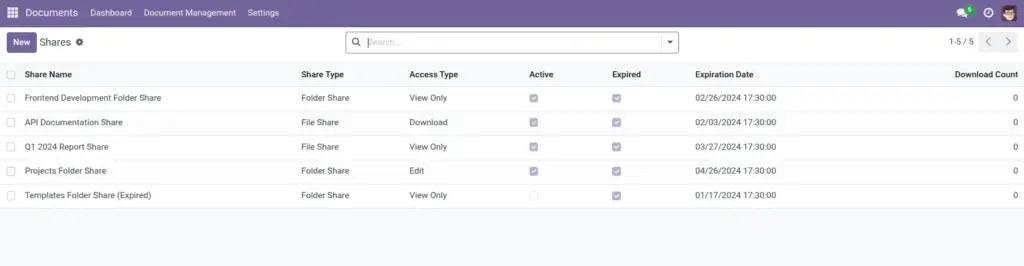
- Go to Documents → Document Management → Shares (often manager-only).
- Click Create.
- Set Share Type to File or Folder.
- Select the Shared File or Shared Folder.
- Choose an Access Type (View Only, Download, Edit).
- (Optional) Set Expiration Date.
- (Optional) Enable Require Password and set a password.
- (Optional) Set Max Downloads (0 means unlimited).
- Click Get Share URL and send it to the recipient.
Example: Share “Signed Contract.pdf” with Access Type “Download”, Expiration “7 days”, Password enabled, Max Downloads “3”.
Fields table (Share)
| Field Name | Description | Example |
|---|---|---|
Share Name |
A friendly label so you can recognize this share later. |
Contract for ACME |
Share Type |
What you are sharing: a folder or a single file. |
File Share |
Access Type |
What the recipient can do. |
Download |
Shared Folder |
The folder being shared (only for Folder Share). |
Policies / HR |
Shared File |
The file being shared (only for File Share). |
Signed Contract.pdf |
Recipients |
Contacts who can access the share (if used in your setup). |
ACME (Contact) |
Email Addresses |
Extra email addresses (one per line). |
|
Expiration Date |
When the share stops working. |
14/04/2026 |
Max Downloads |
Maximum downloads allowed (0 = unlimited). |
3 |
Require Password |
Enable password protection. |
On |
Password |
The password recipients must enter (if required). |
(hidden) |
Share Token |
Unique system token used inside the share link. |
(auto) |
Active |
Whether the share is currently usable. |
Yes |
Expired |
Shows if the share has passed its expiration date. |
No |
Download Count |
How many downloads happened through the share. |
2 |
View Count |
How many times the share page was viewed. |
7 |
Last Access Date |
Most recent view/download time. |
07/04/2026 11:10 |
Field Explanations
Share Name
Use a meaningful name so you can audit later.
Share Type
Choose Folder to share a collection; choose File for one document.
Access Type
“View Only” is safest; “Download” is common; “Edit” should be used carefully.
Shared Folder
The folder you are sharing (only applies when Share Type is Folder).
Shared File
The single file you are sharing (only applies when Share Type is File).
Recipients / Email Addresses
Use these to record who you sent it to (and limit access if configured).
Expiration Date
Set a short expiry for sensitive documents.
Max Downloads
Use this for one-time or limited distribution.
Require Password / Password
Recommended for confidential files.
Share Token
The unique ID used inside the share link. It is created automatically.
Active / Expired
Quick status. A share can auto-deactivate after limits are reached.
Download Count
How many times people downloaded using the share link.
View Count
How many times the share page was opened.
Last Access Date
The most recent time someone viewed or downloaded using the link.
Tips
- Send the password in a separate message (for example, SMS or a second email).
- Use an expiry for all external shares by default (7–30 days).
- Regularly review the Shares list and deactivate old shares.
Common mistakes
- Sharing “Edit” access by accident: Use “View Only” unless you truly need editing.
- No expiry on sensitive links: Old links can be found months later.
- Using sharing instead of folder permissions: For internal teams, folder access control is often better.
Image