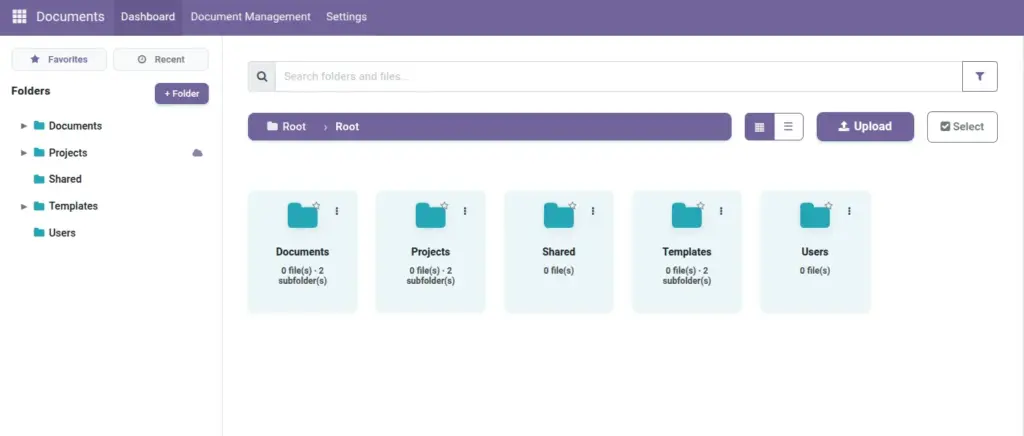
Overview
Use the Dashboard when you want a quick “what’s new” summary without opening lots of folders. It’s the best place to start your day, especially if you share documents with a team.
The Dashboard helps you:
- See recent changes (uploads, renames, moves, downloads) at a glance.
- Understand context: which file was affected and who did it.
- Jump back into work: open the file you were last reviewing or editing.
Real-life example: You log in and see that “Q2 Budget.xlsx” was renamed and moved by Maria. Now you know where to find it and who to ask if you have questions.
How it works
Every important action in the Documents app can create an entry in the Activity Log (for example, “file renamed” or “file downloaded”). The Dashboard shows a friendly view of these recent actions.
Good to know: The Activity Log is designed to be an audit trail. It records “who did what” so teams can work safely and transparently.
Step-by-step guide
- Open Documents from the main menu.
- Click Dashboard.
- Scan the recent entries to find the latest changes.
- Open the related file or folder (for example, to continue reviewing a document).
Fields table (what you may see on the Dashboard)
| Field Name | Description | Example |
|---|---|---|
Timestamp |
When the action happened. |
07/04/2026, 10:42 |
User |
Who did the action. |
Maria |
Action Type |
The type of activity (upload, rename, move, download, etc.). |
File Renamed |
File/Folder |
The file or folder that was affected. |
“Q2 Budget.xlsx” |
Description |
Plain-language detail about what changed. |
File renamed from “Budget.xlsx” to “Q2 Budget.xlsx” |
Field Explanations (simple meanings)
Timestamp
Helps you understand what happened first and what happened last.
User
Useful when you need to follow up (“Who moved this file?”).
Action Type
A short label so you can scan quickly.
File/Folder
The item involved, so you can open it right away.
Description
The story in plain English.
Tips
- If you can’t find a file, check recent actions first — it may have been renamed or moved.
- Use the Dashboard during shift handover to see what was updated today.
Common mistakes
- Assuming a file is “missing”: Often it was moved to another folder. Use recent activity to confirm.
- Ignoring “who changed it”: If something looks wrong, the Dashboard helps you reach the right person quickly.
Image