Overview
Tags are “smart labels” you can attach to files to make them easier to find later. Unlike folders (where a file lives in one place), tags can describe a file in multiple ways at the same time.
Use tags when you want to:
- Group files across folders (example: all
Contractsin Sales, Legal, and Projects). - Mark status (example:
Draft,Approved,Final). - Speed up searching when file names are not enough.
Real-life example: Your team tags invoices as Paid or Pending. Even if invoices are stored in different monthly folders, you can still quickly find all “Pending” invoices by using the tag.
How it works
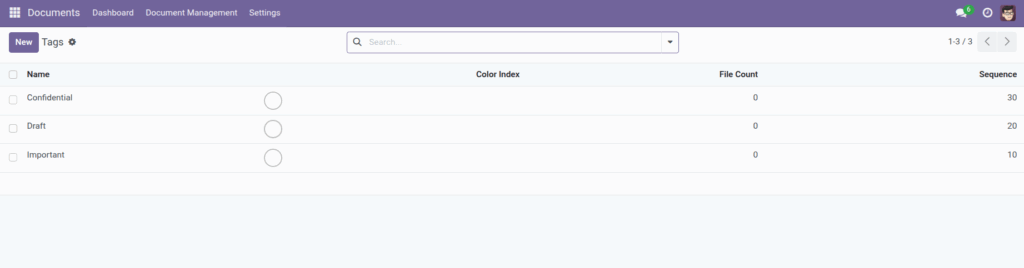
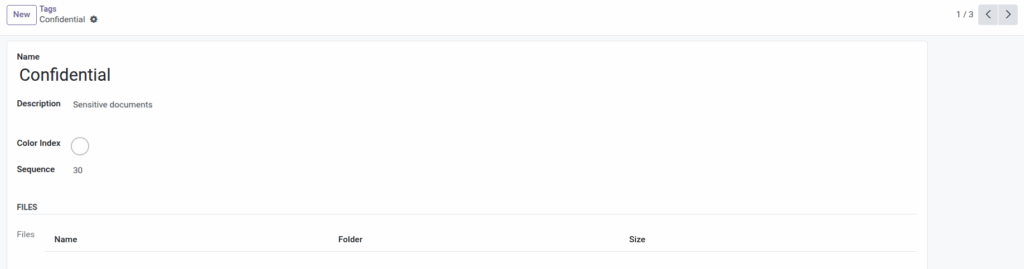
- Tags have a name (and optional description).
- Tags can be color-coded for easy scanning.
- Each tag shows how many files use it (File Count).
Tag naming: Use short, consistent tag names. Example: choose Invoice (singular) and use it everywhere, instead of mixing “Invoices”, “Inv”, and “Bills”.
Step-by-step guide
- Go to Documents → Document Management → Tags (manager-only in many setups).
- Click Create.
- Enter a Name.
- (Optional) Add a Description and pick a Color.
- Click Save.
- Then open a file and add the tag under Tags.
Fields table (Tag)
| Field Name | Description | Example |
|---|---|---|
Name |
The label users will apply to files. |
Approved |
Description |
Optional note explaining when to use this tag. |
Use after manager approval |
Color |
Visual color marker (optional). |
Green |
Sequence |
Ordering helper in lists (optional). |
10 |
File Count |
How many files currently have this tag. |
128 |
Field Explanations
Name
Keep it short and clear (“Tax”, “Contract”, “HR”).
Description
Use this to standardize usage across teams (“Apply to signed contracts only”).
Color
Optional; helps scanning (green for approved, red for urgent).
Sequence
Only set if you want tags to appear in a preferred order.
File Count
Helps you spot unused tags that can be cleaned up.
Tips
- Start with 10–20 tags and expand only when needed.
- Create “status” tags (Draft/Approved/Final) if your team shares documents for review.
- Use one tag for “Sensitive” and restrict access at the folder level for real protection.
Common mistakes
- Too many similar tags: “Invoice”, “Invoices”, “Invoicing” becomes messy fast.
- Using tags instead of folders: Tags are labels; folders are structure. Use both.
- Assuming tags control access: Tags help find things; folder permissions control access.
Image