Overview
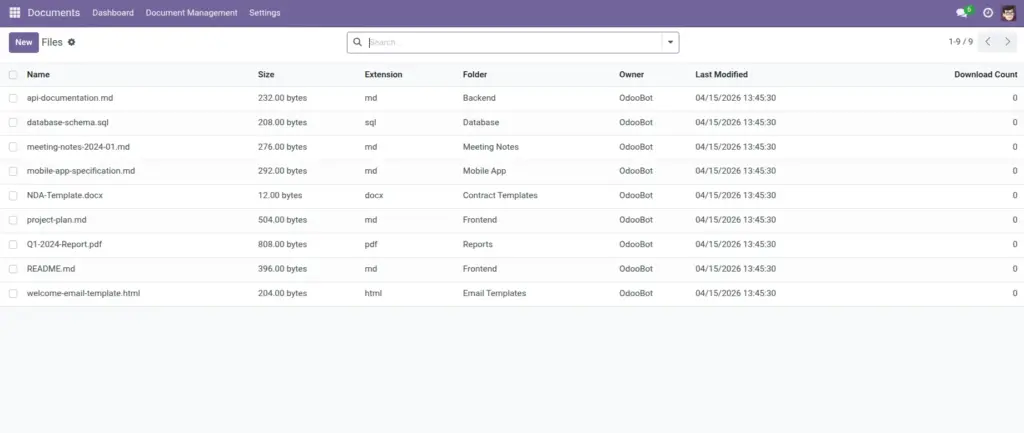
Files are the actual documents you work with every day: PDFs, Excel sheets, Word documents, images, and more. The Files screen gives you a simple list view to browse and open documents without hunting through the folder tree.
When you open a file, you can:
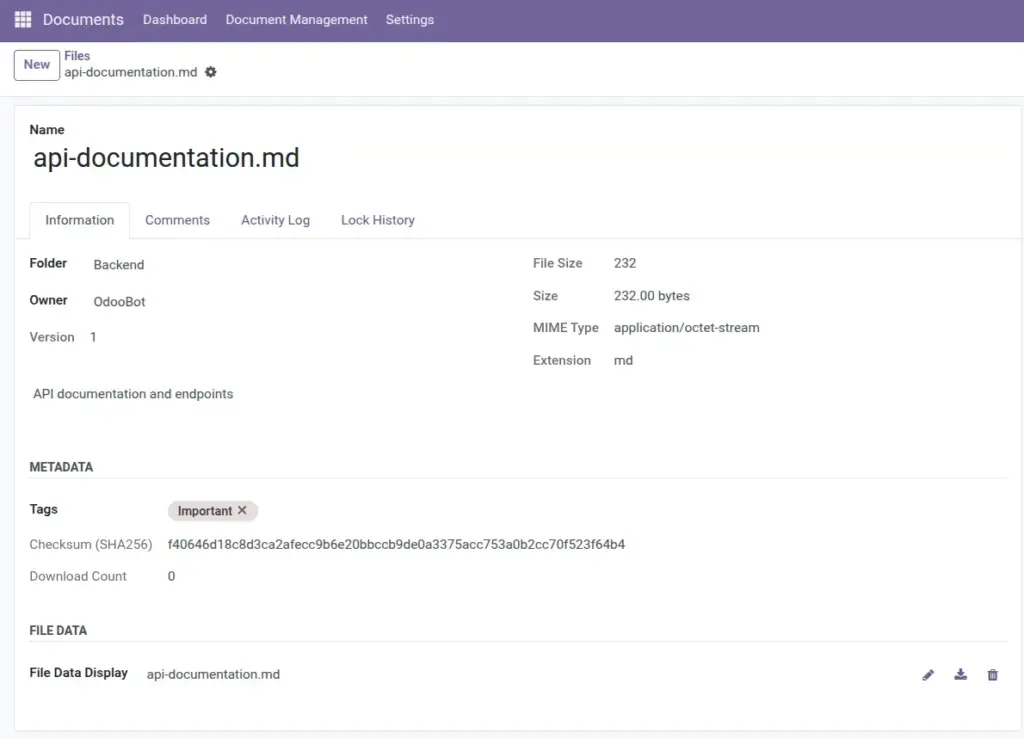
- Confirm details like the folder, size, and last update time.
- Add helpful context using Description and Tags.
- Collaborate using Comments and Activity history.
- Avoid conflicts by checking lock status and lock history.
- Keep versions clean so the team always knows which one is newest.
Real-life example: Sales uploads “Signed Contract.pdf” to “Legal / Contracts”, adds the tag Signed, and shares a secure link to the customer. Later, the team can see who downloaded it and when.
How it works
- Each file has a Name and can be placed inside a Folder.
- When a file with the same name is uploaded into the same folder, the system can create a new version.
- You can add Tags to make searching easier.
- Downloads are counted (helpful for popular templates and shared documents).
- If real-time Cloud Sync is enabled for the folder, uploads/changes can trigger sync automatically.
Real-life example: Your team updates “Employee Handbook.pdf” every quarter. Instead of creating “Handbook_final_final.pdf”, upload the new file with the same name to keep a clean version history.
Step-by-step guide
- Go to Documents → Document Management → Files.
- Click Create (or use the upload option from a folder view).
- Select the Folder where the file should live.
- Enter a clear Name (include an extension like
.pdf). - Attach the file in File Data.
- (Optional) Add Tags and a Description.
- Click Save.
When moving files: If a file with the same name already exists in the destination folder, the move may be blocked to prevent overwriting. Rename or choose another destination.
Fields table (File)
| Field Name | Description | Example |
|---|---|---|
Name |
The file name shown to users. |
Q2 Budget.xlsx |
Folder |
Where the file is stored. |
Finance / 2026 |
Owner |
The person who uploaded/owns the file record. |
Maria |
Version |
Version number of this document. |
3 |
Size |
How large the file is (system-calculated). |
2.4 MB |
MIME Type |
Technical file type (system-detected). You can ignore this most of the time. |
application/pdf |
Extension |
The ending part of the filename (system-calculated). |
|
Description |
A short note describing the contents or purpose. |
Approved budget for Q2 |
Tags |
Labels that help search and reporting. |
Budget, Approved |
Checksum |
A system fingerprint used for integrity checks. |
(auto) |
Download Count |
How many times the file was downloaded from Odoo. |
18 |
Created |
When the file record was created. |
07/04/2026 |
Last Modified |
When the file record was last updated. |
07/04/2026 |
Field Explanations
Name
Use meaningful names. If you share links, recipients will see this name.
Folder
Choose the folder first, then name the file to match that folder’s purpose.
Owner
Helps track responsibility (not the same as “who can access”).
Version
Higher number means a newer copy of the same file name in the same folder.
Size
Large files may take longer to upload/download.
MIME Type / Extension
Helps preview and filtering. You usually don’t need to edit these.
Description
Add context like “Approved by CFO on 7 April”.
Tags
Use consistent tags across teams (for example, always use Contract not Contracts).
Checksum
System-only fingerprint; not required for daily work.
Download Count
Useful to identify frequently used templates.
Created / Last Modified
Helpful when you need “the latest” file.
Tips
- Use tags when folders alone aren’t enough (example: tag a file as
Urgent). - Keep versions clean: update the same file name instead of creating “final_v7”.
- Use favorites (if enabled in your interface) for files you open often (templates, policies, price lists).
Common mistakes
- Uploading to the wrong folder: Always check the “Folder” field before saving.
- Using inconsistent names: “Invoice 123” vs “INV-123” makes searching harder. Pick one style.
- Forgetting tags: If your team relies on tags, missing tags can make a file “invisible” in searches.
Image