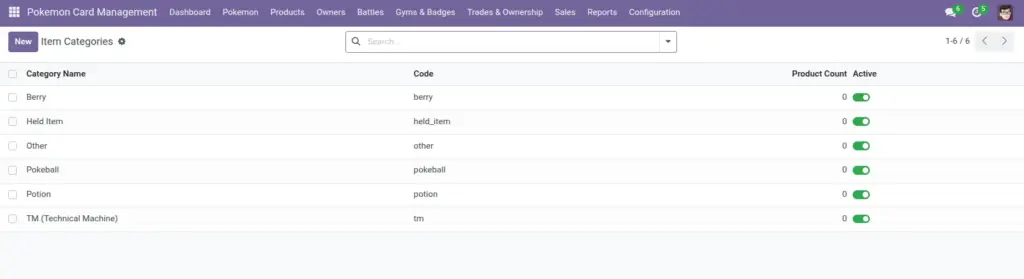
Item categories help you organize Pokemon-related products (like Pokeballs, Potions, Berries). Categories are especially useful when you have many products and want clean filtering and reporting.
1) Overview
Go to Configuration → Item Categories to create categories. Then, on a product marked as a Pokemon product, choose the Item Category.
- Category Name
- Code (unique)
- Product Count
- Active
Plain English: Categories keep your product list clean—so users don’t scroll through everything every time.
2) How it works
Name + code
Each category has a Name for humans and a Code for consistency. The code must be unique (for example: pokeball).
Why it matters: Unique codes prevent duplicates and make it easier to keep lists tidy.
Active vs inactive
You can make a category inactive without deleting it. This is useful when you stop selling a group of items.
Tip: deactivate old categories instead of deleting them
3) Step-by-step guide
- Open Configuration → Item Categories and click Create.
- Enter the Category Name (what users will see).
- Enter the Code (unique, short, lowercase is recommended).
- Optional: add a Description.
- Save.
- Go to Products, mark a product as Is Pokemon Product, and select this category.
Best practice: Decide a short list of categories and reuse them; avoid creating new ones for every single product.
4) Fields table
| Field Name | Description | Example |
|---|---|---|
Category Name |
The category label users select. |
Pokeballs |
Code |
Unique short identifier (must be unique). |
pokeball |
Description |
Optional explanation of what belongs in this category. |
“All ball types used to capture Pokemon.” |
Active |
Whether this category can be used going forward. |
Yes |
Product Count |
Automatic number of products in this category. |
18 |
5) Field name explanation
Category Name
The label users will select on products. Make it clear and plural when it represents a group.
Example: “Pokeballs”.
Code
A unique short value. Use it like a label you never change often.
Example: Use potion for “Potions”.
Description
Optional note that explains what should be included in this category.
Example: “All ball types used to capture Pokemon.”
Product Count
Shows how widely a category is used, so you can spot unused categories.
Example: If Product Count is 0, you might deactivate the category.
Active
Turn off categories you no longer want people to use, without losing history.
Example: Deactivate “Event 2024 Items” after the event ends.
Item Category (on product)
Connects a Pokemon product to its category for filtering and organization.
Example: Put “Ultra Ball” under “Pokeballs”.
6) Tips
- Use stable codes: once you start using a category, avoid changing its code frequently.
- Keep descriptions short: one sentence that explains what belongs is enough.
- Audit quarterly: deactivate categories with low or zero usage to keep selection lists clean.
7) Common mistakes
- Duplicate codes: the system blocks them. Pick a unique code.
- Creating too many categories: users get lost in dropdowns and pick the wrong one.
- Deleting categories: it can make old products harder to understand. Prefer making them inactive.
8) Image