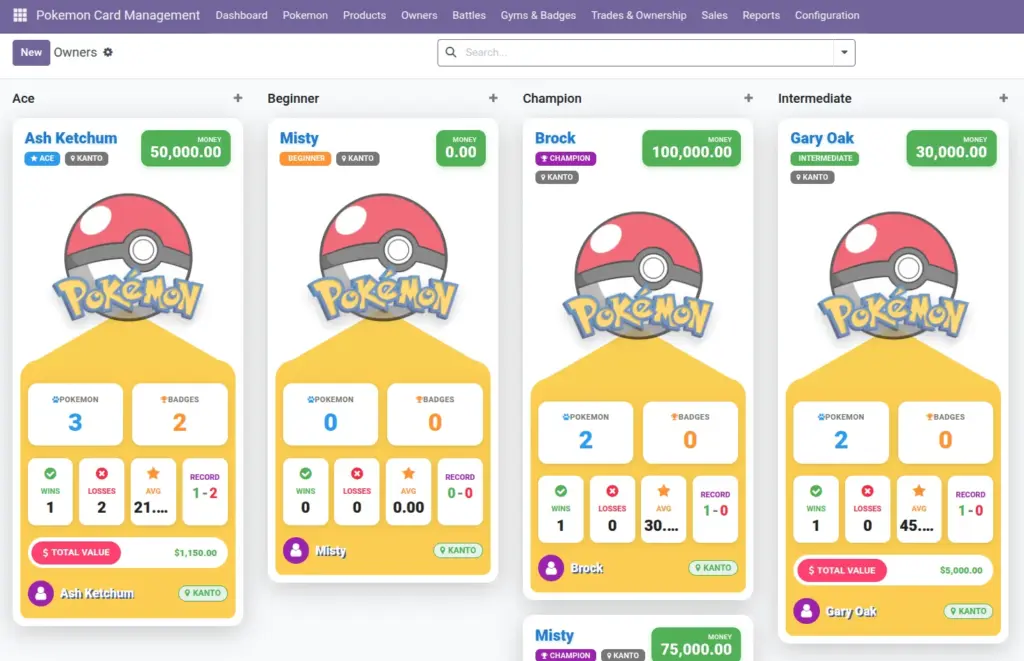
Owners (trainers) represent the people who own Pokemon. They can also be linked to an Odoo Customer/Supplier so trades and sales documents “know” who the owner is.
1) Overview
Go to Owners → Owners to create and manage trainer profiles. Go to Owners → Rankings to review owners by badges and wins. Each owner shows useful totals automatically: number of Pokemon, badges, wins/losses, average Pokemon level, and total collection value (based on Pokemon prices).
- Profile
- Money
- Pokemon Count
- Badge Count
- Wins / Losses
- Total Pokemon Value
2) How it works
Linking to Odoo customers
The Customer/Supplier field connects an owner to an Odoo contact. This helps in Trades and Sales because those screens start with customers.
Why it matters: In Trades, the system looks up the owner based on the selected customer.
Automatic stats
Owner statistics are calculated from the data you already maintain: badges from Gym Badges, wins/losses from Battles, and total value from Pokemon prices.
Tip: keep Pokemon owners accurate for correct totals
3) Step-by-step guide
- Go to Owners → Owners and click Create.
- Enter Name, then optionally set Age, Gender, and Home Region.
- If you use Odoo contacts for customers, select Customer/Supplier.
- Set Rank (Beginner → Champion) and update Money if you track balances.
- Upload a Profile Picture so kanban cards are easy to scan.
- Save. Then open the Pokemon tab to review the owner’s collection and the Badges tab for badges earned.
Recommended: Create owners before creating lots of Pokemon. It prevents cleanup work later.
4) Fields table
| Field Name | Description | Example |
|---|---|---|
Trainer Name |
The trainer’s display name. |
Misty |
Customer/Supplier |
Optional link to an Odoo contact for sales/trade integration. |
Misty (Customer) |
User |
Optional link to an Odoo user account (helps “My Pokemon” filtering). |
misty@company |
Rank |
Beginner, Intermediate, Ace, Champion. |
Ace |
Money |
Optional balance used during sales confirmation checks. |
$120.00 |
Joined Date |
When the trainer joined. |
2026‑01‑10 |
Pokemon Count |
Automatic count of Pokemon owned. |
14 |
Badge Count |
Automatic count of gym badges earned. |
3 |
Battle Wins / Losses |
Calculated from recorded battles. |
Wins 8, Losses 2 |
Average Pokemon Level |
Average level across owned Pokemon. |
18.6 |
Total Pokemon Value |
Total of Pokemon prices (only counts prices greater than 0). |
$245.00 |
Home Region |
Optional “where they’re from” label. |
Kanto |
Profile Picture |
Image shown in kanban view. |
Trainer photo |
5) Field name explanation
Trainer Name
The owner’s display name used across Pokemon, battles, gyms, and trades.
Example: “Misty”.
Customer/Supplier
Connects the owner to an Odoo contact. Trades and sales screens often start from customers.
Example: When you pick a customer in a Trade, the system tries to find the linked owner automatically.
User
Connects the owner to an Odoo login. Useful when each staff member manages their own “My Pokemon” list.
Example: If your user is linked, “My Pokemon” shows only Pokemon owned by your owner.
Rank
A simple grouping label (Beginner → Champion). Helps organize lists and kanban boards.
Example: Group Owners by Rank for quick reviews.
Money
If your team uses the money feature, sales confirmation can block orders when money is too low.
Example: A $50 order won’t confirm if the owner only has $20.
Joined Date
When the owner joined. Useful for onboarding and simple timeline reporting.
Example: 2026‑01‑10.
Pokemon Count
Automatic count of Pokemon currently owned by this owner.
Example: 14 Pokemon.
Badge Count
Automatic count of gym badges earned by this owner.
Example: 3 badges.
Battle Wins / Losses
Calculated from battle records. Helps create rankings and track performance.
Example: Wins 8, Losses 2.
Average Pokemon Level
Average level across owned Pokemon. A quick “strength” indicator.
Example: 18.6.
Total Pokemon Value
A quick “portfolio” number based on Pokemon prices. It updates as prices or ownership changes.
Example: After a trade, both owners’ totals adjust automatically.
Home Region
Optional “where they’re from” label. Helpful for grouping and story context.
Example: “Kanto”.
Profile Picture
Image shown in kanban view to make owners easy to recognize.
Example: Trainer photo/avatar.
6) Tips
- Always link owners to customers if you use Trades or Sales—this prevents “missing owner” situations.
- Use Rankings for check‑ins at the end of the week: badges and wins are a quick health check.
- Keep Money updated only if your process relies on it; otherwise treat it as optional.
- Use Profile Pictures to reduce mistakes when multiple owners have similar names.
7) Common mistakes
- Not linking a Customer: Trades use customers to find owners; without a link, “Owner From/To” may remain empty.
- Linking the wrong Customer: ownership changes can be applied to the wrong person in trades and sales.
- Manually editing totals: counts and totals are automatic—if they look wrong, fix ownership or pricing instead.
8) Image