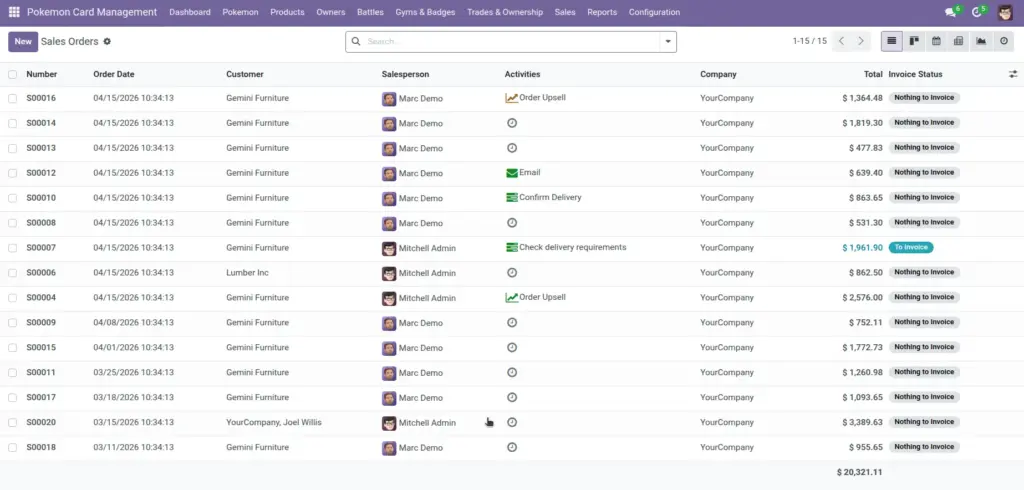
This module connects Pokemon management with standard Odoo documents. You can mark products as “Pokemon products” and link them to a specific Pokemon. When a Sales Order is confirmed, ownership can transfer automatically to the selected owner.
1) Overview
In Pokemon Card Management, you get a Products menu that shows only products marked as Pokemon products. You also get shortcuts to Sales Orders, Purchase Orders, and Invoices under the module’s Sales section.
Products (Pokemon only)Sales OrdersPurchase OrdersInvoices
Plain English: You can sell a Pokemon the “Odoo way”, and the Pokemon’s Owner updates automatically.
2) How it works
Pokemon products (what they are)
A Pokemon product is a normal Odoo product with a special checkbox: Is Pokemon Product. When checked, you can optionally link it to a specific Pokemon and an Item Category.
Tip: link the product to a Pokemon when you sell that exact Pokemon
What happens on Sales Order confirmation
When a Sales Order is confirmed and an Owner is selected on the order, the module transfers ownership of any linked Pokemon on the order lines to that owner.
Result: You don’t need to manually edit Pokemon after a sale.
Optional “money check”
If your owner records use the Money field, the system can block confirming a sale if the owner doesn’t have enough money to cover the total of Pokemon product lines.
If you see a “not enough money” error, update the Owner’s Money or adjust the order.
3) Step-by-step guide
A) Create a Pokemon product
- Open Pokemon Card Management → Products.
- Click Create.
- Turn on Is Pokemon Product.
- Optional: select a specific Pokemon (recommended when selling a unique Pokemon).
- Optional: choose an Item Category (helps reporting and product organization).
- Save.
B) Sell and transfer ownership (Sales Order)
- Open Pokemon Card Management → Sales → Sales Orders.
- Create or open an order and select the Customer.
- Select the Owner (usually linked to that customer).
- Add your Pokemon product on an order line.
- Confirm the order.
- Open the linked Pokemon record to confirm the Owner changed.
Important: Pokemon product lines are automatically forced to quantity 1 (to match “one Pokemon = one item”).
C) Purchases and invoices
Purchase Orders and Invoices also show Pokemon information on lines (Is Pokemon, Pokemon). This is mainly for visibility and reporting. Ownership transfer is specifically tied to Sales Order confirmation when an owner is selected.
4) Fields table
Product (Pokemon product fields)
| Field Name | Description | Example |
|---|---|---|
Is Pokemon Product |
Marks the product as part of Pokemon workflows and shows it in the module’s product list. |
Enabled |
Pokemon |
Optional link to a specific Pokemon record. |
Pikachu (#25) |
Item Category |
Optional category for Pokemon-related items and products. |
Pokeballs (pokeball) |
Sales Order (Pokemon fields)
| Field Name | Description | Example |
|---|---|---|
Owner |
Owner who should receive Pokemon ownership when the order is confirmed. |
Misty |
Is Pokemon (line) |
Shows that the line’s product is a Pokemon product. |
Yes |
Pokemon (line) |
Shows which Pokemon is linked to the product (if any). |
Pikachu |
Purchase Order / Invoice lines
| Field Name | Description | Example |
|---|---|---|
Owner |
Optional owner linked to the document for clarity. |
Ash |
Is Pokemon (line) |
Shows the line is a Pokemon product. |
Yes |
Pokemon (line) |
Shows the linked Pokemon (if any). |
Bulbasaur |
5) Field name explanation
Is Pokemon Product
This is the “switch” that turns a normal product into a Pokemon product for this module.
Example: Turn it on for “Pikachu Card” or “Starter Deck”, so it appears in the module’s Products menu.
Pokemon (on product)
Links the product to a specific Pokemon record. Use it when you sell a unique Pokemon and want ownership transfer.
Example: Link “Sell Pikachu” product to the actual Pikachu record.
Item Category (on product)
Groups Pokemon-related products so users can filter and find items faster.
Example: “Ultra Ball” → Category “Pokeballs”.
Owner (on sales order)
This is who receives the Pokemon after the sale is confirmed.
Example: If the customer is Misty, select Owner = Misty so the Pokemon transfers correctly.
Is Pokemon (line)
A visibility check that tells you the order line is a Pokemon product line.
Example: “Yes” on the line when the product is marked Is Pokemon Product.
Pokemon (line)
Shows which Pokemon is linked to the product on that line (if a specific Pokemon is linked).
Example: Line shows “Pikachu (#25)”.
Owner (on purchase/invoice)
Optional owner link on purchases/invoices to keep documents clearly connected to a trainer.
Example: Invoice Owner = “Ash”.
Pokemon on document lines
A visibility field so you can quickly see which Pokemon is involved without opening the product.
Example: On an invoice line you can confirm the sale relates to “Charizard”.
Money (on owner)
If used, it helps prevent sales that exceed an owner’s balance.
Example: If Money is $20, the system can block confirming a $50 Pokemon sale.
6) Tips
- Use one product per unique Pokemon when you want ownership transfer to be automatic and traceable.
- Keep Owner linked to Customer so the correct owner is easy to select on documents.
- Use Item Categories to keep Pokemon products organized (especially if you have many items).
- Confirm ownership after confirmation: open the Pokemon record right after confirming a sale to quickly catch mistakes.
7) Common mistakes
- Confirming a sale without Owner: ownership transfer won’t happen because the system doesn’t know who should receive the Pokemon.
- Product marked as Pokemon Product but not linked to Pokemon: line shows “Pokemon product” but ownership can’t transfer for a specific Pokemon.
- Money check surprise: if your process uses Money, low balances will block confirmation—update balances or adjust the order.
- Trying to sell quantity > 1: Pokemon product lines are designed to be single‑quantity to avoid confusion.
8) Image