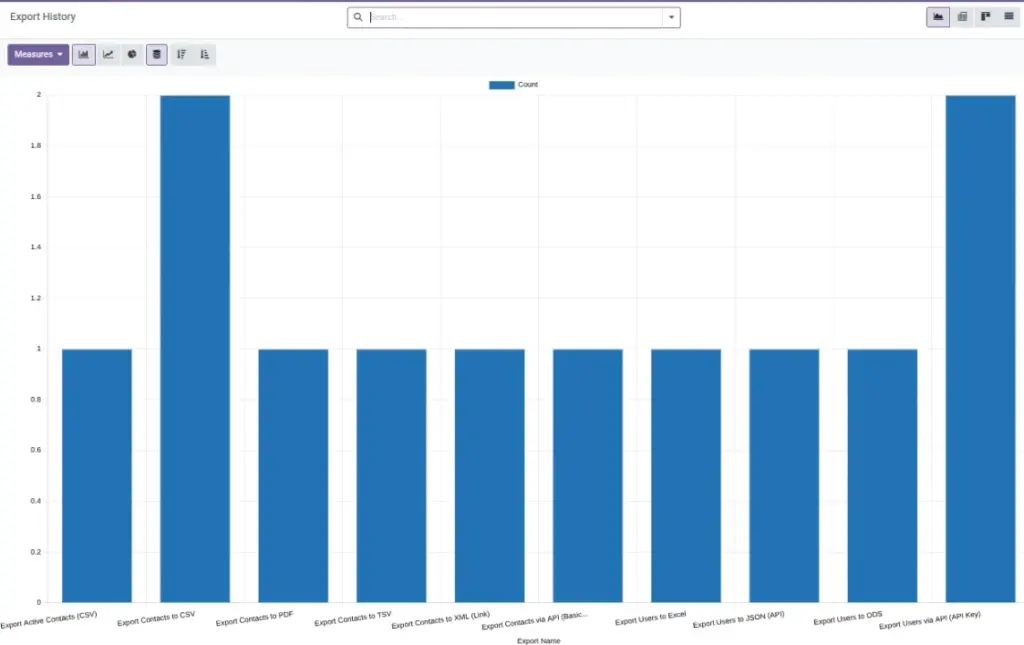
Find previous runs, download files again, and read error messages to fix problems fast.
Overview
History & Logs is your “paper trail” for exports. It helps you answer questions like: When was this export run? Who ran it? How many records were included? Can I download the same file again?
Export History stores completed runs and often lets you download the exported file again. Export Logs store messages about what happened during the run — including success messages, warnings, and errors.
Example: If a colleague says “the file didn’t arrive,” you can check History to confirm the run and then check Logs to see whether delivery failed.
How It Works
- Open Export History to see past runs.
- Click a record to download the exact file again.
- Use Export Logs to see messages and resolve issues.
Step-by-Step Guide
- Go to Data Tools → Export History.
- Search by name, date, or format if needed.
- Open a record and click Download to get the file again.
- Open Export Logs to see details about success or errors.
Fields Table
| Field Name | Description | Example |
|---|---|---|
Export Name |
Label for the run. |
Invoices – March 2026 |
File Format |
Type of file created. |
CSV, Excel, XML, JSON, PDF, ODS |
Exported Records |
Number of rows exported. |
3,254 |
Delivery Method |
Where the file was sent. |
Download; Email; S3 |
Status |
Success, Error, or Partial. |
Success |
Error Message |
Why a run failed or partially failed. |
“S3 access denied.” |
Field Explanations
Export Name
Give a meaningful title (e.g., “Invoices – March 2026”) so anyone can find it fast.
File Format
The type of file created (CSV, Excel, XML, JSON, PDF, ODS). Choose what your audience can open.
Exported Records
Total rows in the file. Helps judge completeness and file size.
Delivery Method
Where the file went (Download, Email, S3, etc.). Check here if someone didn’t receive it.
Status
“Success” means done; “Partial” means some rows failed; “Error” means nothing was delivered.
Error Message
The reason for a failure or partial run. Use it to fix settings or data, or share with your IT admin.
Tips
- Keep a standard naming pattern for exports.
- Use the date to compare current vs. previous runs.
- Attach history links in your internal SOPs.
Common Mistakes
- Deleting history you still need for audit trails.
- Ignoring warnings — they can signal missing fields or partial data.
- Not checking logs after changing delivery settings.
Image