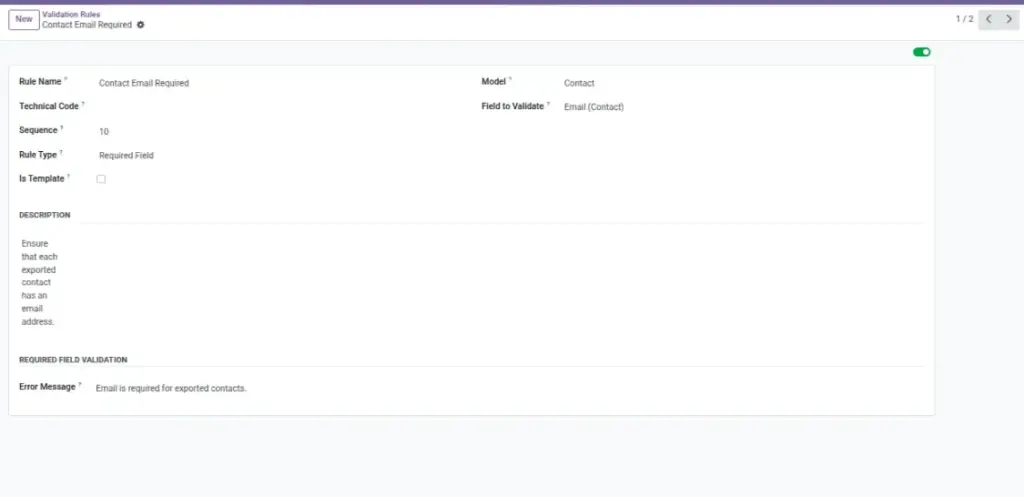
Overview
Validation Rules help you protect your business from exporting incomplete or incorrect data. They run checks before the export is generated, so issues are caught early.
You can use rules to confirm that important fields are filled (like Email), values are within an acceptable range (like Total Amount), or a field follows a pattern (like a code format). When a record fails validation, you’ll see a clear message so you can fix the data and re-export.
Example: Before sending a customer list to a marketing tool, you validate that Email is present and looks like a real email format.
How It Works
- Create reusable Validation Rules (templates) for specific fields.
- Apply them per model or per field in your export context.
- Export runs will validate and log issues for review.
Step-by-Step Guide
- Go to Data Tools → Validation Rules → New.
- Set Rule Type (Required Field, Data Type, Value Range, Regex, Unique, or Custom).
- Pick the Model and Field the rule applies to.
- Enter the error message users should see if it fails.
- Save and ensure the rule is Active.
- Run your export and review logs if any records fail validation.
Fields Table
| Field Name | Description | Example |
|---|---|---|
Rule Type |
What kind of check to run. |
Required Field; Value Range; Regex |
Model |
Which dataset it applies to. |
Res Partner (Customers) |
Field |
The specific column to check. |
|
Expected Type / Range / Pattern |
Configuration depending on rule type. |
Type: Text; Range: 0–100; Pattern: ^[A-Z0-9]+$ |
Error Message |
What users will read when it fails. |
“Email is required.” |
Active |
Enable or disable the rule. |
On |
Field Explanations
Rule Type
Pick the kind of check (Required, Range, Regex, etc.) that best fits the problem you want to prevent.
Model
The dataset the rule watches (e.g., Customers, Sales Orders). Keeps checks focused.
Field
The exact column to validate (e.g., Email, Amount Total). Be precise.
Expected Type / Range / Pattern
The rule’s setting: choose the right data type, allowed number range, or a pattern a value must match.
Error Message
Plain-language text that tells the user what’s wrong and how to fix it (e.g., “Email is required”).
Active
Turn the rule on/off without deleting it. Disable when it’s not needed.
Tips
- Start with Required Field checks for must-have columns.
- Use Regex for IDs or codes that follow a strict pattern.
- Mark common checks as templates to reuse across exports.
Common Mistakes
- Too many rules — can block valid exports and frustrate teams.
- Vague messages — users don’t know what to fix.
- Forgetting to disable rules that are no longer needed.
Image